2. Select “System” from the list.
3. In the window now opening, select the tab "Hardware".
4. On this tab, click on "Device manager".
5. In the Device manager's tree view, open the branch "Ports (COM and LPT)"
6. Search for something similar to "standard serial over Bluetooth port (COM 13)". There may
be more of these. Take note of the number after the COM.
7. This number is the number of the virtual COM port the device is connected to. The screen
reader wants to know this port.
On Bluetooth you will see two ports, one outgoing and one incoming. The outgoing port is the one
we want to use to connect.
When connected using Bluetooth, the serial port used by your device may also be found in the
Properties of your connected device in the Bluetooth Manager.
Some screen readers do not support higher values of COM Ports. In that case you may want to
change the port number. Do this by selecting the "Port (COM and LPT)" branch in Device manager
as described above, and right-click on the Port you want to change (Shift F10 will do the same). The
context menu opens and you can click on "Properties". Then click on the tab "Port settings" and
click on the "Advanced" button. In the window now opening is a List Box "COM Port Number"
where you can choose a free port number. Numbers not available will be marked.
JAWS
A JAWS driver is included on the Brailliant installation CD. The latest version can be downloaded
from our website's support section:
www.humanware.com
Installation instructions are included in the driver package.
Other Screen Readers
The Brailliant is compatible with other screen readers. Please consult our website's support page for
additional information: http://www.humanware.com
Pairing the Brailliant as a terminal with a mobile phone
The Brailliant can be paired with mobile phones as a Bluetooth Braille display. The pairing has to
be initialized from the phone, just as you would to pair with any other keyboard or Bluetooth
device. Please note that another connection with your phone will be performed over Bluetooth Low
Energy for application data synchronization, using a special application called BrailliantSync.
Please don’t mix the two – look for the terminal connection in the screen reader’s menus and for the
data synchronization Bluetooth Low Energy connection in the BrailliantSync app.
For more information, refer to the user guide of your mobile phone screen reader.
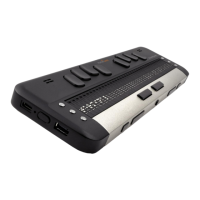
Brailliant 14 Menu
The Brailliant Menu is activated with a short press of the power button when using it in the terminal
mode.
While in the menu, use the joystick LEFT / RIGHT or PREVIOUS / NEXT thumb keys to navigate
the menu. The UP and DOWN joystick movements or LEFT and RIGHT thumb keys are used to
perform various actions depending on the type of menu. To enter the selected menu item, you need
to use joystick DOWN, ENTER (dot 8) or SPACE, yet another way to choose an item is to touch


 To Next Page
 Loading...