One hand mode
⠠⠕⠝⠑⠀⠓⠁⠝⠙⠀⠍⠕⠙⠑⠀
A toggle that enables or disables one hand mode for users restricted to the use of a single
hand. You will be notified if one hand mode is enabled when turning on your Brailliant. An
8-dot sign marks the item that is selected.
About ⡁
⠃⠕
⠥⠞
This option displays the device's firmware version and serial number. It includes an option for
starting the firmware upgrade process – please use with caution: any interruption during the
upgrade may render the device unusable until sent for service to an authorized workshop.
Application Mode
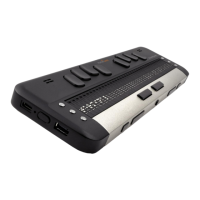
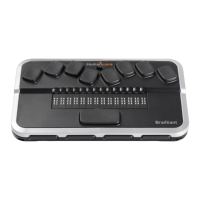
Brailliant 14, being a Braille terminal, can work autonomously when switched to application mode
(with the switch at rear of the unit). When in Application mode, there are some more menu items
available than in the already described terminal mode:
Watch This app simply shows time and date. When you enter the Watch app you will see system
time (that is synchronized with the phone via Brailliant Sync app – see the “Synchronization of the
Brailliant 14 data” section below). The NEXT thumb key scrolls the display to show the date
instead. Return to time display with PREVIOUS key.
Notes ⡝⠕⠞⠑⠎
This application keeps your notes. Notes may be downloaded and synchronized with a server, and
via the server with all your other devices (a PC, tablet, phone etc.).
After entering the Notes menu item you will see a list of folders – one per account, starting with
“local”. This “local” folder is stored on the device only and will not get synchronized. Other folders
are created when you first connect the device to the BrailliantSync application. In this app, you can
define your accounts and name the folders that will correspond to the accounts. See
“Synchronization of the Brailliant 14 data” section below.
In any folder (local or synchronized), you will find a list of notes that belong to the account that
corresponds to the folder. Typically, you will find there all notes that were stored in a given account.
In case there are no notes on this account, you will see “empty”.
To create a new note, use Space + N command.
To delete a note, press Space + D.
Browse the notes with the usual scrolling methods (joystick or thumb keys) and enter into a note
using the Space key or joystick down. When in the note, you may edit it using the following
shortcuts:


 To Next Page