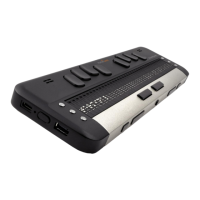
While editing a note, its text may be displayed on the Braille display in Computer Braille or
Literary Braille. Switching between the two may be done by pressing Space + G. Specific Braille
conversion rules table may be set in Settings.
While in a note, the cursor is represented by dots 7 and 8 in literary Braille mode and by dot 8 while
in Computer Braille mode.
Stop Watch ⡎⠞⠕⠏ ⡺⠁⠞⠉⠓
This application shows the time elapsed since a space key press. Space starts and stops the stop
watch. Accuracy of measurement is 0.1 s (one tenth of a second).
Use the Space + C to reset the stop watch.
Synchronizing Brailliant 14 Data
Brailliant 14 notes can be synchronized with your Google Mail account, etc. This makes it easy to
access your notes at any moment without all the hassle of accessing them through your smartphone
(for that you would need to switch both devices on, wait until they connect, and finally reach the
Notes app in your phone – in Brailliant 14, you just switch the device to application mode and
you’re ready to view your existing notes or write new ones).
For synchronization, you need to use the BrailliantSync app from the Apple AppStore (Google Play
Store app to be available soon).
When first used, you need to set up the connections in the BrailliantSync app:
1. Define your note accounts (for example Google account) by giving in email address, server
name, user name and password plus port number and your displayed name that will also be


 To Next Page