Drive Maintenance
If you are using one of the Administration and Monitoring
programs provided with your disk-array model, you can use it to
identify the defunct drive and designate a drive to replace the
defunct drive without restarting the server. Refer to the README
file on the Device Driver/Administration and Monitoring diskette
for instructions on your operating system.
Do the following steps to replace a faulty drive using the
ServeRAID configuration program:
1. Start the ServeRAID configuration program (see “Starting the
ServeRAID Configuration Program” on page 86).
If the drive failed while the system was powered down, a
message identifying the defunct drive appears the next time the
system is powered on.
2. Physically replace the drive or assign a hot-spare or other
appropriate drive as a replacement:
Attention: Removing the wrong hard disk drive can cause
loss of all data in the array.
3. If you are assigning a hot-spare or another appropriate drive to
replace the defunct drive, go to “Rebuilding a Logical Drive” on
page 115. If you are physically replacing the hard disk drive,
go to step 4.
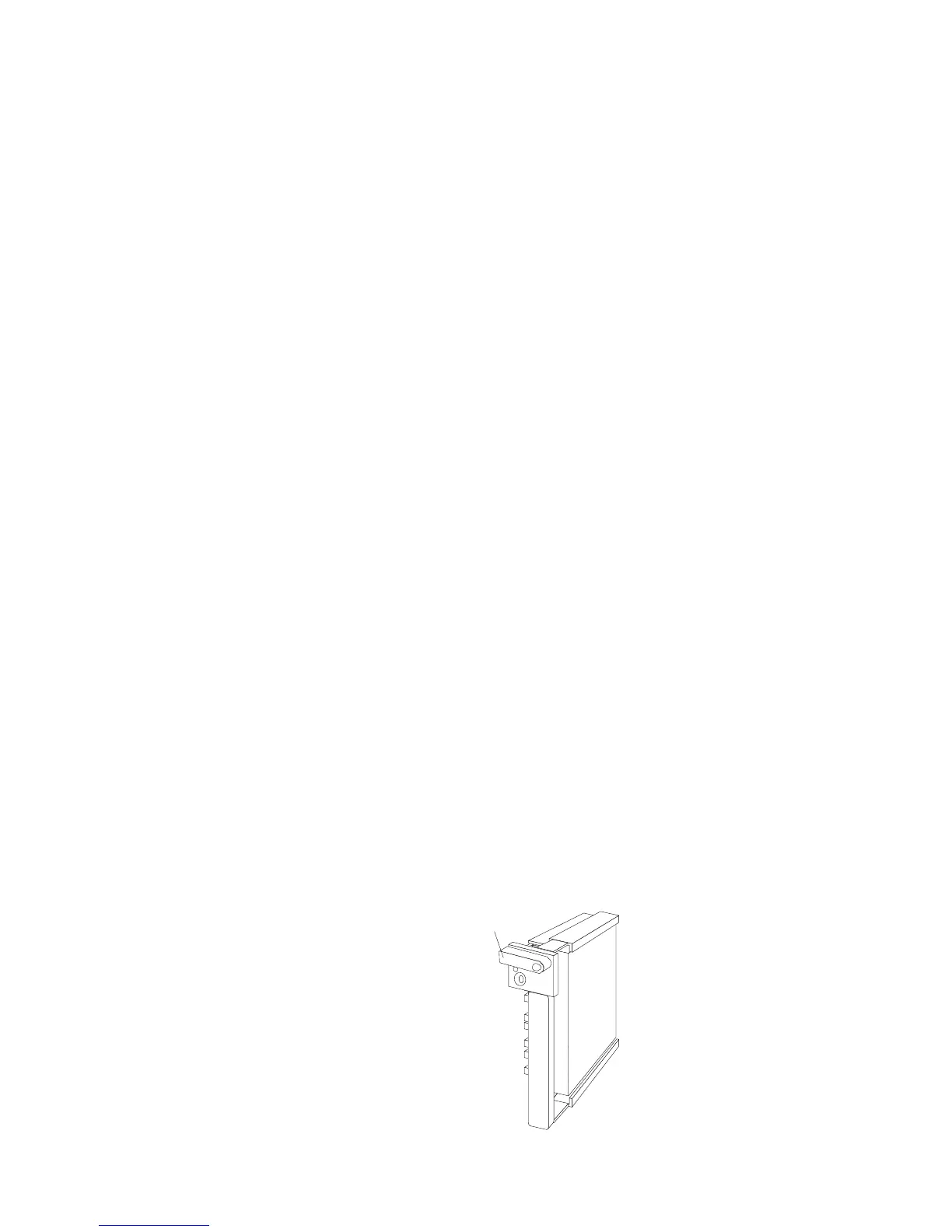
4. Press the power-off switch on the drive tray. When the green
LED begins to blink, it is safe to remove the drive.
5. Unlock the drive by turning the knob clockwise 90 degrees.
Unlocked
Position
Chapter 3. Configuring the Disk Array 113



 To Next Page