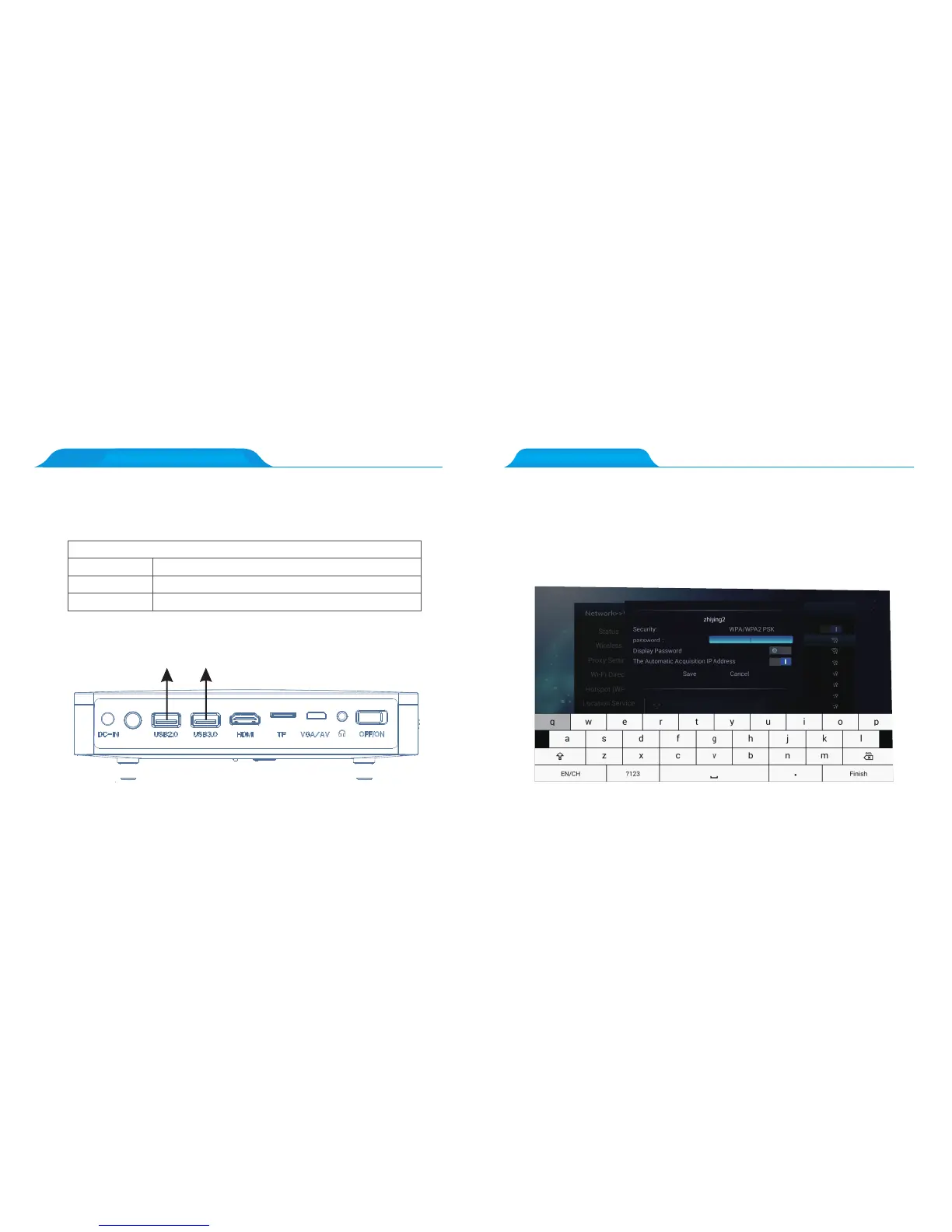
6.How to use the USB2.0/3.0 interface?
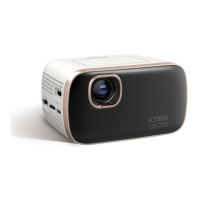
7.How to connect WiFi?
Connect your mouse and keyboard via the USB 2.0/3.0 ports. Read your audio, video,
and photos directly through USB. Install your favourite APK’s via USB.
Supporting Format
Picture Format
Audio Format
Video Format
MP3/WMA/MP2/OGG/AAC/M4A/DTS etc
JPG/JPEG/GIF/BMP/PNG etc
MP4/AVI/MOV/FLV/VOB/3GP/MPG/RMVB/WMV etc
Connect mouse/keyboard/USB stick
WiFi connection steps:
Please press the main interface on the remote controller until the main screen appears,
Please press “System Setting”, to find the “Wi-Fi Setting” and select wireless network you
wish to connect to from the list (please refer to the picture below). The virtual key-
board will be shown at the bottom of the screen, enter your Wi-Fi network password
and hit “OK”, your device should now be connected!


 To Next Page