– 5 –
Options (Continued)
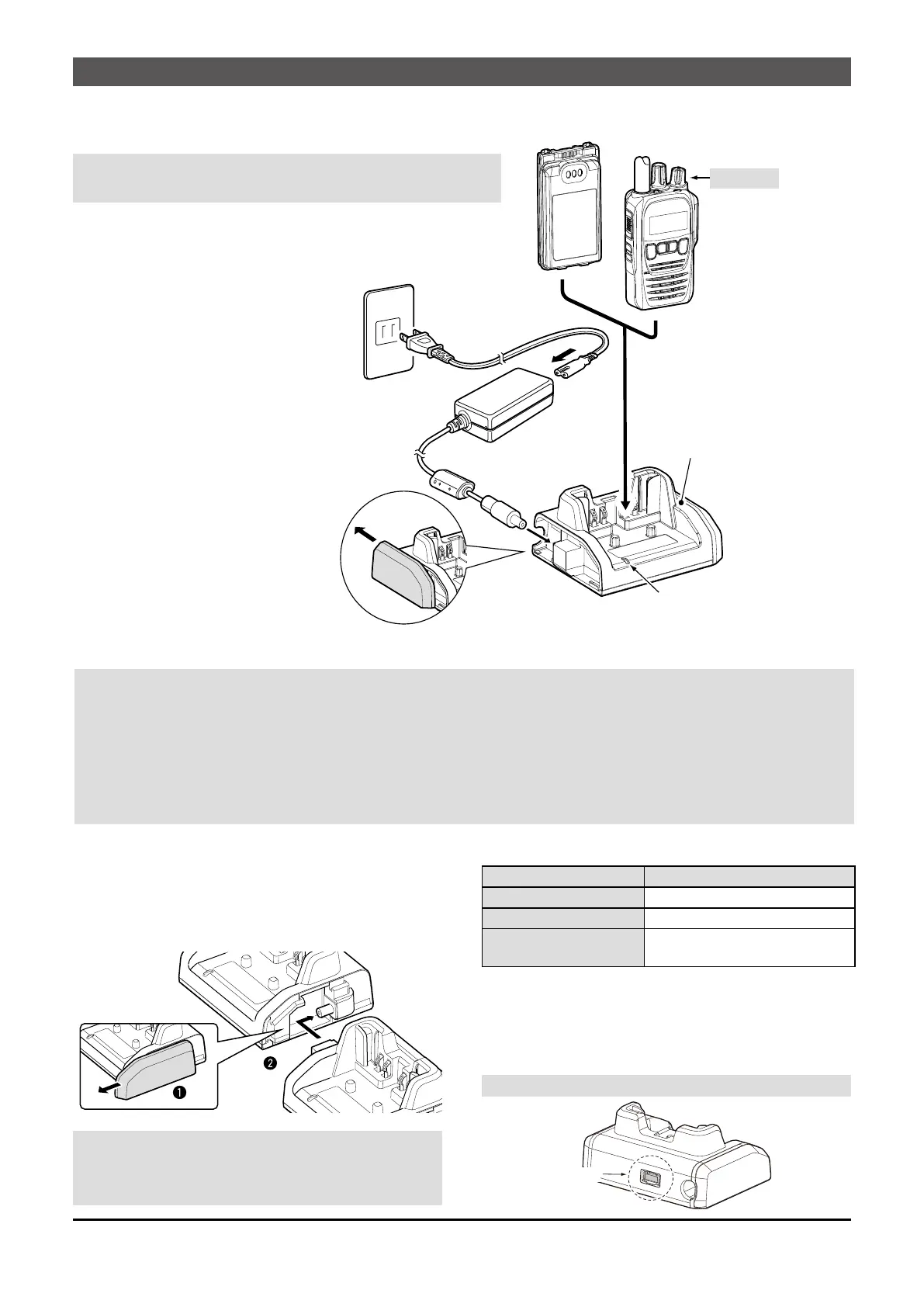
D BC-226 desktop charger
Chargingtime:approximately2.7hoursfortheBP-290
L To connect the power adapter
to the charger, remove the
charger’s left cover.
Turn OFF
BC-226
Power adapter*
(BC-228)
Battery pack
Connecting BC-226 together
You can connect up to 6 BC-226 together.
1. Remove the charger’s right cover. (q)
2. Snap the DC power plug to the another charger’s
DC power jack. (w)
WARNING: DO NOT connect more than 6 chargers
together. It may result in an electric shock, cause a
re,overheating,ordamagechargers.
Status indicator information
Light color Status
Orange Charging
Green Charging is completed.
Blinks orange and green Charging failed. It may have
some problems.
Fuse replacement
Ifafuseblows,ndandrepairthecauseofthe
problem. Then replace the damaged fuse with a new,
adequately rated fuse.
Fusetype:5A/58V(lowprolemini blade fuse)
NOTE:
• The transceiver MUST be turned OFF while charging. Otherwise:
- The battery will not be charged properly.
- The battery life may be shortened.
• Do not transmit while charging. When you need to transmit, remove the transceiver from the charger, and then
turn ON the power.
• If the battery pack does not properly charge when it is attached to the transceiver, remove it from the
transceiver and insert only the battery pack into the charger.
Status indicator
* May not be supplied, or the shape may be different, depending on the version.
CAUTION: Readthe‛Batterycaution’and‛Chargingcaution’
on the PRECAUTIONS before using the charger.
NOTE: Remove the fuse using the needle-nose pliers.
Fuse
Battery pack + Transceiver


 To Next Page