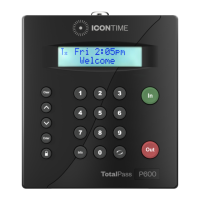
The TotalPass® P400 is a time clock device designed for employee time tracking and payroll management, offering various connectivity options and setup features.
Function Description:
The TotalPass P400 serves as a central hub for employees to clock in and out, recording their work hours. It integrates with payroll systems by providing data on employee attendance. The device supports multiple connection methods (Wi-Fi, Ethernet, USB) to facilitate data transfer and management. It also includes features for setting up pay periods, adding employees, and generating reports.
Important Technical Specifications:
- Model: TotalPass® P400
- Connectivity: Wi-Fi, Ethernet, USB
- Power: Requires a power supply (included)
- Mounting: Wall-mountable with included bracket and screws
- Security: Default security code for Supervisor Mode (00 00 00), password protection for login
- Display: Digital display for date/time setup, network status, and other prompts
- Keypad: Numeric keypad (0-9), Clear, Enter, Info, In, Out, and navigation keys (up/down arrows)
- Compatibility (USB): Windows PC (Vista or above); Mac users need to contact support for alternative options.
Usage Features:
- Easy Setup: The quick start guide outlines a straightforward process for unpacking, registering, mounting, and setting up the device.
- Date and Time Setting: Users can easily set the date and time through the device's keypad and display, with prompts guiding them through the process.
- Multiple Connection Options:
- Wi-Fi: Allows wireless connection to a network. Users can select their network from a list and enter a password using the keypad. The device displays its IP address for web browser access.
- Ethernet: Provides a wired network connection via an Ethernet cable to a router, modem, or switch. The device indicates a successful connection with green and amber link lights. It also provides an IP address for web browser access.
- USB: Connects directly to a Windows PC (Vista or above) via a USB cable. Requires downloading and installing USB Communication Drivers. Once connected, users can access the device via a web browser using a specific URL or IP address.
- Supervisor Mode: Accessible by pressing a dedicated key and entering a security code, this mode allows for configuration and management of the device.
- Web Browser Interface: After connecting the device to a network (Wi-Fi or Ethernet) or PC (USB), users can log into the time clock via a web browser using its IP address or a specific URL. This interface allows for setting a password, adding employees, and managing other settings.
- Employee Management: The device supports adding, editing, and terminating employees, with each employee assigned a default 4-digit Personal Identification Number (PIN).
- Pay Period Setup: Users can define pay period types (e.g., bi-weekly) and other related settings through the device's interface.
- Clocking In/Out: Employees use the "In" and "Out" buttons on the keypad to record their attendance.
- User Guide Access: A comprehensive User Guide can be downloaded from the manufacturer's website for detailed instructions on features and setup.
Maintenance Features:
- Software Updates: Product registration ensures users are notified about software updates, which can be crucial for maintaining optimal performance and security.
- Troubleshooting Support: The initial 30 days of free setup support include unlimited telephone and email support, remote login assistance, and troubleshooting.
- Extended Support Contracts: Icon Time offers extended support contracts that cover:
- Annual Hardware Maintenance (Time Clock Insurance)
- Annual Upgrade to the Latest Software Version
- Annual Software Maintenance
- Unlimited Telephone and Email Support
- Remote Login Assistance and Troubleshooting
- Self-Correction: During date and time setup, users can press the "Clear" button to go back and correct entries if a mistake is made.
- Network Connection Verification: For Ethernet connections, users can check the green and amber link lights to verify if the time clock is connected to the network. If lights are off, cable connections should be checked.
- Power Cycling: Disconnecting and reconnecting the power supply can power cycle the time clock, which is a common troubleshooting step for connectivity issues.

 Need help?
 General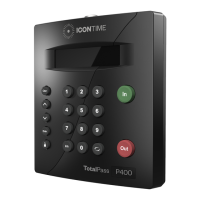

 To Next Page