Getting Started
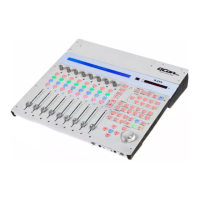
Connecting Your Qcon Pro Controller
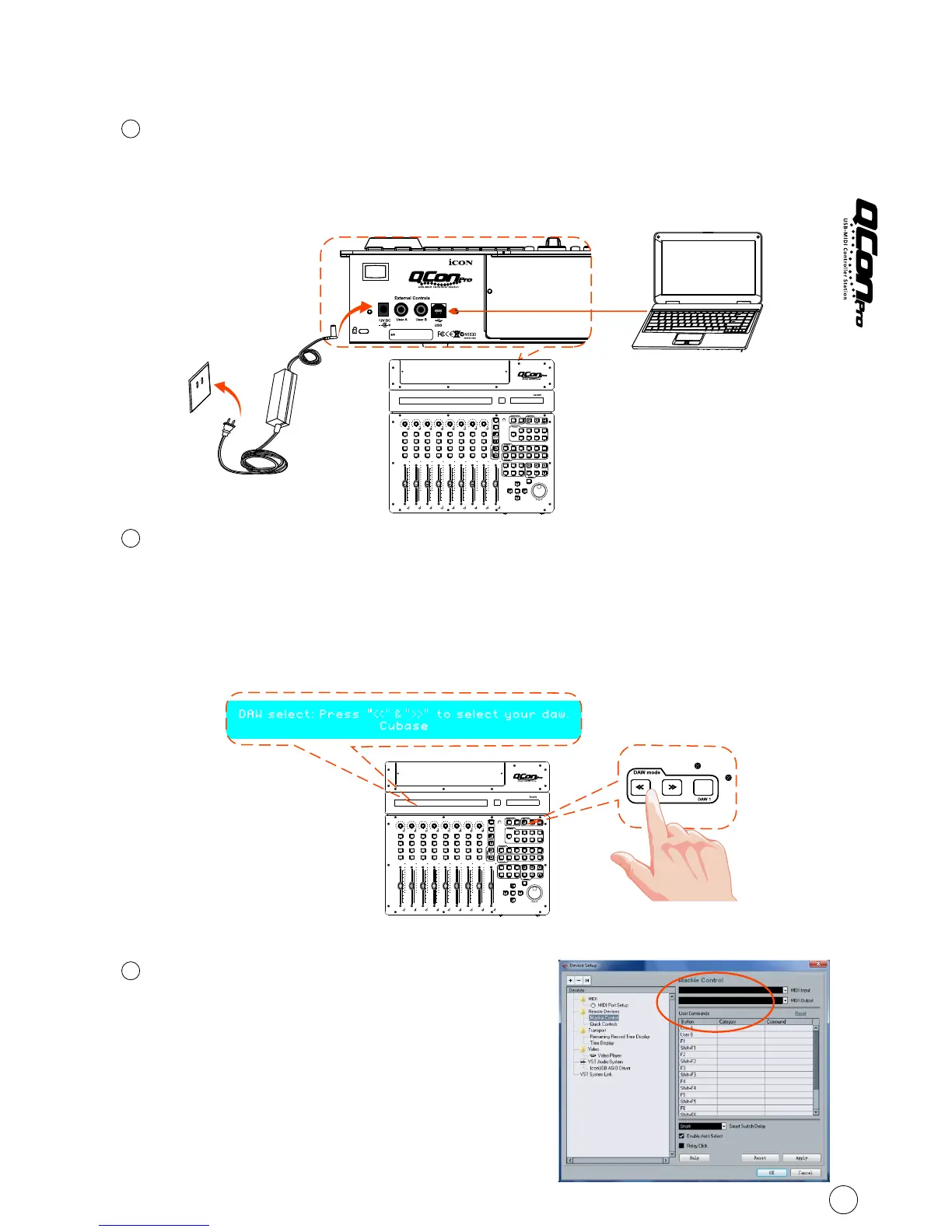
Connect the Qcon Pro to your Mac/PC via the USB port.
Choose a USB port on your Mac/PC and insert the wide (flat) end of the USB cable.
Connect the cable's other end to the Qcon Pro. Your Mac/PC should automatically
“detect” the new hardware and notify you that it is ready to use.
1
Select the DAW at
Press <</>> to scroll through the DAW list after pressed the “DAW” button to
make the selection.
Qcon Pro
Tips: Qcon Pro will memorise your last selected DAW mode and re-enter the same mode
a few seconds after it has been switched on. (i.e. DAW mode selection is not needed if
the last mode is being used.)
Setup your DAW
Activate the ICON Qcon Pro controller in your
DAW or MIDI software using “MIDI Setup” or
“MIDI Devices”.
iCON Qcon Pro Ver1.00
iCON Qcon Ver1.00Pro
2
3
8
TM TM TM
For Logic , Cubase and Nuendo , choose
Mackie Control at the “Device List”.
(Note: Every application does this a little different,
so refer to your software user manual for the settings.)
Computer(MAC or PC)
Esc
F1
F2
F3
F4
F5
F6
F7
F8
F9
F10
F11
F12
Prtsc
sysrq
pause
Break
Lns
Del
Home
Pgup
PgDN
End
$
~
`
!
1
··
2
3
4
5
6
7
78
9
0
)
)
*
—
-
+
=
#
¥
%
*
#
#
Q
W
E
R
T
Y
U
I
O
P
{
}
|
A
S
D
F
G
H
J
K
L
:
;
Z
X
C
V
B
N
M
<
>
?
Tab
CapsLook
Shift
Ctrl
Alt AltGr
Ctrl
Backspace
[
]
|
Enter
Shift
USB
Power Adaptor


 To Next Page