TM
iMap Qcon Pro software panel
“Firmware Upgrade” button
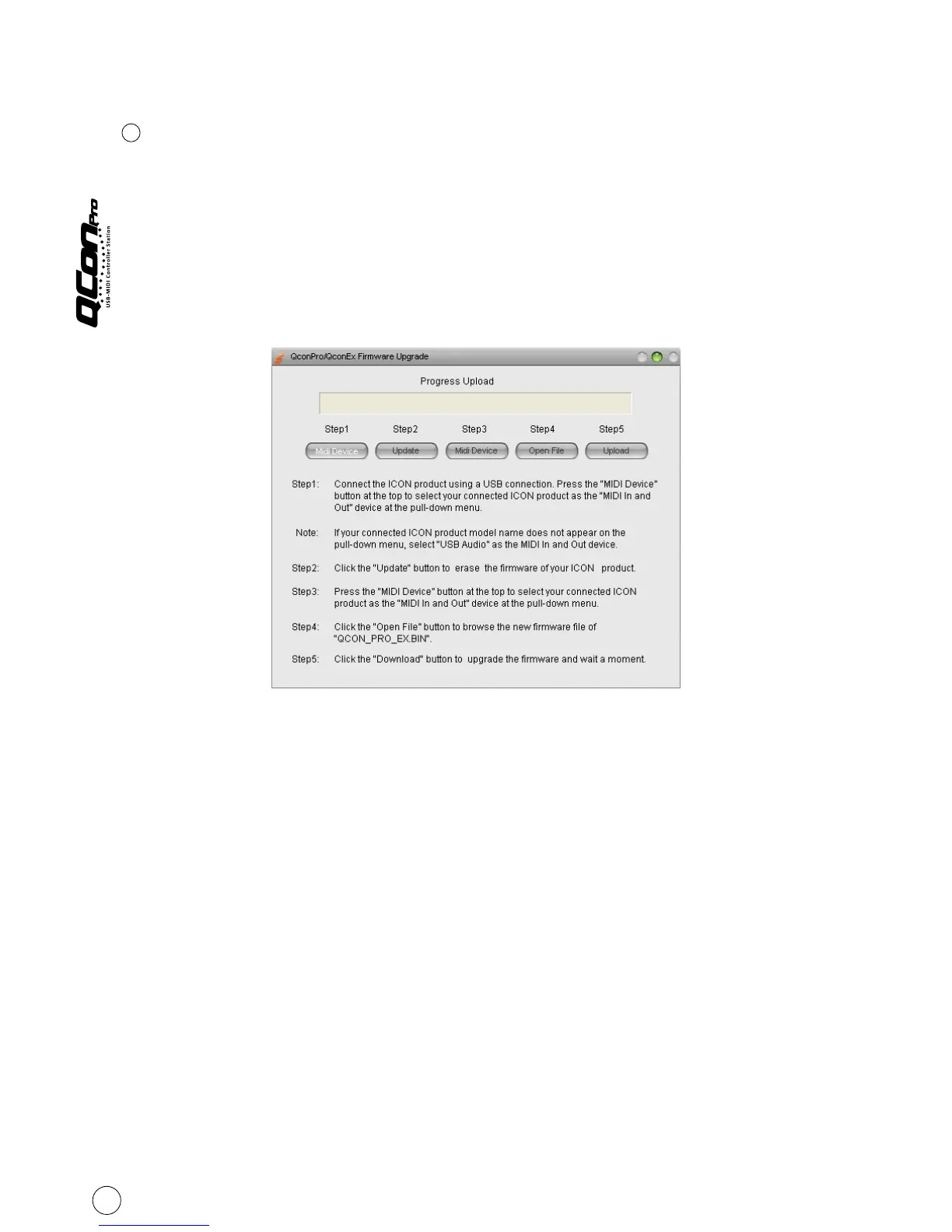
Click this button to enter into the firmware upgrade window for Qcon Pro.
Please refer to P.11 for the firmware upgrade procedure.
1
Step 3: Press the “MIDI Device” button at the top to select your connected
ICON product as the “MIDI In and Out” device at the pull-down menu.
Step 4: Click the “Open File” button to browse the new firmware file.
Step 5: Click the “Upload” button to upload the firmware.
Warning:The firmware upload process “MUST” be completed and not be interrupted
during the file uploading, otherwise the firmware may not be rewritten again.
Step 1: Connect the ICON product using a USB connection. Press the “MIDI
Device” button at the top to select your connected ICON product as the
“MIDI In and Out” device at the pull-down menu.
Note: If your connected ICON product model name does not appear on the
pull-down menu, select “USB Audio” as the MIDI In and Out device.
Step 2: Click the “Update” button.
Firmware upgrade
11


 To Next Page