4
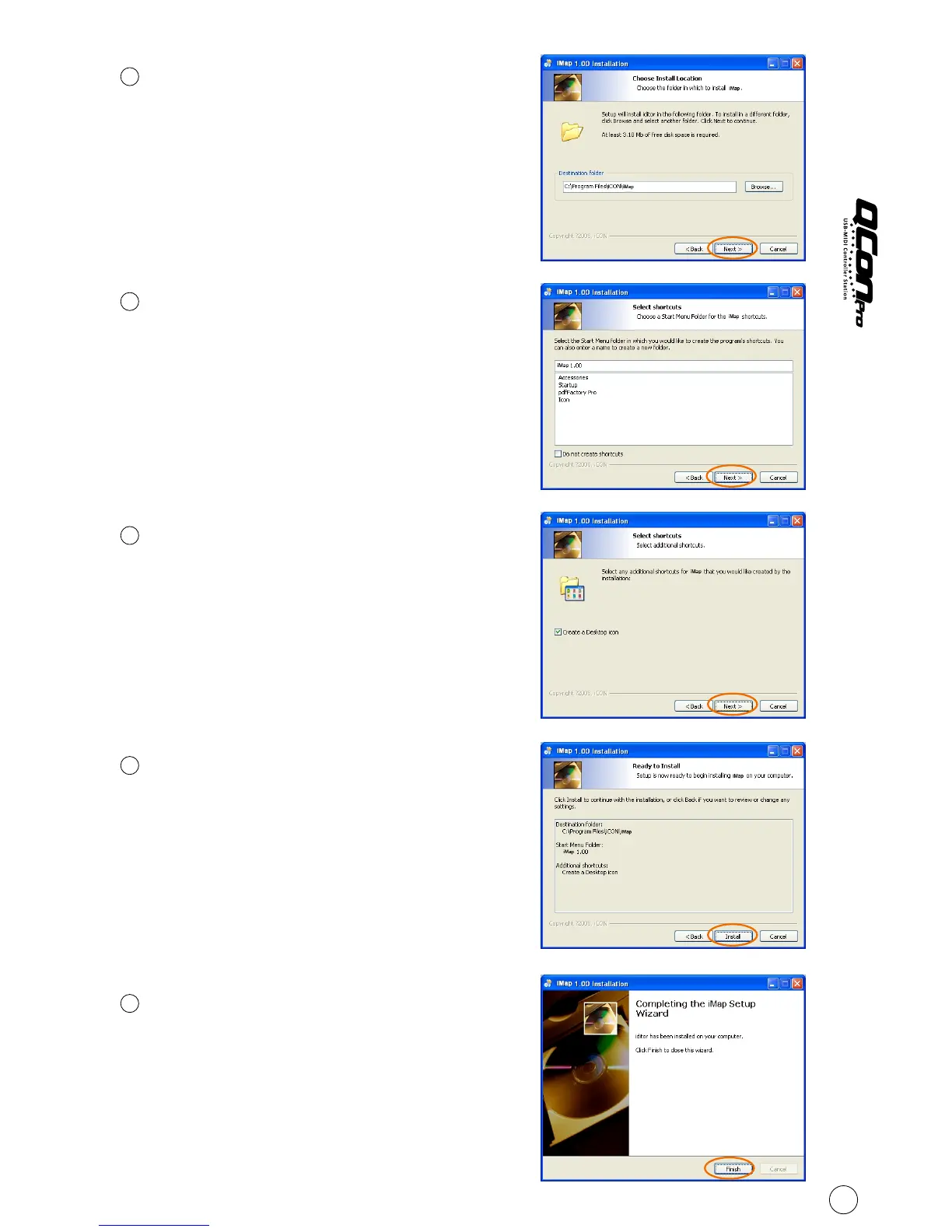
Choose Install Location
Choose your preferred install
TM
location for iMap or use the
default location and click "Next"
5
Select shortcut
Select the start menu folder in
which you would like to create
TM
the iMap shortcut. Then click
"Next"
Diagram 3
Diagram 4
6
Create a shortcut on your desktop
Please untick the box if you do
not want to place a shortcut icon
TM
on your desktop for iMap ,
otherwise click "Next"
7
TM
iMap started to install
TM
The iMap installation has now
started, wait for it to finish. Then
click "Finish"
8
Installation finished
Click "Finish" to complete the
TM
iMap software installation.
Diagram 5
Diagram 6
Diagram 7
10


 To Next Page