This document describes the iCS electric vehicle (EV) charger, providing essential information for its installation, setup, and maintenance.
Function Description
The iCS EV charger is designed to provide a reliable and efficient charging solution for electric vehicles. It supports various network configurations and smart charging features, making it suitable for a range of installation environments. The charger is equipped with self-monitoring and recovery capabilities to ensure continuous operation and safety. It can be configured for different server connections, network settings (Ethernet, Wi-Fi, 4G), and operational modes, including offline and online smart charging. The device also offers options for managing charging sessions via RFID cards or a physical button, and it integrates with iCS's OCPP software for advanced load management and network control.
Important Technical Specifications
Models:
- ICSW7C: 230V AC single-phase (LIVE, NEUTRAL, EARTH), Maximum 32A current.
- ICSW22C: 400V AC three-phase (L1, L2, L3, NEUTRAL, EARTH), Maximum 32A current.
General Specifications:
- Frequency: 50-60 Hz
- Internal RCD: AC 30mA, DC 6mA
- Data Protocol: OCPP 1.6J
- Charging Connector: IEC62196 Type-2 socket
- Buttons: 1 x Physical Button
- RFID: ISO 14443 A/B
- Display: 2.8" LCD
- Network Connectivity: Ethernet, WLAN, Cellular
- Working Temperature: -30°C to 50°C
- Storage Temperature: -40°C to 70°C
- Working Humidity: 5% - 95% without condensation
- Dimension (HxWxD): 380 x 288 x 141 mm
- Backplate Material: 316 Stainless Steel
- Weight: ICSW7C: 5.3Kg, ICSW22C: 5.4Kg
- IP Rating: IP55
- Certifications: EN 61851-1:2020, EN61851-21-2, EN 61000-3
PME Earth Fault Monitoring:
The charger complies with BS7671:2018 (including amendment 1:2020) wiring regulations. For TN-C-S (PME) systems, it features an open protective earthed-neutral (PEN) detection device, potentially eliminating the need for a dedicated earth rod. In case of a fault, charging is stopped, and the car is isolated from the supply.
Self-Monitoring and Recovery:
The charger automatically resets after minor faults such as Over Voltage Protection (OVP), Under Voltage Protection (UVP), Over Temperature Protection (OTP), or Over Current Protection (OCP). Internal RCD or PME faults can be configured for manual or automatic resetting.
OCPP 1.6J Full Profiles & Smart Charging Support:
Supports OCPP 1.6J full profiles, including smart charging for managing charging station loads with limited power supply. iCS offers its own OCPP software for comprehensive management.
Usage Features
Installation Overview:
The installation process involves seven steps:
- Check the box contents.
- Wall mounting and wiring.
- Install the charger.
- Verify the installation.
- Quick Setup (Server).
- Quick Setup (Network).
- Further configuration.
Safety Instructions:
- Warnings: Do not install or use near flammable, explosive, harsh, or combustible materials. Turn off input power at the circuit breaker before installation or maintenance. Stop use if defective or damaged. Do not attempt to open, disassemble, repair, tamper with, or modify the charger. Do not touch the charger socket with metallic objects or put fingers into it. Do not use if the EV charging cable or enclosure is frayed, broken, or damaged.
- Cautions: Installation must be performed by a qualified technician, adhering to local building codes and safety standards. Incorrect installation may damage the vehicle's battery or the charger, voiding the warranty. Operate within -30°C to +50°C. Ensure the EV charging cable is positioned correctly. Do not use cleaning solvents on components.
Wall Mounting & Wiring:
- Remove the backplate by unscrewing the security screw and sliding the charger upwards. Mount the backplate to the wall using provided fixings.
- Connect power cables through the bottom junction box. If required, connect an Ethernet cable to the WAN port. Secure cables with the clip; no additional glands are needed.
- Electrical Connection Notes: Four connection variants exist based on three-phase use and TN/IT network type (shown on backplate label). Terminals should not be overtightened; recommended torque is 1.2Nm.
Charger Installation:
- Slot the charger onto the backplate, ensuring it is flush with the plastic casing.
- Secure the charger with the security screw.
- If using a SIM card, remove the bottom cover (by pressing the highlighted button), insert the SIM card into the slot on the right, and replace the cover. Ensure the unit is powered down when inserting the SIM card.
Installation Verification:
- Verify power cables are wired correctly.
- Close the upstream RCD to power on the charger. LED lights should sequentially illuminate. If a red light or flashing red occurs, refer to troubleshooting.
Quick Setup (Server):
- Access Configurator: Connect a device (phone, tablet, laptop) to the charger's Wi-Fi network (ICS-2.4GHz-*******) using the default password "ics654321" (found on the unit's sticker).
- Open the web-based setup page by entering IP address
192.168.10.1:8080. Enter username "install" and password "icspass21".
- Click the 'Basic' tab.
- Offline Mode: Select 'Offline' from the dropdown if smart functionality is not needed. For smart features, keep it 'Online'.
- Pre-set Server: Select the server (ICS2.0 Lite, ICS2.0, or third-party OCPP). The OCPP Identity should match the charger's serial number.
Quick Setup (Network):
- Navigate to the 'Network' tab.
- Ethernet Setup: If an Ethernet cable is plugged in, the charger uses DHCP and connects automatically.
- Wi-Fi Setup: Set 'Internet Access' to 'enabled'. Press 'scan' for 'Wi-Fi SSID' and select the network. Type the 'Wi-Fi Password'.
- 4G Setup: If a SIM card is inserted, enable 4G and fill in details from the SIM card operator. For ICS2.0, this information is pre-populated.
- After changes, press the green 'submit' button and then the red 'reboot' button.
Further Configuration (Basic Tab):
- Offline: Controls smart functionality. 'Offline' disables smart features.
- Pre-set Server: Selects the server (ICS2.0 Lite, ICS2.0, or third-party OCPP).
- OCPP Server Domain/Port/URL: Pre-populated when using 'Preset Server'. For third-party OCPP, information is provided by them.
- OCPP Server Identity: Charger's serial number for iCS2.0/Lite. For third-party OCPP, provided by them.
- Security Profile: Pre-populated for 'Preset Server'. For third-party OCPP, provided by them.
- Reference URL: Non-editable field showing the reference OCPP URL.
Further Configuration (Network Tab):
- Block LAN visit Internet: 'Allowed' enables internet access via ICS-2.4Ghz Wi-Fi.
- Disable Rebind Protection: Change only on iCS Technical advice.
- Switcher Mode: Set to 'router' (not used on this model).
- DHCP: 'Enabled' by default. Disable for static IP.
- Internet Access: 'Enabled' to connect to Wi-Fi.
- Wi-Fi SSID: Enter customer's Wi-Fi SSID or scan.
- Encryption: Select Wi-Fi network encryption type. Set to 'no encryption' if no password.
- Wi-Fi Password: Enter customer's Wi-Fi password.
- AP SSID Prefix: Change the charger's hotspot network SSID prefix.
- AP Password: Change the charger's Wi-Fi password.
- 4G: Pre-populated for 4G pre-set server with iCS SIM. For third-party SIM, get APN details from provider and use dial code *99#.
- VPN: Set to 'disabled' unless instructed by iCS Technical team.
Further Configuration (Software Tab):
- Auto Upload FTP URL: Blank unless advised by iCS.
- Time Source: Set to 'NTP + Heartbeat' unless advised.
- Time Zone: Match charger's installation location.
- QRO: Web address displayed by the QR code.
- Station Code 0: Do not change unless advised by iCS.
- KEY1: Tick boxes to disable RFID and enable charging via physical button.
- Software Switcher:
- Default LCD Display RFID: Untick for 'connect the charging plug' screen.
- RFID Big Endian: Keep ticked unless advised by iCS.
- Enable Programming for Offline RFID: Tick to add new RFID cards by pressing and holding the button while swiping a card.
- Manual reset required when PE/RCD fault detected: Tick to keep charger in fault state until reset. Untick to clear fault automatically.
- Using Wifi AP as QR: Tick to use QR code for Wi-Fi access. Untick if connected to iCS2.0.
Further Configuration (AC Setting Tab):
- Connector0 Limit(A): Maximum charging current (e.g., 32A). Limit to match site requirements.
- Stop Current(A): Keep at 0 unless advised by iCS.
Further Configuration (LCD Tab):
- Idle Brightness: Screen brightness when idle (0-5).
- Active Brightness: Screen brightness when active (0-5).
- Charging Brightness: Screen brightness when charging (0-5).
Further Configuration (LED Tab):
- Control LED light status (Idle, Charging, Fault, Suspend, Reserved, Unavailable) by setting Type (Fade, Flash, Solid), Speed (0-4), and Color.
Further Configuration (Balance Tab):
- Mode: Set to N/A unless using a load management hub (instructions will specify mode).
LCD Screen Explanations:
The manual provides visual explanations for various LCD screens, including:
- Start charging via RFID or QR.
- Connect the charging plug.
- Charging in progress (showing time, kWh, voltage, current).
- Suspended by EV.
- Suspended by EVSE.
- Remove the charging plug.
- Network Upgrade Mode.
- TF Upgrade Mode.
- Software update error.
- Factory Reset.
- Invalid Authorization (identifier blocked).
- Service not available.
- Automatic Upgrade Mode.
- Software downloading.
- RFID Card Activated.
- Reserved mode.
Explanation of Symbols:
The manual includes a legend for various symbols displayed on the charger, such as:
- Meter active/inactive/error.
- RF card active/inactive/error.
- Server online/offline/error.
- Wi-Fi active/inactive/error.
- Ethernet active/inactive/error.
- 4G active/inactive/error.
Maintenance Features
Maintenance and Repair:
- Regularly inspect charger components for damage. Contact iCS if damage is found.
- The charger contains no user-serviceable components. Contact iCS if the unit is not operating correctly.
- Wipe the outside of the charger regularly with a clean, slightly damp cloth to remove dust and dirt.
- Regularly conduct a visual inspection of the unit.
Troubleshooting:
- Status light isn't blue after powering on:
- Ensure AC power input is connected correctly.
- Turn off and on the charger using the circuit breaker.
- Contact iCS technical support if the problem persists.
- Status light does not flash when charger is connected to EV:
- Unplug and fully reconnect the charging plug to the EV receptacle.
- Inspect the cable and plug for damage.
- Inspect the EV and its receptacle for damage.
- Contact iCS technical support if the problem persists.
- Status indicator flashes red while charging:
- Temporary error. Wait for it to return to normal.
- If it doesn't return to green, turn off and on the charger using the circuit breaker.
- Contact iCS technical support if the problem persists.
- Status indicator is solid red:
- Critical error. Unplug the EV immediately.
- Turn off and on the charger.
- Contact iCS technical support if the problem persists.
- For technical assistance, email info@intelligentchargingsystems.co.uk.
- iCS has a YouTube channel with setup guides and product information.
- iCS2.0: Market-leading software for intelligent control and management of EV networks. Features a multi-level web portal with customizable options and access levels for bespoke charging strategies. Offers pay-for-use charging via QR code or the Charge Assist app. Scan the QR code for more information.

 Need help?
 General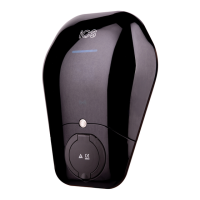

 To Next Page
