Part 2 - Conguration
71
Main Monitor
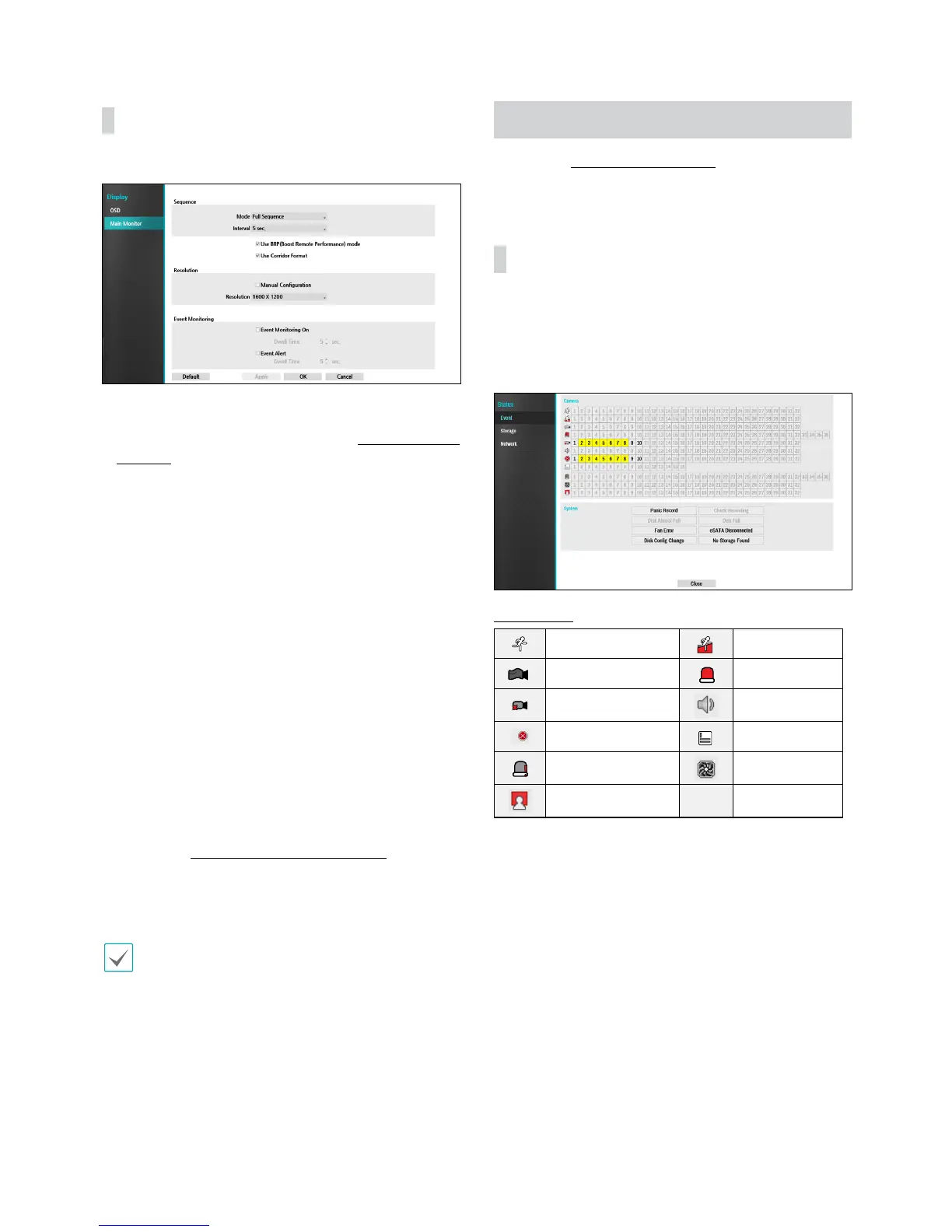
Congure monitor-related settings.
● Mode: Select Full Sequence or Cameo Sequence.
● Interval: Select between 3 secs and 2 mins. For more
information on Sequence, refer to the 8 Sequence on
page 22.
● Use BRP(Boost Remote Performance) mode : With
BRP mode on, the camera full screen does not display
in live mode and the network bandwidth can limit to
100Mbps.
● Use Corridor Format: Divides the screen into 3 panes.
This format displays vertically and is set to display
the optimized video of the camera when using the
camera’s pivot feature. This is particularly eective
when monitoring hallwways, passages, and other
conned spaces. (
The 32-channel model does not support
this feature.)
● Manual Conguration: Set the resolution manually
regardless of the resolution supported by the monitor.
● Resolution: Select 1920 x 1200, 1920 x 1080, 1680 x
1050, 1600 x 1200.
● Event Monitoring On: With Event Monitoring
enabled, the camera screen linking event monitoring
is shown. For more information on Event Monitoring,
refer to the Event Monitoring on page 24.
● Event Alert: With Event Alert selected, the red line
appears on the top of the camera screen linking event
monitoring when an event occurs.
• Supported resolutions may be restricted depending
on the monitor.
• We recommend that you use 1920 x 1080
resolution.
Status Setup
Refer to the Menu Use on page 28 for basic
information on using the Setup menus.
Event
This screen displays an overview of all events.
When an event occurs, the corresponding channel
ashes for 5 seconds.
Event Types
Motion Trip Zone
Tampering Alarm-In
Video Loss Audio Detection
Recording Fail Text-In
Check Alarm-In Fan Error
Face Detection


 To Next Page