10
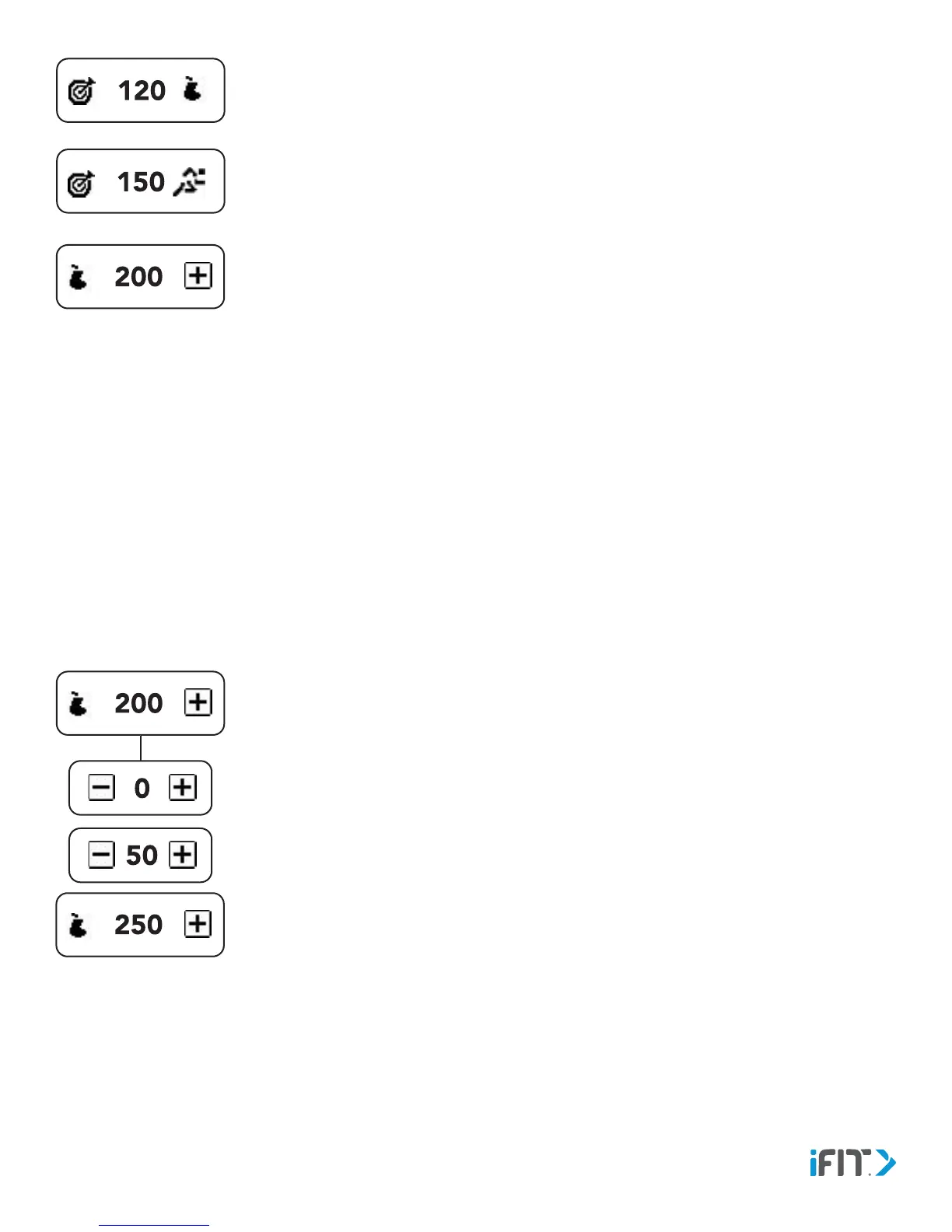
Target Calories Goal—This screen displays the status of your target calories goal. If you can eat
more calories and still meet your goal, a pear icon and the number of calories that remain to be
eaten will appear. If you need to burn more calories, a runner icon and the number of calories
that remain to be burned will appear.
Calories In—This screen displays the approximate number of calories you have eaten. To enter
calories, see ENTER CALORIES on this page.
Detect Activity
The activity tracker will detect automatically the type of activity you are performing, such as walking, running, sleeping, and so
forth. Allow a few seconds for the activity tracker to detect the type of activity you are performing.
The activity tracker will automatically enter the workout mode after it detects 5 minutes of vigorous activity. It will automatically
exit the workout mode after it detects 3 minutes of inactivity. You can also exit the workout mode manually by tapping the
stop icon on the screen.
To manually start and end a workout, see START AND END A WORKOUT MANUALLY on page 11.
Enter Calories
To enter calories you have eaten, follow the steps below.
1. Navigate to the Calories In screen, and then tap the plus icon.
2. Enter the number of calories you have eaten into the activity tracker in increments of 50.
Tap the plus or minus icons to increase or decrease the number of calories.
3. To save your entry, do not touch the screen for 3 seconds.


 To Next Page