5
5. After the tracker pod is paired, it may need to be updated. If an update notification appears in the iFit Coach app, follow
the instructions below:
• Select the update option in the iFit Coach app. Place the tracker pod near your device during the update; it may take
more than 5 minutes for the tracker pod to update. If the update is successful, a success notification will appear in the
iFit Coach app. If the update fails, a failure notification will appear in the iFit Coach app. If the update does not finish
after more than 10 minutes or if the update fails, force close the iFit Coach app on your device, re-open the iFit
Coach app, and try to update the tracker pod again.
• When the update is finished, manually sync the tracker pod to the iFit Coach app by pulling the screen on your device.
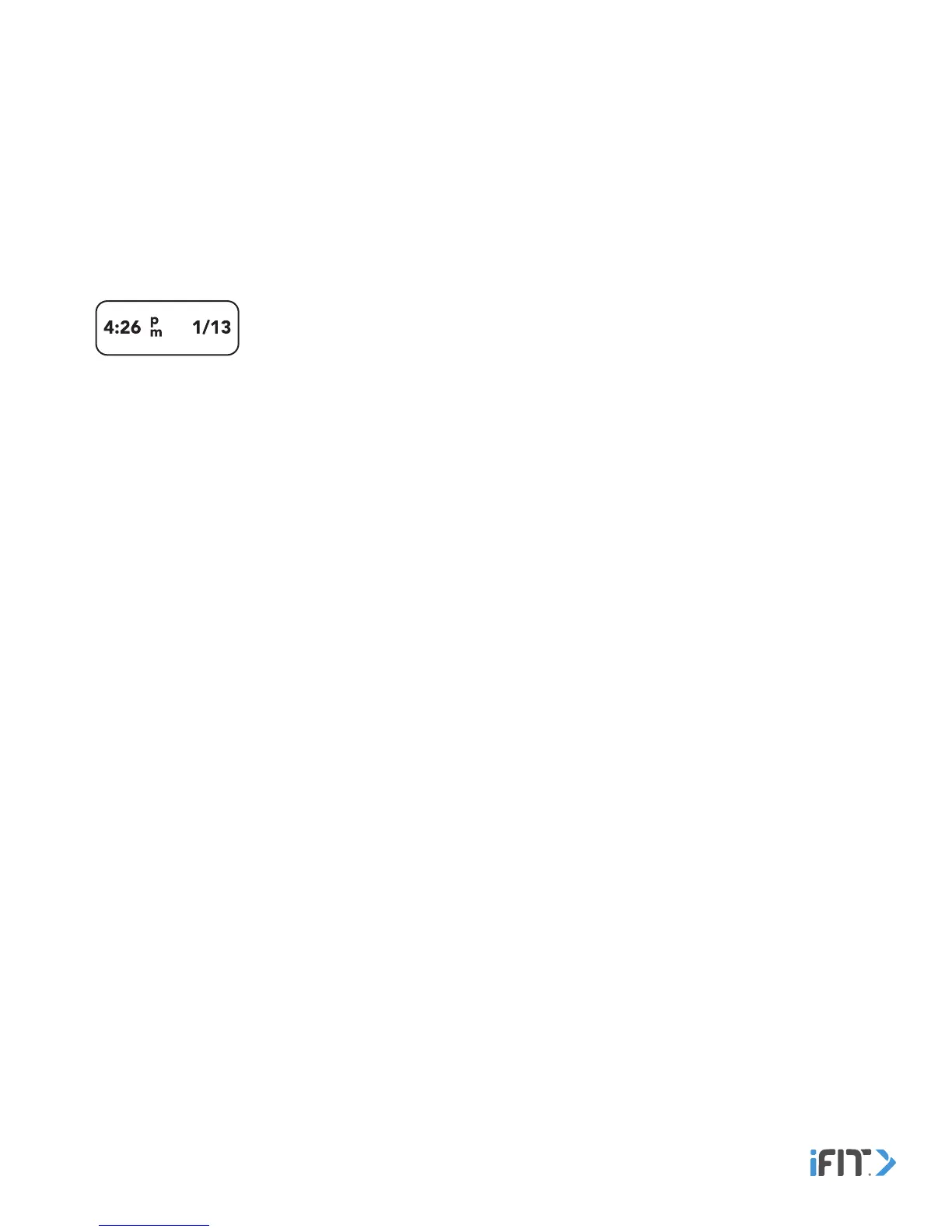
Then, repeat steps 2–4 and pair the tracker pod to your device. If the pairing is successful, the Time and Date screen
will appear.
After the tracker pod is paired, it will sync automatically whenever the iFit Coach app is open and the BLUETOOTH option is
enabled on your device. You can also sync the tracker pod manually in the iFit Coach app.
Follow the instructions in the iFit Coach app to customize settings for the tracker pod, enter and track information, and
set goals.


 To Next Page