C. More Than Two Room Stations
Reset all the units, then connect the power supply of the main unit and the extension unit which you
need to setup as No.2, then make a call from door a door station. The room numbers will be setup
automatically after ringing. After that, connect the power supply of the extension unit which you need
to setup as No.3 then make a call from a door station. The room numbers will be setup automatically
after ringing. Do the same operation for No.4 extension unit.
Note: The unit will automatically exit the mode if no operation within 10secs.
Note: When the room station is in busy mode, it cannot operate room number setup and reset function.
A. Single Room Station
When one of the room stations is in talk or monitor mode, the other will be in busy mode. After you
have completed talking or monitoring, all the units will go back to standby mode.
12.1 Automatically Setup Room Number
Reset the unit, then make a call from door station. The room number will be automatically setup after
ringing.
B. Two Room Stations
Reset the units, then make a call from door station. The room numbers will be setup automatically after
ringing.
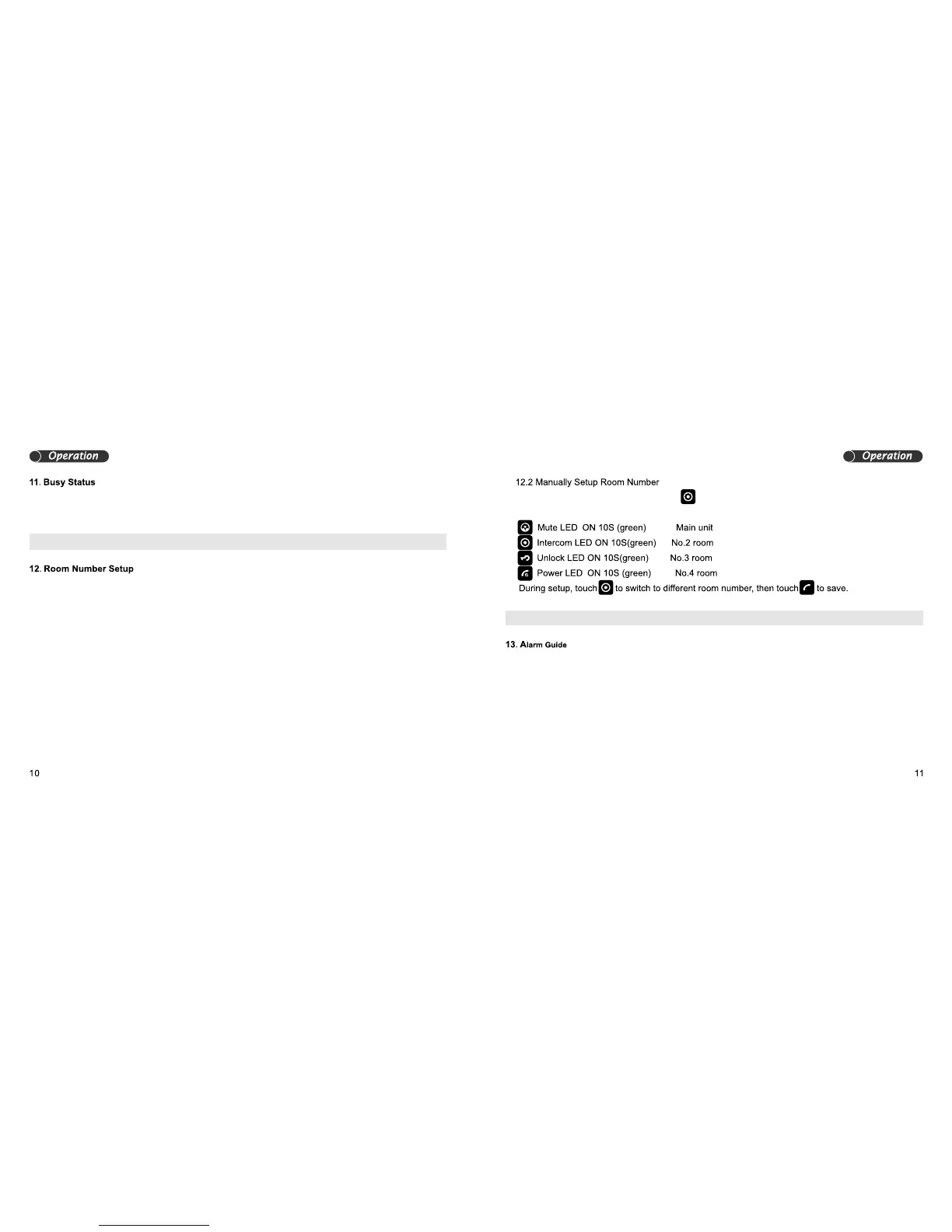
When in standby mode, touch and hold for 3secs, untill the unit sounds “DI DI”.
The following LED indicates for different room numbers:
13.1 Room Number Coniction Alarm
When the system has more than two room stations with the same room number, the unit will sound
“DI” at intervals. You will need to reset the room number again. If the alarm is still present after this,
you will need to restart the power supply.


 To Next Page