ShortCam LiteUser Guide
(1)Functional areas
[Snapshot]Click the client software button , you can snap a picture of the current
inspection of the motherboard, retaining the maintenance data for future maintenance
reference use, you can use the shortcut key C, the captured photos are saved in C:\ShortCam
Lite\Record by default.
[Quick Check] Click on the client software button , the image is automatically switched
to white hot mode, and the screen will be the highest temperature location display highlights
yellow, quickly locate the location of the motherboard heat, you can also manually adjust the
temperature width, screening out the area of the highest temperature.
[Enlargement] Client software button, and then long press the left mouse button to
frame the infrared real-time screen, you can realize the local zoom observation of the heating
components to meet the maintenance details processing.
[Image Effect] Drag the temperature width bar to display the image effect corresponding to
the temperature width range as desired.
(2)Imaging area of PCB to be diagnosed
The PCB motherboard to be repaired will be powered on and placed in the center of the image
(if there is a screen cover to remove the screen cover), you can view the image of the PCB
board to be diagnosed in this area, if the screen has more than one high-temperature area, you
can pull the vertical temperature width bar on the left side of the area to screen out the area
with the highest temperature.
(3)Palette area
There are three color palettes to choose from in the palette area, and you can select White Hot,
Iron Red, and Rainbow palette modes according to your usage habits.
(4)Help, system setting, language setting
【Help】
Click this button to read the help of common problems of device use, such as how to deal
with the device not connected, how to connect WIFI to use, etc. If you have any other
technical advice, you can contact the after-sales customer service hotline to deal with it.
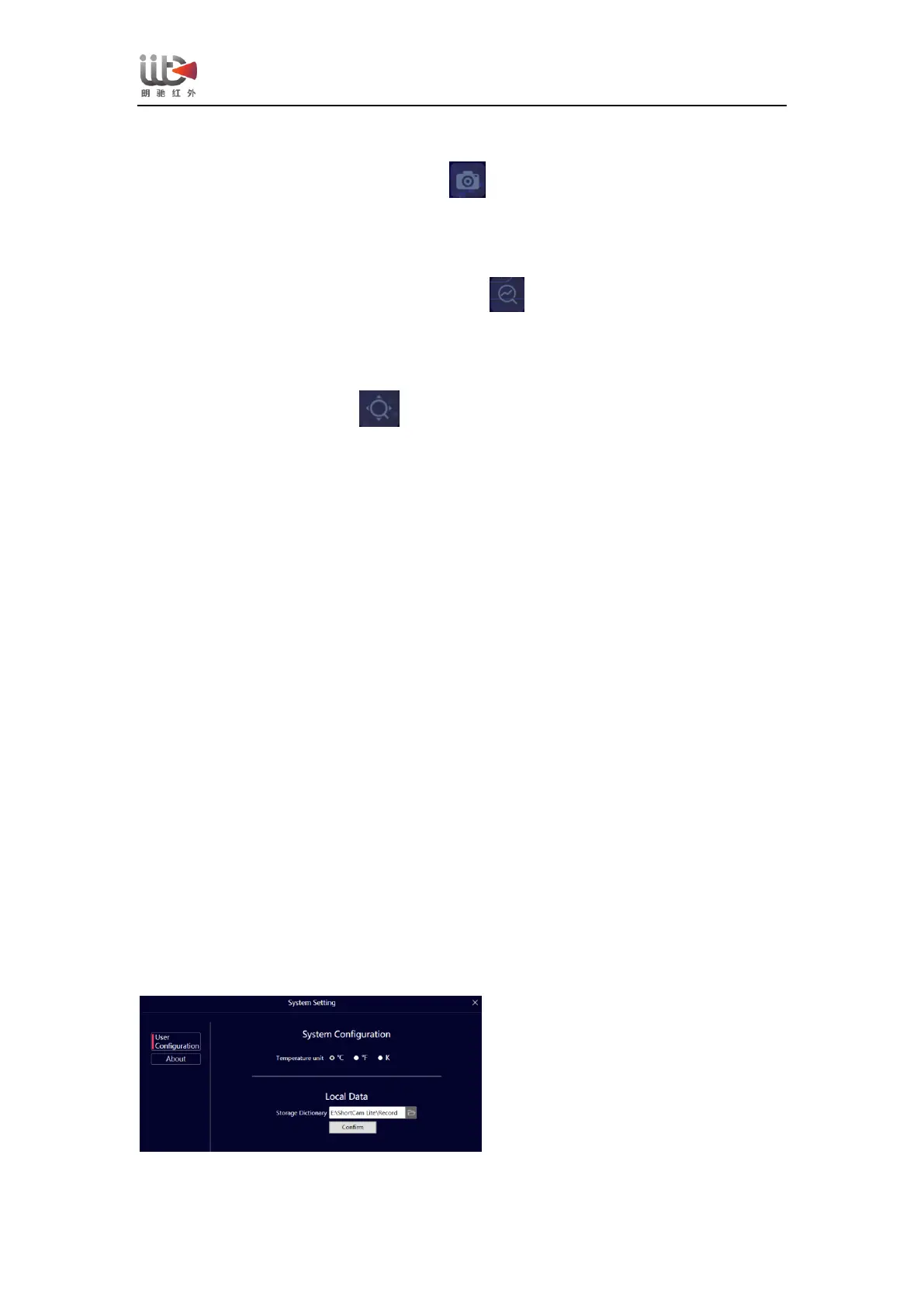
【system setting】


 To Next Page