
 Need help?
Do you have a question about the Iiyama ProLite T2252MSC and is the answer not in the manual?
General safety warnings to prevent hazards like electric shock and damage.
Guidelines for safe monitor installation, handling, and environmental considerations.
Advice on setting up the monitor for comfortable and healthy viewing.
Explains typical LCD screen characteristics that are not defects.
Contact information and procedures for iiyama customer support and service.
Safe methods for cleaning the monitor cabinet and LCD screen.
Highlights the monitor's technical features, connectivity, and compliance standards.
Guide to confirm all necessary cables and accessories are present in the package.
Instructions for safely installing and removing the monitor's base or stand.
Visual guide and explanation of the monitor's front and back controls and input/output connectors.
Procedure for connecting the monitor to your computer using various cables.
Explains OS support for touch features and how to adjust the monitor's viewing angle.
How to access and use the On-Screen Display (OSD) menu for adjustments.
Explanation of the Auto Image Adjust feature for automatic picture optimization.
Fine-tuning picture quality through contrast, brightness, and other visual settings.
How to select input signals and configure audio settings for the monitor.
Adjusting color balance and viewing technical information about the monitor.
Step-by-step guide for manual image adjustments like position, clock, and phase.
Customizing monitor settings such as language, OSD behavior, and startup logo.
How to activate and deactivate OSD and power switch lock functions.
Steps to optimize image position, minimize flicker, and blur for analog input.
Detailed manual adjustment of image position and clock settings for optimal display.
Performing final adjustments for phase, brightness, and color for desired picture quality.
Details on how the power management feature reduces consumption when the computer is idle.
Step-by-step solutions for common monitor operational problems.
Troubleshooting steps for problems concerning sound output and audio cables.
Information on how to recycle the used monitor responsibly.
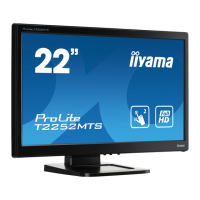
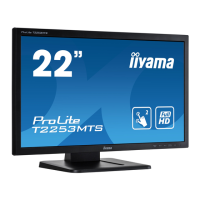
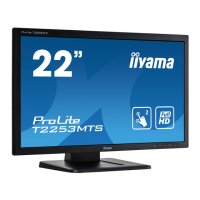
Comprehensive technical specifications including dimensions, resolution, and power requirements.
Visual representation of monitor dimensions and tables of compliant video timings.
 General
| Pixel pitch | 0.248 x 0.248 mm |
|---|---|
| Aspect ratio | 16:9 |
| Screen shape | Flat |
| Display diagonal | 21.5 \ |
| Touch technology | Multi-touch |
| Separate H/V sync | Yes |
| Display brightness | 250 cd/m² |
| Display technology | LED |
| Vertical scan range | 55 - 76 Hz |
| Horizontal scan range | 24 - 83 kHz |
| Touchscreen technology | Projected capacitive system |
| Contrast ratio (dynamic) | 5000000:1 |
| Display number of colors | 16.78 million colors |
| Display diagonal (metric) | 54.6 cm |
| Supported graphics resolutions | 640 x 480 (VGA), 800 x 600 (SVGA), 1024 x 768 (XGA), 1280 x 1024 (SXGA), 1440 x 900 (WXGA+), 1680 x 1050 (WSXGA+), 1920 x 1080 (HD 1080) |
| Certification | CE, TÜV-Bauart, cULus, CU, EPEAT Silver |
| Product color | Black |
| Display viewable area (HxV) | 268.11 x 476.64 mm |
| Dimensions (W x D x H) with stand | 490.5 x 220.5 x 370.5 mm |
| Cables included | AC, Audio (3.5mm), HDMI, USB |
| Tilt angle range | -3 - 73 ° |
| Number of OSD languages | 10 |
| Panel mounting interface | 100 x 100 mm |
| On Screen Display (OSD) languages | CHI (SIMPL), CHI (TR), CZE, DEU, DUT, ENG, FRE, ITA, JPN, POL, RUS |
| AC input voltage | 100-240 V |
| Power supply type | AC |
| AC input frequency | 50 - 60 Hz |
| Energy efficiency scale | A to G |
| Power consumption (max) | 26 W |
| Power consumption (typical) | 18.1 W |
| Storage temperature (T-T) | -20 - 60 °C |
| Operating temperature (T-T) | 5 - 35 °C |
| Storage relative humidity (H-H) | 5 - 85 % |
| Operating relative humidity (H-H) | 10 - 80 % |
| OmniTapps Multitouch compatibility | No |
| Windows operating systems supported | Windows 10 Education, Windows 10 Education x64, Windows 10 Enterprise, Windows 10 Enterprise x64, Windows 10 Home, Windows 10 Home x64, Windows 10 Pro, Windows 10 Pro x64, Windows 7 Enterprise, Windows 7 Enterprise x64, Windows 7 Home Basic, Windows 7 Home Basic x64, Windows 7 Home Premium, Windows 7 Home Premium x64, Windows 7 Professional, Windows 7 Professional x64, Windows 7 Starter, Windows 7 Starter x64, Windows 7 Ultimate, Windows 7 Ultimate x64, Windows 8, Windows 8 Enterprise, Windows 8 Enterprise x64, Windows 8 Pro, Windows 8 Pro x64, Windows 8 x64, Windows 8.1, Windows 8.1 Enterprise, Windows 8.1 Enterprise x64, Windows 8.1 Pro, Windows 8.1 Pro x64, Windows 8.1 x64, Windows Vista Business, Windows Vista Business x64, Windows Vista Enterprise, Windows Vista Enterprise x64, Windows Vista Home Basic, Windows Vista Home Basic x64, Windows Vista Home Premium, Windows Vista Home Premium x64, Windows Vista Ultimate, Windows Vista Ultimate x64 |
| RMS rated power | 4 W |
| Number of speakers | 2 |
| Harmonized System (HS) code | 85285210 |
 Weight and Dimensions
| Depth (with stand) | 220.5 mm |
|---|---|
| Width (with stand) | 490.5 mm |
| Height (with stand) | 370.5 mm |
| Weight (with stand) | 4800 g |
| Depth (without stand) | 48 mm |
| Height (without stand) | 296 mm |



 To Next Page