13
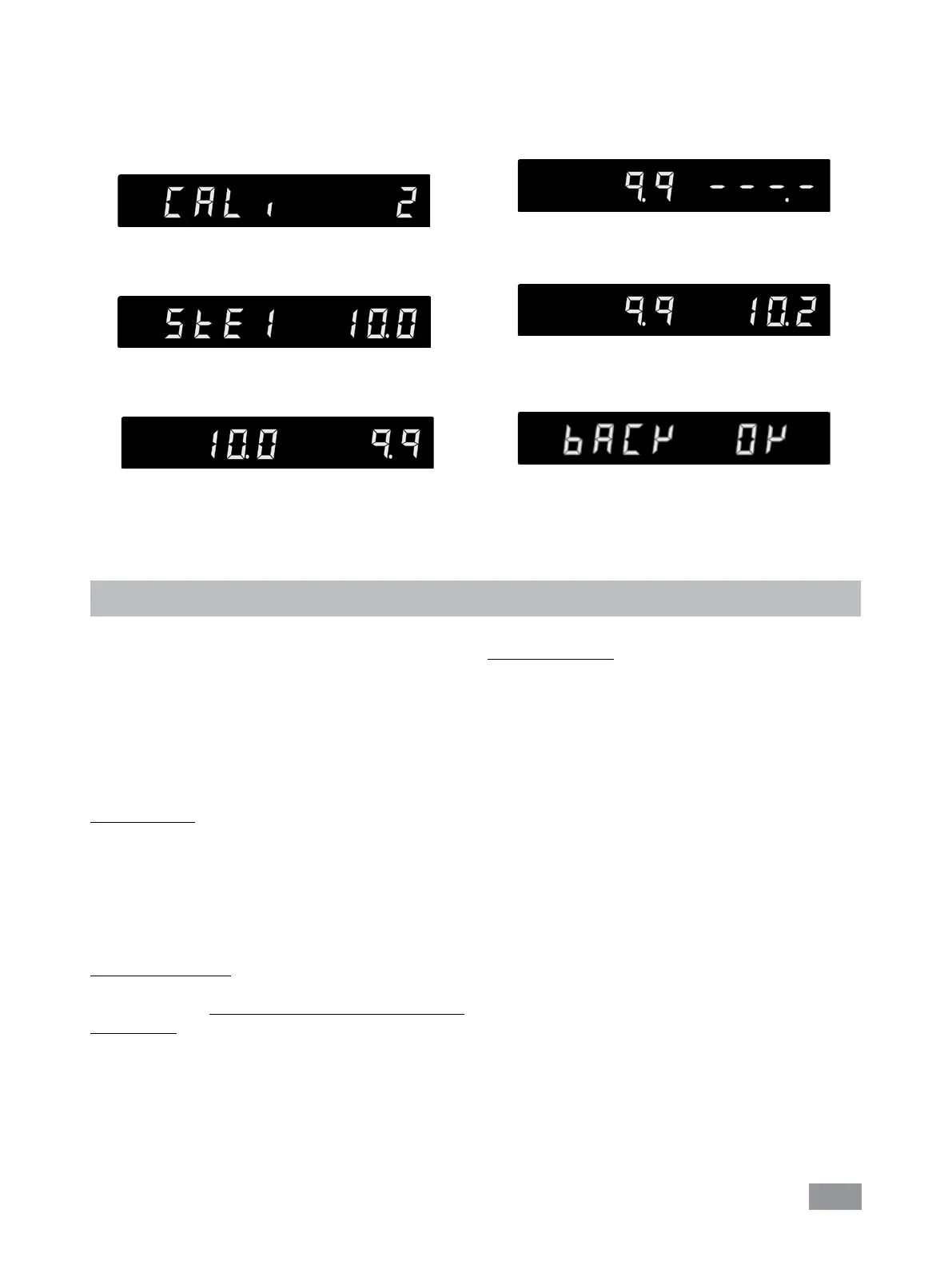
Set the rst point temperature (step 1, e.g. 10 °C) with
“Pump (+)” button (F) or “Pump (-)” button (G). Con-
rm the setting by pressing “OK/Pump“ button (E).
Left area of the display appears the set value (10 °C) and
the right area of the display appears the actual tempera-
ture value measured. The “Set” LED (O) flashes briefly.
The unit now starts and controls to the set value. When
the temperature has reached the set value and has be-
come constant, the “Set” LED (O) no longer flashes and
the following display appears. The temperature mea-
sured by the unit appears on the left hand side.
Input the calibration value from the reference measuring
instrument (e.g. 10.2 °C) with “Pump (+)” button (F) or
“Pump (-)” button (G).
Conrm the value by pressing the “OK/Pump“ button (E).
Back to previous screen for input a new value by press-
ing “Temp” button (B).
Back OK
The rst point calibration is nished now.
Calibration of the other points is performed in the same
way.
Example: 2-point calibration:
Dip the temperature sensor of the reference measuring
instrument into the bath fluid.
Select 2-point calibration in the menu. Press the “OK/
Pump“ button (E) to start the 2-point calibration.
Interface and output
The device can be operated in “Remote” mode via the RS
232 interface (10, see
Fig. 1
) or the USB interface (11, see
Fig. 1
) connected to a PC and with the laboratory soft-
ware Labworldsoft
®
.
Note: Please comply with the system requirements to-
gether with the operating instructions and help section
included with the software.
USB interface:
The Universal Serial Bus (USB) is a serial bus for connect-
ing the device to the PC. Equipped with USB devices can
be connected to a PC during operation (hot plugging).
Connected devices and their properties are automatically
recognized. The USB interface can also be used to update
rmware.
USB device drivers:
First, download the latest driver for IKA
®
devices with USB
interface from http://www.ika.com/ika/lws/download/
usb-driver.zip and install the driver by running the setup
le. Then connect the IKA
®
device through the USB data
cable to the PC.
The data communication is via a virtual COM port. Con-
guration, command syntax and commands of the virtual
COM ports are as described in RS 232 interface.
RS 232 interface:
Conguration
- The functions of the interface connections between the
stirrer machine and the automation system are chosen
from the signals specied in EIA standard RS 232 in ac-
cordance with DIN 66 020 Part 1.
-
For the electrical characteristics of the interface and the
allocation of signal status, standard RS 232 applies in ac-
cordance with DIN 66 259 Part 1.
- Transmission procedure: asynchronous character trans-
mission in start-stop mode.
- Type of transmission: full duplex.
-
Character format: character representation in accordance
with data format in DIN 66 022 for start-stop mode. 1
start bit; 7 character bits; 1 parity bit (even); 1 stop bit.
- Transmission speed: 9600 bit/s.
- Data ow control: none
- Access procedure: data transfer from the stirrer machine to
the computer takes place only at the computer’s request.


 To Next Page