Troubleshooting
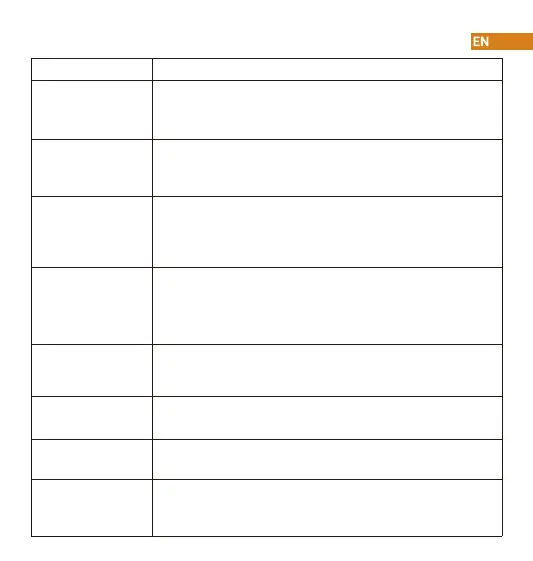
Problem Solution
Cannot set up camera
• Ensure your mobile device and the camera are within range of your Wi-Fi
router.
• Ensure the LED indicator on the camera isashing green before beginning
setup.
The APP says "Failed to
congure device network"
• Reset your Camera and connect it again.
• Some cameras only support 2.4GHz, while some routers have dual band,
2.4G/5G. Make sure you are connecting 2.4GHz only.
The app says “Failed to
bind”
The camera is already connected to Wi-Fi, but the router is:
• Not connected to Internet
• Poor network status
• The Wi-Fi signal is not stable due to obstacles or electronic interference
No picture / signal
• Ensure the LED indicator on the camera is ashing steady green. See ‘LED
Status’ section for details if otherwise.
• Ensure the camera is properly connected to power using the included USB
power adapter.
• Try repositioning the camera, router, or both to improve signal strength.
Picture is not clear
• Check the camera lens for dirt, dust, spider webs. Clean the lens with a soft,
clean cloth.
• Remove the vinyl cover on the camera lens.
No audio
• Ensure audio function on camera is turned on.
• Ensure audio is turned up on viewing device.
Human detection not
working
• Ensure you have enabled “Human Detection” in the Device Settings screen
of the Imou LifeApp.
Phone is not reading
QR code
• Clean the camera lens of your Smartphone
• Ensure that there is enough light on the QR code
• Don’t hold the QR code too close to the camera


 To Next Page