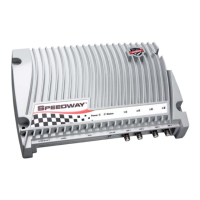
Operation of the Speedway reader
Proceed to the Operation screen by selecting its menu
navigation button.
Monitoring Inventory Results
•
The Start/Stop toggle button controls singulation of tags
within the range of the reader.
•
The Clear button clears the results of the
inventory operation.
•
As tags are read, their EPC numbers appear in the primary
window of the Operation screen. If the Read TID button has
also been enabled, the logo of the tag silicon manufacturer
corresponding to the TID will also be displayed.
•
Active tags being read are displayed in white elds and fade
to blue after not being seen by the reader within the last
~10 seconds.
•
The results displayed also include Read Rate (expressed as
tags/sec), Running time (in hh:mm:ss from last Start), Total
Tags (total number of tags read), and Total Active Tags
(number of tags in reader’s eld of view).
Operation with Filters
The Inventory Filter and Tag Access pages allow the selection
of tags according to user-specied criteria. To access the
Inventory Filter, Tag Access, or Settings menus, any currently
executing Operation must be stopped.
•
If the Halt Filter has been activated in Tag Access, **Halt
Filter** will appear at the top of the Operation screen. For
more information, consult the Speedway User Guide.
•
If the Inventory Filter has been activated, **Inventory
Filter** will appear in the Operation screen. For more
information, consult the Speedway User Guide.
•
Auto Continue directs the reader to continue singulation
after a halt condition has been met. Otherwise, if the Halt
Filter has been set, the reader will stop reading and return
control to the user, resuming operation only when the
Continue button is selected.
•
The Act Once button directs the reader to execute the action
indicated in the Tag Access action setting only one time.
If the operation is successful, the reader will continue the
inventory or halt operation, depending on the status of the
Auto Continue setting.
•
Note that if the Act Once setting is not enabled and the
action indicated is a write, the reader will write the tag over
and over in a continuous loop.
•
If both Act Once and Auto Continue are enabled, the
reader will write the tag once and then continue the
inventory operation.
Notices
The information contained in this guide is proprietary to Impinj, Inc. This document is conditionally issued, and neither receipt nor possession hereof confers or transfers any right
in, or license to, use the subject matter of any drawings, design, or technical information contained herein, nor any right to reproduce or disclose any part of the contents hereof,
without the prior written consent of Impinj and the authorized recipient hereof.
Impinj reserves the right to change its products and services at any time without notice. Impinj assumes no responsibility for customer product design or for infringement of patents
and/or the rights of third parties, which may result from assistance provided by Impinj. No representation of warranty is given and no liability is assumed by Impinj with respect to
accuracy or use of such information.
Impinj products are not designed for use in life support appliances, devices, or systems where malfunction can reasonably be expected to result in personal injury, death, property
damage, or environmental damage.
Apple, Bonjour and the Bonjour icon are registered trademarks or trademarks of Apple, Inc. Java and Java Runtime Environment are registered trademarks or trademarks of Sun
Microsystems, Inc. in the United States and other countries. Microsoft, Windows, and Internet Explorer are either registered trademarks or trademarks of the Microsoft Corporation in
the United States and/or other countries. Mozilla and Firefox are registered trademarks or trademarks of the Mozilla Foundation.
Copyright © 2008, Impinj, Inc. All rights reserved.
Problem
The reader’s default
page does not load.
Java applet does not
load after selecting
“RFID” and region
of interest.
Tags/sec rate varies
when conguration
settings are changed.
Other issues
Customer Support
Solution
Most likely the reader operating system is still
booting or TCP/IP connectivity has been lost. If
more than 50 seconds have elapsed since power
was applied, disconnect and reconnect power.
Verify that the PC’s web browser has Java
Runtime Environment (JRE) of version 1.4.2 or
later. The latest version of JRE may be installed
from: http://java.com/en/download/manual.jsp
This operation is normal. Some transmit
frequencies will be better than others (no
interference or less noise). Read rates will vary
depending on test conditions.
See the detailed troubleshooting information
located in the Speedway User Guide.
866-IMPINJ-0 (866-467-4650)
http://rd-support.impinj.com
3 Octane Firmware Release 3.0, Document Version 1.0 01-08
Part Number: 50395.030-407
SPEEDWAY IPJ-R1000 QUICKSTART GUIDE
(Continued)
Impinj, Inc. 701 N. 34th Street, Suite 300 Seattle, WA 98103 www.impinj.com
The Impinj Speedway reader is certied for conformance and interoperability
according to worldwide UHF Gen 2 RFID standards established by EPCglobal.
IPJ-R1000 QUICKSTART GUIDE
Troubleshooting

 To Next Page
 Need help?
 General