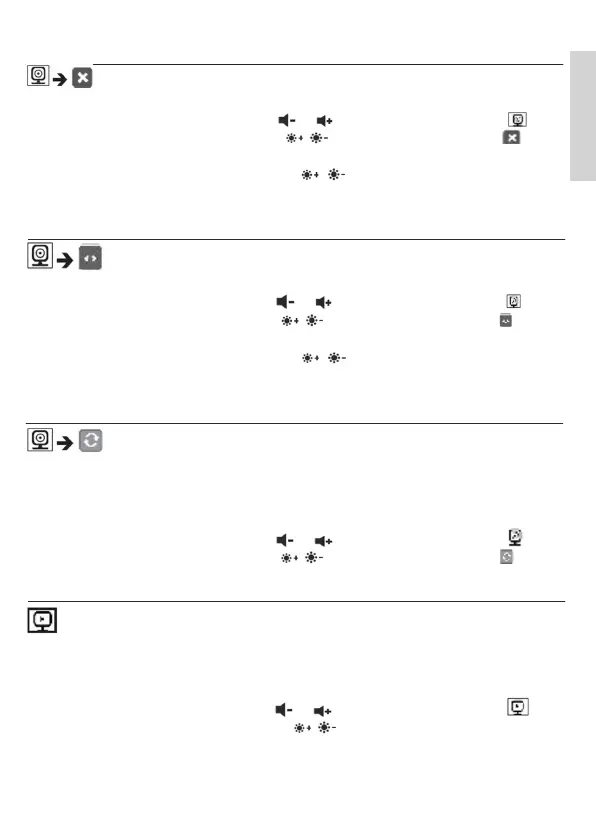
Delete camera
If you wish to delete the connection to a camera, proceed as follows:
• Use the left/right direction arrows (
/ ) to select the menu item .
• Use the up/down direction arrows (
/ ) to select the menu item .
• Confirm using the ( OK ) button. 1, 2, 3, 4 appears on the screen.
•
Use the up/down direction arrows ( / ) to select the number of
the camera that you wish to delete.
• Confirm using the ( OK ) button.
View camera
If you wish to select the transmission image from a camera, proceed as follows:
• Use the left/right direction arrows (
/ ) to select the menu item .
• Use the up/down direction arrows (
/ ) to select the menu item .
• Confirm using the ( OK ) button. 1, 2, 3, 4 appears on the screen.
• Use the up/down direction arrows (
/ ) to select the number of the
camera that you wish to view.
• Confirm using the ( OK ) button.
Alternating camera image
If you have multiple cameras registered, the “Alternating camera image”
function is available. When this function is activated, the transmission images from
the registered cameras appear on the screen in the form of a loop that changes
every 12 seconds. To activate this function, proceed as follows:
• Use the left/right direction arrows (
/ ) to select the menu item .
• Use the up/down direction arrows (
/ ) to select the menu item .
• Confirm using the ( OK ) button.
Energy-saving mode
The parent unit has an energy-saving mode. When you activate the
energy-saving mode, the screen switches off automatically after 5, 15 or 60
minutes, as you choose.
• Use the left/right direction arrows (
/ ) to select the menu item .
• Use the up/down direction arrows (
/ ) to select the time period after
which the screen should switch off automatically (5 mins, 15 mins or 60 mins).
• Confirm using the ( OK ) button.
9
English


 To Next Page
 Loading...