2
4. Bluetooth HID and SPP modes
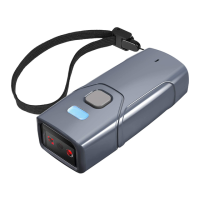
BCST-50 has Bluetooth capability that supports data transmission under two modes
including HID and SPP. When under HID mode, the BCST-50 connects your phone
or computer automatically after pairing successfully. You can open a text editor
programon your computer or phone to receive barcode information then. When
under SPP mode, the BCST-50 can only finish connecting your computer or phone
with the help of serial debugging tools after successful pairing. In that case, You
should first open a serial debugging tool on your computer or phone, and use it
to receive the barcode data. HID is the default mode, however, you can switch the
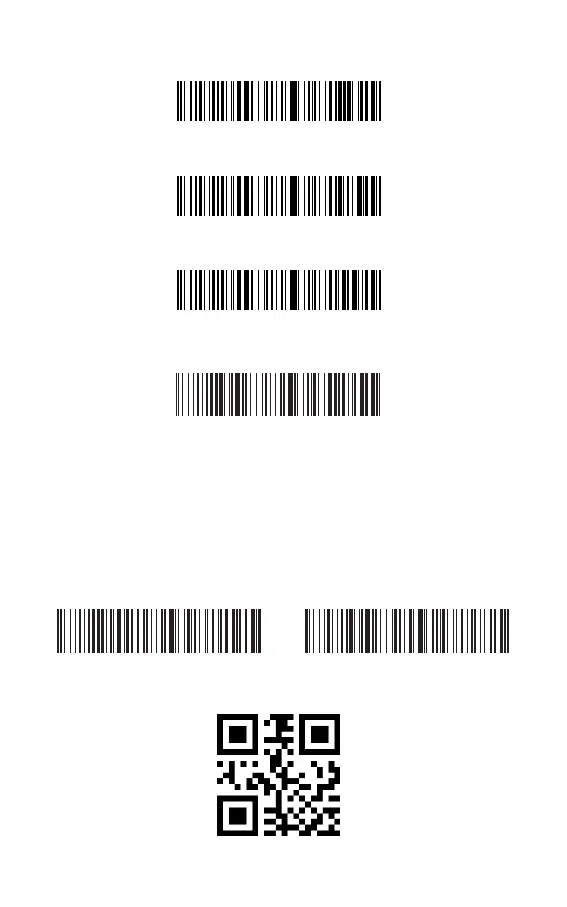
modes by scanning the barcodes below.
3. Show Battery Level
5. Output Product Information
2.3 Scan the barcode to upload the number of scanned barcodes (for Inventory Mode
only)
2.4 Scan the barcode to clear data in buffer (for Inventory Mode only).
2.5 Scan the barcode to return to Common Mode.
Upload the Number of scanned barcodes (for Inventory Mode only)
Clear Data in Buffer (for Inventory Mode only)
(*) Return to Common Mode
Show Battery Level
Output product information
(*)Enable HID Mode Enable SPP Mode


 To Next Page