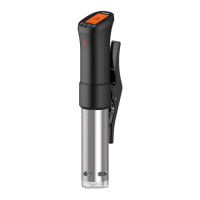
1.3 Item List
1. Sous Vide*1
2. Manual*1
3. Warranty Card*1
1.3 Item List
1. Sous Vide*1
2. Manual*1
3. Warranty Card*1
1.3 Item List
1. Sous Vide*1
2. Manual*1
3. Warranty Card*1
1.3 Item List
1. Sous Vide*1
2. Manual*1
3. Warranty Card*1
7
3. Plug in the Inkbird Sous Vide, make sure
the Wi-Fi icon is blinking rapidly and choose
Fast Flash mode on your phone, select a
preferred Wi-Fi network and enter the
password to connect.
4. Connection succeed.
Note: If you have registered an account
before, just log in directly.
4.2.2 AP Mode
The Wi-Fi icon flashes rapidly by default.
Press and hold the “ ” button for 5
seconds to switch to AP mode, the Wi-Fi icon
flashes slowly in the mode.
1. Open the app and click “ + ” to start the
connection.
2. Plug in the Inkbird Sous Vide, and choose
it from the device list, confirm the Wi-Fi icon
of the Sous Vide is blinking slowly and
choose Slow Flash mode.
3. Choose a preferred Wi-Fi network and
enter the password, then click “Confirm” to
go to the next step.
4. Enter into your phone’s WLAN interface
and connect to the “SmartLife XXXX” Wi-Fi
network without typing in the password.
Return to the app and confirm that the
network has been successfully connected.
5. Connection succeed.
3. Plug in the Inkbird Sous Vide, make sure
the Wi-Fi icon is blinking rapidly and choose
Fast Flash mode on your phone, select a
preferred Wi-Fi network and enter the
password to connect.
4. Connection succeed.
Note: If you have registered an account
before, just log in directly.
4.2.2 AP Mode
The Wi-Fi icon flashes rapidly by default.
Press and hold the “ ” button for 5
seconds to switch to AP mode, the Wi-Fi icon
flashes slowly in the mode.
1. Open the app and click “ + ” to start the
connection.
2. Plug in the Inkbird Sous Vide, and choose
it from the device list, confirm the Wi-Fi icon
of the Sous Vide is blinking slowly and
choose Slow Flash mode.
3. Choose a preferred Wi-Fi network and
enter the password, then click “Confirm” to
go to the next step.
4. Enter into your phone’s WLAN interface
and connect to the “SmartLife XXXX” Wi-Fi
network without typing in the password.
Return to the app and confirm that the
network has been successfully connected.
5. Connection succeed.
3. Plug in the Inkbird Sous Vide, make sure
the Wi-Fi icon is blinking rapidly and choose
Fast Flash mode on your phone, select a
preferred Wi-Fi network and enter the
password to connect.
4. Connection succeed.
Note: If you have registered an account
before, just log in directly.
4.2.2 AP Mode
The Wi-Fi icon flashes rapidly by default.
Press and hold the “ ” button for 5
seconds to switch to AP mode, the Wi-Fi icon
flashes slowly in the mode.
1. Open the app and click “ + ” to start the
connection.
2. Plug in the Inkbird Sous Vide, and choose
it from the device list, confirm the Wi-Fi icon
of the Sous Vide is blinking slowly and
choose Slow Flash mode.
3. Choose a preferred Wi-Fi network and
enter the password, then click “Confirm” to
go to the next step.
4. Enter into your phone’s WLAN interface
and connect to the “SmartLife XXXX” Wi-Fi
network without typing in the password.
Return to the app and confirm that the
network has been successfully connected.
5. Connection succeed.
3. Plug in the Inkbird Sous Vide, make sure
the Wi-Fi icon is blinking rapidly and choose
Fast Flash mode on your phone, select a
preferred Wi-Fi network and enter the
password to connect.
4. Connection succeed.
Note: If you have registered an account
before, just log in directly.
4.2.2 AP Mode
The Wi-Fi icon flashes rapidly by default.
Press and hold the “ ” button for 5
seconds to switch to AP mode, the Wi-Fi icon
flashes slowly in the mode.
1. Open the app and click “ + ” to start the
connection.
2. Plug in the Inkbird Sous Vide, and choose
it from the device list, confirm the Wi-Fi icon
of the Sous Vide is blinking slowly and
choose Slow Flash mode.
3. Choose a preferred Wi-Fi network and
enter the password, then click “Confirm” to
go to the next step.
4. Enter into your phone’s WLAN interface
and connect to the “SmartLife XXXX” Wi-Fi
network without typing in the password.
Return to the app and confirm that the
network has been successfully connected.
5. Connection succeed.


 To Next Page
 Loading...