4.3 Wi-Fi Reset
Press and hold the “ ” button for 5 seconds
to reset the Wi-Fi, then repeat the steps above
to connect the Sous Vide to your phone. The
device only supports 2.4GHz Wi-Fi router.
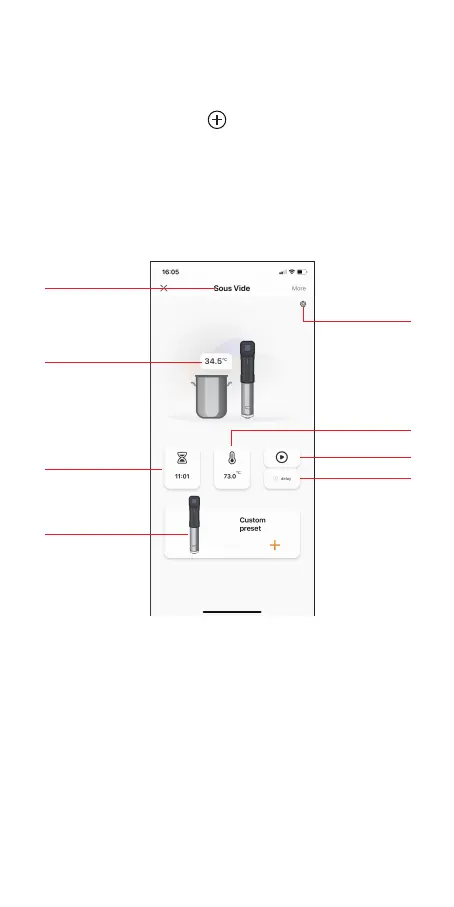
4.4 Main Interface of the InkBird Pro
8
You could control the Sous Vide with Inkbird
Pro app on your phone at anytime anywhere.
All functions are available on the app.
4.5 Inkbird sous vide supports
multiple users on a single device
Please follow the steps below for a successful
operation:
4.3 Wi-Fi Reset
Press and hold the “ ” button for 5 seconds
to reset the Wi-Fi, then repeat the steps above
to connect the Sous Vide to your phone. The
device only supports 2.4GHz Wi-Fi router.
Device Name
Current
Temperature
Timer Setting
Preset Recipe
&
Custom Recipe
Calibration
&
Temperature
Units
Run/Stop
Delay Start
Temperature
Setting
You could control the Sous Vide with Inkbird
Pro app on your phone at anytime anywhere.
All functions are available on the app.
4.5 Inkbird sous vide supports
multiple users on a single device
Please follow the steps below for a successful
operation:
4.3 Wi-Fi Reset
Press and hold the “ ” button for 5 seconds
to reset the Wi-Fi, then repeat the steps above
to connect the Sous Vide to your phone. The
device only supports 2.4GHz Wi-Fi router.
4.3 Wi-Fi Reset
Press and hold the “ ” button for 5 seconds
to reset the Wi-Fi, then repeat the steps above
to connect the Sous Vide to your phone. The
device only supports 2.4GHz Wi-Fi router.


 To Next Page