Need help?
Do you have a question about the innuos Zen+ and is the answer not in the manual?
Lists the main device included in the product packaging.
Details the wired network connection using a router.
Explains network connection using standard powerline homeplugs.
Describes network connection using 4-port powerline homeplugs.
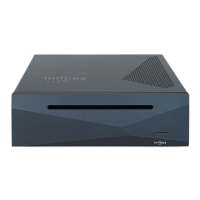
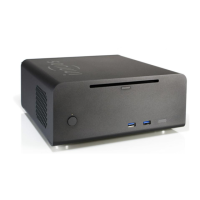
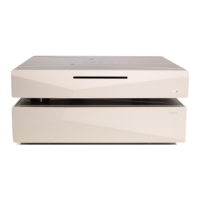
The Innuos Zen+ for Oppo is a music and movie server designed to integrate seamlessly with Oppo 105EU/105D players, offering a centralized solution for storing, managing, and playing back digital media. This device serves as a dedicated hub for your audio and video content, aiming to simplify the process of accessing and enjoying your media library.
The primary function of the Innuos Zen+ for Oppo is to act as a high-performance media server. It is equipped to store a vast collection of music and movies, making them readily available for streaming to a connected Oppo player. The server is designed to handle various digital media formats, ensuring compatibility with a wide range of content. A key feature is its ability to rip CDs and Blu-rays directly, allowing users to digitize their physical media collection and store it on the device. This eliminates the need for physical discs once the content has been ripped, providing a convenient and space-saving solution for media management. The Zen+ for Oppo also functions as a network-attached storage (NAS) device, making its stored content accessible to other compatible devices on the same network. This allows for flexible media sharing and playback across multiple rooms or devices within a home network. The integration with Oppo players is a core aspect, as the Zen+ is optimized to work in conjunction with these specific models, providing a streamlined user experience for both music and movie playback.
Setting up the Innuos Zen+ for Oppo involves a few straightforward steps. First, the device needs to be connected to mains power using the provided power adapter. This ensures the server receives the necessary power to operate. Next, network connectivity is established. Users have several options for connecting the Zen+ to their home network:
Once the Zen+ is powered and connected to the network, it needs to be connected to the Oppo player. This is achieved by connecting a USB Male A to Male B cable from a USB Type A port on the Zen+ to the USB DAC (Type B) input on the Oppo 105EU/105D. This connection allows the Oppo player to access the digital audio content stored on the Zen+.
After all physical connections are made, the Zen+ can be turned on. The device typically takes about 1 minute to boot up and become ready for operation, indicated by a light on the front panel.
A significant usage feature is the ability to store discs. The Zen+ includes an optical drive for ripping CDs and Blu-rays. To store a disc, simply insert it into the drive. The device will automatically begin the ripping process. The time required for ripping varies depending on the disc type: approximately 4 minutes for a CD, 20 minutes for a DVD, and 50 minutes for a Blu-Ray. Once the ripping is complete, the disc will automatically eject. It is important not to push the disc while it is being drawn into the drive, as this can cause jams or damage the optical drive.
To control the Zen+ and access its media, a remote control app is required. These apps are available for various platforms:
These apps allow users to browse their media library, select content for playback, and manage various server settings from their preferred device.
Playing movies from the Zen+ on the Oppo player involves navigating the Oppo's interface. Users typically select "Network" from the Oppo's main menu, then locate the "Logitech Media Server [Zen+ Media Server]" entry. Within this server, they can then select "Video" to browse and play their stored movie collection.
While the manual primarily focuses on initial setup and usage, some implicit maintenance aspects can be inferred. The Zen+ is designed for continuous operation, suggesting robust internal components. Regular software updates, though not explicitly detailed in this quick start guide, are typical for such devices to ensure optimal performance, security, and compatibility with new media formats or streaming services. Users would likely be prompted to update the server's firmware or software through the remote control app or a web interface.
The warning about not pushing discs during the ripping process highlights a user-level maintenance aspect: proper handling of the optical drive. Avoiding physical interference during operation prevents potential damage to the drive mechanism, which could otherwise require repair or replacement.
Network connectivity, as detailed in the setup options, is crucial for the Zen+'s functionality. Maintaining a stable and reliable network connection is an ongoing maintenance task. This includes ensuring the router is functioning correctly, Ethernet cables are securely connected, and powerline homeplugs (if used) are plugged directly into wall sockets and not into surge protectors. Troubleshooting network issues would be a common maintenance activity if streaming performance degrades.
Data backup is an important, though not explicitly mentioned, maintenance consideration for any media server. While the Zen+ stores your media, users should consider implementing a backup strategy for their valuable digital content to protect against data loss due to hardware failure or other unforeseen events. This might involve connecting an external hard drive for periodic backups or utilizing network backup solutions.
Overall, the Innuos Zen+ for Oppo is presented as a user-friendly, integrated solution for digital media enthusiasts, designed to simplify the enjoyment of extensive music and movie libraries through a dedicated server and an Oppo player.
 General
| Storage Capacity | 2TB, 4TB |
|---|---|
| Storage Type | HDD |
| RAM | 4GB |
| Operating System | InnuOS |
| Connectivity | Gigabit Ethernet |
| Streaming Services | Tidal, Qobuz, Spotify, Internet Radio |
| DAC Support | Yes |
| Ripping | Yes, via optional USB optical drive |
| Supported Formats | FLAC, ALAC, WAV, AIFF, MP3, AAC |

 To Next Page