Page 1 of 3
Getting Up and Running with Your Inseego MiFi X PRO
The Inseego MiFi X PRO (SFL Mobile Hotspot) has been activated and tested, by SFL Broadband staff, prior to being
shipped. By following the instructions below, you should be able to easily prepare, and connect to, the hotspot to begin
accessing the internet for educational purposes. Up to 32 Wi-Fi capable devices (depending on usage) can be connected
to the SFL mobile hotspot at one time. The user of each wireless computing device that will be connecting to the
hotspot will need to be provided with the device name and password. Keep in mind that the more devices that connect
to the device, the more the 100 GB monthly high-speed access with be consumed. (NOTE: This is a one-time set-up
process; the computing device(s) may recognize the hotspot in the future and automatically connect to it.)
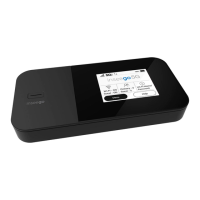
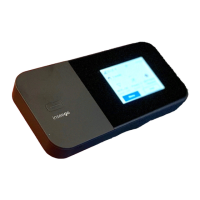
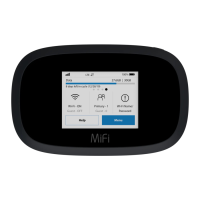
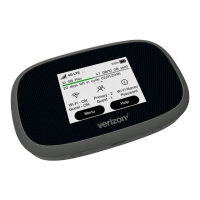
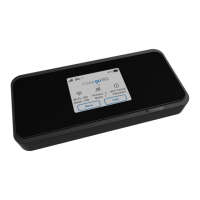
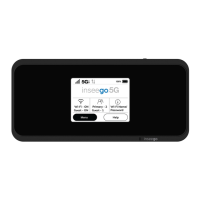
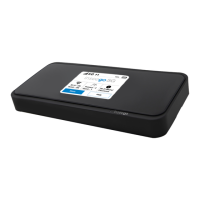
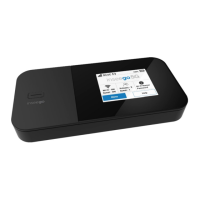
Your SFL Mobile Hotspot Feature
*Keep the original device box for future returns/exchanges
Before You Start
1. Charge the Battery
a. Insert the USB cable into the charging adapter.
b. Insert the small end of the USB cable into the charger/USB port at the top of the device.
c. Plug the charging adapter into a standard AC power outlet.
2. Get Ready
a. Make sure you are in an area covered by the T-Mobile network (not roaming). Check your location on
the T-Mobile coverage map:
https://www.t-mobile.com/coverage/coverage-map

 Need help?
 General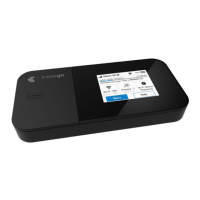




 To Next Page