

EasyManua.ls Logo

Inseego Wavemaker PRO FG2000e-3 - User Manual

Inseego Wavemaker PRO FG2000e-3
64 pages
Print Icon
To Next Page IconTo Next Page
Loading...
Inseego Wavemaker
TM
PRO
5G Outdoor CPE FW2010e
USER GUIDE
Question and Answer IconNeed help?

Do you have a question about the Inseego Wavemaker PRO FG2000e-3 and is the answer not in the manual?

Overview

The Inseego Wavemaker™ PRO 5G Outdoor CPE FW2010e is a next-generation CPE solution designed to deliver gigabit wireless 5G data speeds to urban, suburban, and rural customers. It operates in 4G LTE, 5G Sub-6GHz, and 5G millimeter wave (mmW) networks, extending mmW network coverage with high-gain, phased-array antenna elements. The FW2010e automatically connects to the best 4G or 5G cellular network available and provides up to 5Gbps data connectivity to the existing in-building network.
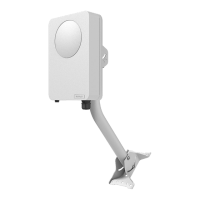
Important Technical Specifications:

  • Name: 5G Outdoor CPE FW20100
  • Model: FW2010e-1 (FCC), FW2010e-2 (CE)
  • Dimensions: 200mm x 300mm x 90mm (7.9" x 11.8" x 3.5")
  • Weight: 3.78 kg (8.336 lbs)
  • Ports: 1 x 5Gbps Ethernet LAN Port
  • SIM: Dual SIM, 2 x 4FF Nano SIM Slots, Multi-carrier support with automatic switching
  • Chipset: Qualcomm® Snapdragon™ SDX55
  • LED: Power and Status
  • Power: Power over Ethernet (PoE)
  • Web UI OS Support: Windows 10 and later, MacOS 10.14 and later, Linux® Ubuntu 18.04 LTS and later
  • Operating Temperature: -20°C to 60°C (-4 to 140°F)
  • IP Rating: IP67 rating for water and dust ingress protection
  • Internal Heating Element: For startup and operation in cold environments
  • Network Connectivity: 5G NR mmW, 5G NR Sub6, 4G LTE CAT 22, 4x4 MIMO mmW Bands / 800MHz Component Carrier Aggregation, 4x4 MIMO Sub6 Bands / 400MHz Component Carrier Aggregation
  • PoE Power Injector: The PoE injector is an outdoor device and considered support equipment. It can operate at a maximum temperature of 35°C (95°F).
  • PoE Power Injector Efficiency: 90.3% at 115V, 90.7% at 230V.

Usage Features:

  • High Performance: Features a high power antenna array supporting up to 52dBm peak EIRP to extend the mmW network coverage up to 6 kilometers.
  • Ethernet Port: Provides up to 5Gbps symmetrical data rate to the in-building network and supports Power-over-Ethernet (PoE) to the device.
  • Environmental Rating: Designed to operate in extreme temperatures from -20°C to 60°C (-4 to 140°F) and has an environmental rating of IP67 for water and dust ingress.
  • Security: Advanced security features, encryption, and third-party penetration testing ensure protection of customer data.
  • Remote Management: The Inseego Connect™ platform enables remote device management, diagnostics, performance monitoring, and alerts.
  • Mobile App: The Inseego Mobile App, available on Apple and GooglePlay App stores, guides installers to find the best location for 5G mmWave performance, and enables consumers to manage device settings with their smartphone.
  • Multi-carrier Support: Supports up to two carrier SIMs and auto switching between carriers. Multi-carrier firmware allows the FW2010e to be used on most major global carriers.
  • Admin Web UI: Provides a local gateway to configure and manage the FW2010e. Accessible via a web browser at http://192.168.1.1.
  • Inseego Connect: Provides the fullest experience for monitoring and managing FW2010e devices from anywhere in the world with access to a web browser.
  • Data Usage Management: The Admin Web UI Home page displays data usage and general status information. Users can view details about their FW2010e data usage, including estimated percentage of data remaining, number of days left in the billing cycle, data limit on their plan, estimated amount of data used and remaining, and the date the billing cycle ends.
  • Managing Settings: Users can view and configure system settings for their FW2010e. This includes preferences (user preferences for language, date, time, feet/meters, and units), software update, backup and restore, SIM manager, and advanced settings.
  • Advanced Settings: Intended for users with technical expertise in the area of telecommunication and networking. Includes Cellular, Manual DNS, Firewall, LAN, Port Filtering, Port Forwarding, and Inseego Connect settings.
  • WAN Settings: Available only with Inseego Connect. This page allows users to enable and configure WAN keep alive.
  • Port Filtering: Allows users to block outgoing Internet connections and permit only selected applications to access the Internet. Traffic is identified by port numbers.
  • Port Forwarding: Allows specific applications to be forwarded to a particular device connected to the network. Normally, the built-in firewall blocks incoming traffic from the Internet. Port forwarding allows Internet users to access any server running on the computer, such as a Web, FTP, or Email server.
  • Inseego Connect Sub Tab: A cloud platform product that provides 360-degree visibility and secure accessibility into all of your Inseego devices from a single platform.
  • Viewing Info About the FW2010e: The Admin Web UI Home page, the General Status panel shows general system information, including Technology, Band, Bandwidth, WAN Status, SIM Status, FW Version, IPv4, IMEI, MAC Address.
  • Internet Status Tab: Displays general Internet connection and system information.
  • Internet Sessions Tab: Allows users to export and view Internet session data.
  • Diagnostics Tab: Displays modem and 5G network information for troubleshooting or technical support.
  • Device Info Tab: Displays internal WAN connection details.
  • GPS Tab: Incorporates a GPS receiver to determine the device’s current location.

Maintenance Features:

  • Software Update: The device automatically updates over the mobile network. The Software Update tab displays current software version, last system update information, software update history, and allows users to check for new software updates. Automatic software updates can be toggled ON/OFF.
  • Backup and Restore: Users can back up FW2010e settings to a file on their computer, restore (upload) a previously-saved configuration file, reset the device to factory defaults, or restart the device.
  • SIM Card Replacement: The device supports Nano SIM cards. Instructions are provided for safely replacing the SIM card, including unscrewing the protective shield and correctly placing the SIM.
  • Resetting the Device: The FW2010e can be reset to factory settings using the RESET button on the device (located in the SIM compartment) or from the Mobile App, Admin Web UI, or Inseego Connect.
  • Indicator LED: A multifunction LED located on the device in the SIM compartment provides visual cues about the device's status (Strong 5G connection, Weak 5G connection, Strong 4G connection, Weak 4G connection, Software update in progress, CPE is booting up, acquiring signal, No service, SIM error, or locked SIM card).
  • Logs Tab: Provides log information for troubleshooting. Users can turn on logging, automatically clear logs, view mobile network logs, device logs, refresh logs, clear logs, and export logs.
  • Customer Support Page: Provides access to documentation and support information for the FW2010e.

Inseego Wavemaker PRO FG2000e-3 Specifications

General IconGeneral
BrandInseego
ModelWavemaker PRO FG2000e-3
CategoryModem
LanguageEnglish