EasyManua.ls Logo

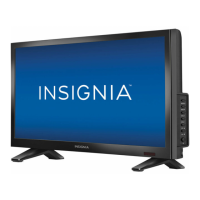
Insignia IS-CM100751 - User Manual

Insignia IS-CM100751
40 pages
Print Icon
To Next Page IconTo Next Page
Loading...
Color Monitor | Moniteur couleur | Monitor a color
IS-CM100751
User Guide | Guide de l’utilisateur | Guía del Usuario

Questions and Answers

  • J
    John LucasAug 12, 2025
    What to do if my Insignia Monitor does not display anything?
    • A
      ahansonAug 12, 2025
      If your Insignia Monitor isn't displaying anything, make sure that both the monitor and your computer are turned on. Check that the VGA cable is properly connected to the computer and that the VGA connector pins aren't bent. Also, verify that your computer isn't in a power-saving mode.
  • P
    Pamela GomezAug 16, 2025
    Why is my Insignia IS-CM100751 Monitor power LED not on?
    • J
      johnsondawnAug 16, 2025
      If the power LED on your Insignia Monitor isn't on, first, ensure that the monitor is turned on. Second, check that the power cord is securely connected to a working AC power outlet.
  • D
    Daniel ValenzuelaAug 19, 2025
    Why is the picture on my Insignia IS-CM100751 Monitor blurry?
    • G
      Gregory McfarlandAug 19, 2025
      If the picture on your Insignia Monitor is blurry, try adjusting the contrast and brightness settings. You can also use the degauss feature once to see if that improves the picture quality.
  • L
    Linda RomanAug 23, 2025
    What to do if the image on my Insignia IS-CM100751 is not stable?
    • Y
      ywardAug 23, 2025
      If the image on your Insignia Monitor isn't stable, make sure that the VGA cable is securely connected to your computer.
  • M
    Matthew StevensAug 27, 2025
    Why does the color look blotchy on my Insignia IS-CM100751?
    • E
      Elizabeth SantiagoAug 27, 2025
      If the color on your Insignia Monitor looks blotchy, use the degauss feature once.
  • A
    Austin CruzAug 31, 2025
    What to do if the image on my Insignia Monitor is not centered, too small, or too large?
    • J
      Jennifer EdwardsAug 31, 2025
      If the image on your Insignia Monitor is not centered, or it appears too small or too large, adjust the horizontal and vertical size and center settings to get the proper image.
  • L
    luis80Sep 3, 2025
    How to fix the edges of the screen if they are not straight on Insignia IS-CM100751?
    • V
      vpatrickSep 3, 2025
      If the edges of the available area on the screen of your Insignia Monitor aren't straight, use the geometry controls, such as pincushion and trapezoid, to adjust them.
  • N
    nancybullockSep 8, 2025
    What causes picture bouncing or wave patterns on Insignia IS-CM100751?
    • X
      Xavier HayesSep 8, 2025
      If the picture on your Insignia Monitor bounces or shows a wave pattern, keep any devices that might be causing electrical interference away from your monitor.

Summary

Welcome

Introduction

Important Safety Information

Product Features

Setting Up Your Monitor

Installing the Tilt;Swivel Stand

Instructions for attaching the monitor stand to the base.

Removing the Tilt;Swivel Stand

Steps for detaching the monitor stand from the monitor.

Connecting Cables

Guide for connecting monitor cables to the computer and power source.

Using Your Monitor

Control Panel Overview

Overview of monitor buttons and their functions for adjustments.

Adjusting Brightness and Contrast

How to modify screen brightness and contrast levels using the control panel.

OSD Menu Navigation

How to access and navigate the On-Screen Display (OSD) menu.

OSD Functionality Details

Details on various settings and controls available within the On-Screen Display (OSD).

Troubleshooting Guide

Product Specifications

Regulatory Statements

Insignia IS-CM100751 Specifications

General IconGeneral
Screen Size27 inches
Resolution1920 x 1080 (Full HD)
Aspect Ratio16:9
Display TypeLED
Brightness250 cd/m²
Viewing Angle178° (H) / 178° (V)
Power Consumption25W (Typical)
PortsHDMI, VGA

Related product manuals