EasyManua.ls Logo

Insignia NS-19D220NA16 - User Manual

Insignia NS-19D220NA16
80 pages
Print Icon
To Next Page IconTo Next Page
Loading...
USER GUIDE
Before using your new product, please read these instructions to prevent any damage.
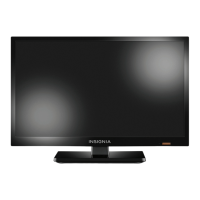
19" 720p 60Hz LED TV
NS-19D220NA16/NS-19D220MX16

Table of Contents

Questions and Answers

  • E
    Eric SimmonsAug 16, 2025
    What to do if my Insignia Monitor has no picture and no sound?
    • K
      Keith WilliamsonAug 16, 2025
      If your Insignia Monitor displays no picture and no sound, try the following: First, ensure the monitor is powered on by pressing the power button on the TV or remote. Check that the 'Audio Only' option is turned off. Verify that all video cables are correctly and securely connected to the monitor. Adjust the contrast and brightness settings. Confirm the power adapter is properly plugged into a working outlet. Select the correct video input source by pressing the INPUT button. Test another channel to rule out station issues. Ensure the incoming signal is compatible. Verify the antenna or cable TV connection is secure. Finally, check the closed caption settings to ensure TEXT modes aren't blocking the screen.
  • J
    Joseph HansonAug 19, 2025
    Why does my Insignia Monitor remote control not work?
    • W
      willisanthonyAug 19, 2025
      If your Insignia Monitor remote control isn't working, ensure the power adapter is plugged into a working outlet. Remove any obstructions between the remote and the sensor on the front of the TV, and point the remote directly at the sensor. Check that you've removed all plastic wrapping from the batteries and that the batteries are correctly installed. If the issue persists, replace the batteries with new ones.
  • K
    Katherine HoweAug 22, 2025
    How to fix no sound on my Insignia Monitor?
    • S
      Scott RosarioAug 22, 2025
      If your Insignia Monitor shows a good picture but no sound, first, increase the volume and ensure the sound is not muted. Make sure headphones are not connected, as this will disable the TV speakers. Try changing the audio mode by pressing the AUDIO button. If you're using a home theater system, sound bar, or external speakers, ensure they are turned on, not muted, and set to the correct input mode. For digital cable connections, set the Audio Format option to PCM in the Audio menu. Check that all audio cables are correctly and securely connected. Verify the antenna or cable TV connection is secure. If using an antenna, check the digital channel signal strength. If the problem persists, try a new set of audio cables.
  • D
    dennis30Aug 25, 2025
    What to do if Insignia NS-19D220NA16 displays 'No signal' error message?
    • A
      Anthony TateAug 26, 2025
      If your Insignia Monitor displays a 'No signal' error message, press the INPUT button and select the correct input for the device or service you are trying to use. If you are using a cable or satellite box, use the remote that came with that box to change channels.
  • D
    Debra WhiteAug 28, 2025
    Why is the picture quality poor on some Insignia Monitor channels?
    • J
      joshuahayesAug 28, 2025
      If your Insignia Monitor picture quality is good on some channels but poor on others, with good sound, the issue might be a weak signal from the broadcaster or cable TV provider. If you're connected to cable without a set-top box, you may need to install one to improve signal reception. Contact your cable TV provider to inquire about upgrading to a set-top box.
  • S
    Sharon SimsAug 31, 2025
    What to do if my Insignia Monitor only shows snow?
    • R
      Rebecca HuntAug 31, 2025
      If your Insignia Monitor displays only snow (noise) on the screen, try switching to another channel as the station may be experiencing problems. Ensure that the antenna or cable TV is connected correctly and securely. If you are using an antenna, the digital channel signal may be low. If the signal strength is low, adjust the antenna or use a highly directional outdoor antenna or set-top antenna with a built-in amplifier.
  • C
    Carrie HernandezSep 3, 2025
    How to remove black bars on Insignia NS-19D220NA16 Monitor?
    • J
      Jennifer RichardsSep 3, 2025
      If your Insignia Monitor's picture does not fill the screen and there are black bars around the picture, press the ASPECT button to change the aspect ratio.
  • H
    Hannah SuarezSep 6, 2025
    Why is my Insignia NS-19D220NA16 Monitor picture dark but sound is good?
    • J
      jmaldonadoSep 6, 2025
      If your Insignia Monitor shows a dark, poor, or no picture (screen is lit) but the sound is good, try switching to another channel as the station may have issues. Ensure the antenna or cable TV is securely connected. Adjust the brightness settings. Press the PICTURE button to select a different picture mode. If using an antenna, check the digital channel signal strength and adjust the antenna or use a high-gain antenna if the signal is weak. Also, verify that the video cables are properly connected or try a new set of video cables.
  • D
    davisjasonSep 9, 2025
    Why is there no color on my Insignia Monitor?
    • E
      Edward FosterSep 9, 2025
      If your Insignia Monitor has no color, the picture is dark, or the color is incorrect, try changing to another channel as the station might be experiencing issues. Adjust the color settings. Check that the video cables are correctly and securely connected to your TV. Ensure the antenna or cable TV is connected correctly and securely. If you are using an antenna, the digital channel signal may be low. If you are using an antenna and the signal strength is low, adjust the antenna or use a highly directional outdoor antenna or set-top antenna with a built-in amplifier.
  • B
    Bradley WatsonSep 12, 2025
    Why are there dotted lines on my Insignia NS-19D220NA16 screen?
    • S
      Shane BaldwinSep 12, 2025
      If dotted lines or stripes appear on the screen of your Insignia Monitor, ensure the antenna or cable TV is connected correctly and securely. If you're using an antenna, the digital channel signal may be low, so adjust the antenna or use a stronger one. Check the video cables for secure connections and try a new set if necessary. Also, other devices might be causing interference. Try turning off nearby devices one by one to identify the source and move it further away from the TV.

Summary

Child Safety

Important Safety Instructions

Key Safety Warnings

Electric shock, lightning, power lines, and LCD panel handling precautions.

Installing Stands or Bracket

Stand and Wall Mount Installation

Instructions for attaching TV stands and wall-mount brackets.

TV Components

Connecting Devices

Connecting Power

Using Remote Control

Remote Control Operation

Installing batteries, aiming, and programming universal remotes.

First Time TV Setup

Initial TV Setup Wizard

Steps for the initial TV setup wizard.

Using INlink (HDMI CEC)

Picture Settings

Picture Adjustment Options

Adjusting picture modes, aspect ratio, and power-on settings.

Sound Settings

Audio Configuration

Adjusting sound settings and selecting audio output modes.

Channel Management

Parental Controls

Setting Up Parental Controls

Password, blocking unrated TV, and setting rating levels.

Closed Captioning

Time and Sleep Timer Settings

Troubleshooting

Troubleshooting Overview

General guidance, system info, firmware updates, and basic resets.

Video, Audio, and Remote Problems

Common issues and solutions for picture, sound, and remote control.

Warranty Information

Insignia NS-19D220NA16 Specifications

General IconGeneral
BrandInsignia
ModelNS-19D220NA16
CategoryMonitor
LanguageEnglish

Related product manuals