EasyManua.ls Logo

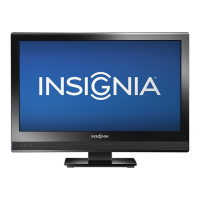
Insignia NS-19E720A12 - User Manual

Insignia NS-19E720A12
70 pages
Print Icon
To Next Page IconTo Next Page
Loading...
15"/19"/22"/24" LED-LCD TV
NS-15E720A12/NS-19E720A12/NS-22E730A12/NS-24E730A12
User Guide

Table of Contents

Questions and Answers

  • J
    Joseph BryanSep 8, 2025
    Why is the picture quality poor on my Insignia NS-19E720A12?
    • J
      John MorrisSep 8, 2025
      If the picture quality on your Insignia LCD TV is poor: * Make sure that the room is not too bright. * If an S-VHS camera or a camcorder is connected while another connected device is turned on, the picture may be poor.
  • K
    Kendra MeyerAug 23, 2025
    How to fix Insignia LCD TV remote control that is not working?
    • A
      Alexandria HernandezAug 23, 2025
      If your Insignia LCD TV remote control isn't working, try these steps: * Ensure the TV's power cord is properly connected to both the TV and the power outlet. * Make sure there are no obstructions between the remote and the TV's remote control sensor. * Point the remote directly at the sensor on the front of the TV. * Check that the plastic wrapping has been removed from the batteries. * Verify the batteries are installed correctly. * Replace the batteries with new ones.
  • M
    meagan22Aug 25, 2025
    What to do if my Insignia LCD TV has good picture but no sound?
    • B
      Brian DavisAug 25, 2025
      If your Insignia LCD TV has a good picture but no sound, here are some things to check: * Increase the volume. * Make sure the sound is not muted. * Disconnect any connected headphones. * Ensure the correct audio mode is selected. * Verify the audio cables are securely connected to your TV. * Confirm the antenna or cable TV is connected correctly. * If using an antenna, the digital channel signal may be low. * The audio cables you are using may be faulty, so try a new set.
  • W
    William CastilloAug 27, 2025
    Why is my Insignia LCD TV showing a dark or poor picture but the sound is good?
    • N
      Natalie GonzalesAug 27, 2025
      If your Insignia LCD TV screen is lit but the picture is dark, poor, or nonexistent while the sound is fine, consider the following: * Try changing to another channel to rule out a problem with the broadcast. * Ensure the antenna or cable TV connection is secure. * Adjust the brightness settings. * Select the correct picture mode. * If using an antenna, the digital channel signal may be weak. Adjust the antenna or consider a more powerful one. * Check that the video cables are securely connected. * Try a new set of video cables, as the current ones may be faulty.
  • D
    dorseyjeffAug 27, 2025
    How to fix Insignia NS-19E720A12 with no color or incorrect color?
    • M
      Melissa WilliamsonAug 27, 2025
      If your Insignia LCD TV has no color, a dark picture, or incorrect color, try the following: * Try another channel to rule out station problems. * Adjust the color settings. * Make sure that the video cables are connected correctly and securely to your TV. * Make sure that the antenna or cable TV is connected correctly and securely. * If you are using an antenna, the digital channel signal may be low. * If you are using an antenna and the signal strength is low, adjust the antenna or use a highly directional outdoor antenna or set-top antenna with a built-in amplifier.
  • J
    Justin BrownSep 22, 2025
    Why does my Insignia LCD TV cabinet creak?
    • G
      gabriel24Sep 22, 2025
      The creaking noise from your Insignia LCD TV cabinet is caused by the temperature rising naturally when the TV is in use, which may cause the cabinet to expand or contract.
  • D
    Danielle RodriguezSep 16, 2025
    Why does my Insignia NS-19E720A12 LCD TV keep turning off?
    • J
      John LopezSep 16, 2025
      If your Insignia LCD TV keeps turning off, make sure that the sleep timer is not turned on.
  • R
    Robert PerezSep 18, 2025
    How to reset parental control password on Insignia NS-19E720A12?
    • B
      Betty MaySep 18, 2025
      To reset the parental control password on your Insignia LCD TV, enter 9999 to access parental controls, then set a new password.
  • B
    Brian PittmanSep 7, 2025
    How to fix audio noise on Insignia LCD TV?
    • N
      Nancy CruzSep 7, 2025
      If you are experiencing audio noise with your Insignia LCD TV, other devices (for example, a surround sound receiver, external speakers, fans, or hair dryers) may be interfering with your TV. Try turning off one device at a time to determine which device is causing interference.
  • D
    David RileySep 4, 2025
    What to do if picture does not fill the screen on Insignia NS-19E720A12?
    • J
      jose27Sep 4, 2025
      If the picture on your Insignia LCD TV doesn't fill the screen and there are black bars around it, try changing the aspect ratio.

Summary

CHILD SAFETY

Tune into safety

Safety tips for TV placement and use to prevent injury from tip-overs.

Wall mounting

Guidelines for safely attaching the TV to a wall mount.

Important safety instructions

Warnings

Important warnings about electric shock, lightning, and power lines.

Handling the LCD panel

Precautions for handling the glass LCD panel if it breaks.

Cautions

Replacement parts

Ensure technicians use specified parts for safety and performance.

Safety check

Perform routine safety checks after service.

Power source

Operate TV only from indicated power source; consult electrician if unsure.

Outdoor antenna grounding

Ground antenna systems to protect against surges and static.

Condensation

Tips to prevent impairment from condensation due to temperature changes.

Mobile telephone warning

Keep phones away from TV to avoid interference.

End of life directives

Non-active pixels

Explains appearance and non-defect status of non-active pixels.

Introduction

SRS TruSurround HD

Describes SRS TruSurround HD for enhanced audio quality.

INlink

Explains INlink (HDMI CEC) for plug-and-play component interaction.

Installing the Stand or Wall-Mount Bracket

Installing the stand

Step-by-step instructions for attaching the TV stand.

Installing a wall-mount bracket

Instructions for attaching a wall-mount bracket to the TV.

TV Components

Package contents

Lists items included in the TV package.

Front

Identifies front panel controls and indicators.

Side controls

Identifies side panel controls and their functions.

Jacks and Ports

Input and Output Ports

Identifies and describes all available input and output ports on the TV.

Making Connections

What connection should I use?

Guide to selecting the best connection type for video quality.

Connecting Power

To connect the power

Instructions for connecting the TV's AC power cord.

Connecting a Cable or Satellite Box

Using HDMI (best)

Steps to connect a cable/satellite box using an HDMI cable.

Using DVI (same as HDMI but requires a sound connection)

Connect a cable/satellite box using DVI with audio.

Using component video (better)

Connect a cable/satellite box using component video cables.

Using composite video (good)

Connect a cable/satellite box using composite video.

Using coaxial (good)

Connect a cable/satellite box using a coaxial cable.

Connecting an Antenna or Cable TV (No Box)

Connecting a DVD or Blu-ray Player

Using HDMI (best)

Connect a DVD/Blu-ray player using HDMI.

Using DVI (same as HDMI but requires a sound connection)

Connect a DVD/Blu-ray player using DVI with audio.

Using component video (better)

Connect a DVD/Blu-ray player using component video.

Using composite video (good)

Connect a DVD/Blu-ray player using composite video.

Connecting a VCR

Connecting a Camcorder or Game Console

Connecting a Computer

Using VGA

Connect computer to TV using VGA cable for video and audio.

Using HDMI

Connect computer to TV using HDMI for video and audio.

Connecting a USB Flash Drive

To connect a USB flash drive

Steps to connect a USB flash drive to the TV's USB port.

To play from a USB flash drive

Instructions for accessing content from a USB drive.

Connecting Headphones

To connect headphones

Connect headphones to the TV's headphone jack.

Connecting a Basic Home Theater System

Using digital audio output (22-inch and 24-inch only)

Connect home theater system using digital optical audio.

Using analog audio output

Connect home theater system using analog audio output.

Connecting a Home Theater System with Multiple Devices

Using the Remote Control

Installing remote control batteries

Instructions for inserting batteries into the remote control.

Aiming the remote control

Guidance on pointing the remote control at the TV's sensor.

Turning on Your TV for the First Time

To set up your TV

Guides through initial TV setup via the Setup Wizard.

Understanding the Basics

Turning your TV on or off

How to power the TV on and off using the power button.

Selecting the video input source

How to choose the active video input on the TV.

On-Screen Menu Overview

Picture menu (TV mode)

Overview of the picture settings menu options.

Audio menu (TV mode)

Overview of the audio settings menu options.

Channels menu (TV mode)

Overview of the channels settings menu options.

Settings menu (TV mode)

Overview of the main settings menu.

USB menu (USB mode)

Overview of the USB menu for media viewing.

Navigating the menus

Explains how to use the remote control to navigate menus.

Selecting a Channel

Adjusting the volume

How to increase, decrease, or mute the TV volume.

Viewing channel information

How to view program and signal information.

Viewing System Information

Adjusting the Picture

Adjusting the TV picture

How to adjust picture settings like mode, brightness, contrast, color.

Aspect Ratio

How to select the aspect ratio for optimal picture display.

Adjusting the Computer Image

Adjusting the Sound

Adjusting sound settings

How to adjust audio settings like SRS, Treble, Bass, and Balance.

Playing TV audio only

Instructions to turn off the picture and listen to audio only.

Changing Channel Settings

Automatically scanning for channels

How to scan for available channels and create a channel list.

Hiding Channels

Setting Up a Favorite Channel List

Adding or Changing a Channel Label

Checking the Digital Signal Strength

Turning Auto Zoom On or Off

Setting Parental Controls

Setting or changing the password

How to set or change the password for parental controls.

Locking Control Buttons

Blocking Unrated TV

Setting Parental Control Levels

Downloading Rating Information

Using Closed Captioning

Turning closed captioning on or off

How to enable or disable closed captioning.

Selecting the Analog Closed Captioning Mode

Customizing Digital Closed Captioning Styles

Adjusting Time Settings

Setting the clock

How to set the TV's internal clock for accurate time display.

Setting the Sleep Timer

Adjusting Menu Settings

Selecting the menu language

How to change the language of the on-screen menus.

Turning Auto Input Sensing on or off

How to enable/disable automatic detection of connected video devices.

Labeling an Input Source

Restoring Settings to the Defaults

Using INlink

Turning INlink on or off

Instructions to enable or disable the INlink feature.

Turning Device Auto Power Off On or Off

Turning TV Auto Power On On or Off

Turning Audio Receiver On or Off

Displaying a List of INlink-Compatible (HDMI CEC) Devices

Waking INlink-Compatible (HDMI CEC) Devices

Opening an INlink-Compatible Devices Root Menu

Using a USB Flash Drive

Switching to USB mode

How to access the USB drive connected to the TV.

Browsing photos

How to navigate and view photo files on a USB drive.

Viewing Favorite Photos

Viewing Photos in a Slideshow

Customizing Slideshow Settings

Maintaining

Cleaning the TV cabinet

Instructions for cleaning the TV's exterior cabinet.

Cleaning the TV screen

Instructions for cleaning the TV screen with a soft cloth.

Troubleshooting

Video and audio

Common video and audio problems and their solutions.

Remote control

Troubleshooting steps for issues with the remote control.

General

General troubleshooting for power and signal issues.

Specifications

Warranty

Details of the two-year limited warranty for Insignia Televisions.

Dimensions and weight

Physical specifications including dimensions and weight for different models.

Display resolutions;VGA scan rates

Supported display resolutions and VGA scan rates for various models.

Inputs

Lists available input ports and their compatibility.

Outputs

Lists available output ports and their compatibility.

Power consumption

Power usage details for different TV models.

Miscellaneous

Other specifications like languages, INlink, VESA mount.

Programming Universal Remote Controls

Programming a different universal remote control

Instructions for programming a universal remote to control the TV.

Common universal remote control codes

Lists common codes for programming universal remotes for Insignia TVs.

Legal Notices

FCC Part 15

FCC compliance statement regarding radio frequency interference.

FCC warning

Warning about modifications affecting FCC compliance.

Cables

Requirements for using shielded cables for FCC compliance.

Canada ICES-003 statement

Canadian compliance statement for digital apparatus.

Dolby License Notice and Trade ark Acknowledgement

Acknowledgement of Dolby Laboratories license and trademarks.

HDMI

Trademark acknowledgement for HDMI technology.

Energy Star

Information related to Energy Star requirements.

SRS TruSurround HD

Trademark acknowledgement for SRS TruSurround HD technology.

Two-Year Limited Warranty - Insignia Televisions

US and Canada Markets

Defines warranty coverage for US and Canada markets.

Definitions

Defines terms related to the warranty, like Product and Warranty Period.

How long does the coverage last?

Explains the duration of the warranty period.

What does this warranty cover?

Details what the manufacturer's warranty covers.

How to obtain warranty service?

Steps to follow for obtaining warranty service for the TV.

Where is the warranty valid?

Specifies the geographical regions where the warranty is valid.

What does the warranty not cover?

Lists exclusions from the warranty coverage.

Insignia NS-19E720A12 Specifications

General IconGeneral
Screen Size19 inches
Display TypeLCD
Resolution1366 x 768
Refresh Rate60 Hz
HDMI Ports2
USB Ports1
Aspect Ratio16:9
InputsComposite, Component
Sound Output10W (2 x 5W)

Related product manuals