EasyManua.ls Logo

Insignia NS-PS12CC-C - User Manual

Insignia NS-PS12CC-C
15 pages
Print Icon
To Next Page IconTo Next Page
Loading...
Before using your new product, please read these instructions to prevent any damage.
USER GUIDE
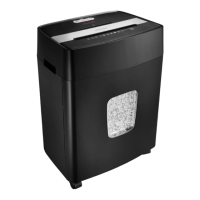
12-SHEET CROSSCUT
PAPER SHREDDER
NS-PS12CC-C
NS-PS12CC-C_14-0409 MAN_V1_ENG.fm Page 1 Wednesday, April 16, 2014 4:13 PM

Questions and Answers

  • J
    Jeremiah PerezAug 1, 2025
    Why does my Insignia Paper Shredder only work in reverse?
    • C
      Christopher HansonAug 1, 2025
      If your Insignia Paper Shredder only runs in "Rev" mode, but not in "Auto" mode, try these solutions: * In "Auto" mode, the motor starts only when paper is inserted. Ensure the unit is in "Auto" and insert paper into the feed slot. * The sensor is in the center of the slot. If you're inserting narrow paper, it may not be activating the switch. * The trigger might be blocked. Insert an index card in the center of the feed slot and apply force to clear any blockage.
  • J
    Jacob RojasAug 11, 2025
    How to fix Insignia Paper Shredder that won't turn on?
    • M
      Mrs. Erin NicholsonAug 11, 2025
      If your Insignia Paper Shredder isn't working, there are several things to check: * Ensure the shredder is properly plugged into a working outlet. * If the shredder was used continuously for an extended time, it may have overheated and shut off. Turn it off and wait 30 minutes before resuming. * Make sure the cover is not tilted open beyond its intended position, as this can activate the ShredSafe™ power cut off feature. * For shredders with a pull-out wastebasket, ensure it is fully pushed in and correctly positioned. * Remove any plastic bag lining the wastebasket, as it may interfere with operation. * The activation sensor is in the center of the feed slot, so feed paper directly into this area, especially smaller pieces or credit cards.
  • S
    Scott HuntAug 20, 2025
    What to do if my Insignia NS-PS12CC-C Paper Shredder is jammed?
    • J
      Justin JordanAug 20, 2025
      If your Insignia Paper Shredder is jammed: 1. Switch the shredder to Reverse (REV) mode to back up and loosen the jammed paper. 2. If needed, gently tug and remove some sheets to clear the jam. Then, switch back to Auto-On mode. 3. For stubborn jams, apply shredder oil (or cooking oil) to the blades where the paper is stuck. Let it soak for about 30 minutes. 4. Return to Auto-On mode. You can also feed a rigid sheet of cardstock to help push the jammed paper through.

Summary

Important Safety Instructions

Product Features

Package Contents

Setting Up the Shredder

Using the Shredder

LED Status Indicators

Explains the meaning of LED lights for overheat, paper overload, door open, and power status.

Shredding CDs or Credit Cards

Provides instructions and warnings for shredding credit cards and CDs/DVDs.

Maintaining Your Shredder

Cleaning the Shredder

Provides instructions on how to clean the shredder safely and effectively.

Troubleshooting Guide

Product Specifications

One-Year Limited Warranty

Warranty Coverage Period

Details the duration of the warranty, which is one year from the purchase date.

What This Warranty Covers

Outlines what defects or issues are covered under the warranty.

Obtaining Warranty Service

Explains the process for getting warranty service or repairs.

Warranty Validity Location

Specifies the geographic regions where the warranty is valid.

Warranty Exclusions

Lists items and conditions that are not covered by the warranty.

Insignia NS-PS12CC-C Specifications

General IconGeneral
Cut TypeCross-Cut
Sheet Capacity12 sheets
Run Time5 minutes
Cool Down Time30 minutes
Bin Capacity5.3 gallons
Security LevelP-4
Shred Size0.16" x 1.42"
Power120V

Related product manuals