EasyManua.ls Logo

Insignia NS-WHP314 - User Manual

Insignia NS-WHP314
19 pages
Print Icon
To Next Page IconTo Next Page
Loading...
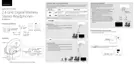
User Guide
2.4 GHz Digital Wireless Stereo Headphones
NS-WHP314
Before using your new product, please read these instructions to prevent any damage.
NS-WHP314_14-0122_MAN_V1_ENG.fm Page 1 Friday, April 4, 2014 8:56 AM

Other manuals for Insignia NS-WHP314

Questions and Answers

  • J
    John AllenJul 31, 2025
    What to do if my Insignia NS-WHP314 is not charging?
    • A
      Ashley MillerAug 1, 2025
      If your Insignia Headphone isn't charging, ensure that the charging contacts on the headphone and the charging pins on the docking station are making good contact. You might need to gently rock them back and forth to establish a solid connection.
  • R
    rhondapopeAug 6, 2025
    What to do if there is no sound from my Insignia NS-WHP314 Headphone?
    • K
      Katherine WeaverAug 6, 2025
      If you're not getting any sound from your Insignia Headphone, here are a few things to check: * Make sure the headphone volume isn't too low, and check the volume of the audio sources connected to the docking station. * Verify that all cables are correctly connected. * Check that the Power/Pairing indicators on both the headphones and the docking station are steadily lit. * Ensure the audio source doesn't have internal/external speaker settings that are turning off the internal speakers. * Confirm that your audio source is not muted. * To maximize volume, ensure your audio source (like a TV or MP3 player) is set to at least 50% of its maximum volume.
  • P
    pmccoyAug 12, 2025
    Why is there sound interference in my Insignia NS-WHP314 Headphone?
    • R
      randy28Aug 12, 2025
      Sound interference with your Insignia Headphone can be frustrating. Try these solutions: * Move the docking station slowly to find the best reception position for your headphones. * Shorten the distance between your headphones and the docking station. * Make sure that all of the cables are connected correctly. Other devices like cordless phones, microwaves, or wireless routers may be causing interference. Try turning off one device at a time to determine which one is the culprit. If a cordless phone or wireless router is the cause, try changing its channel.
  • M
    michaeltapiaAug 19, 2025
    How to fix no communication between Insignia Headphone and docking station?
    • S
      Steven SmithAug 19, 2025
      If your Insignia Headphone isn't communicating with the docking station, verify that: * The AC adapter is properly connected to the docking station. * The docking station is powered on. * The headphone batteries are adequately charged. * The Power/Pairing indicator on the headphones and the Pairing indicator on the docking station are illuminated. If they are lit steadily, a connection has been established. If they are blinking, see 'Using the headphones' on page 11.
  • M
    Melissa MaldonadoAug 25, 2025
    What to do if there is sound coming from the audio source on my Insignia NS-WHP314?
    • C
      courtneyweaverAug 26, 2025
      To resolve sound coming from the audio source when using your Insignia Headphone, turn off the internal speakers of your audio sound source.

Summary

Introduction

Safety Information

Features

Package Contents

Lists all items included in the Insignia wireless headphones box.

Headphones

Docking Station Top

Docking Station Back

Setting Up Your System

Connecting the Headphones

Step-by-step guide for connecting the wireless headphones to the docking station.

Connecting the AC Adapter

Instructions on how to connect the AC adapter to the docking station and power outlet.

Using Your System

Charging the Headphones

Guide on placing headphones on the docking station for charging and indicator lights.

Operating the System

Instructions for turning the system on, pairing, and general operation.

Listening to Audio

Steps for listening to audio wirelessly through the headphones.

Turning Off the System

Procedures for properly powering down the headphones and docking station.

Maintaining Your System

Troubleshooting

Specifications

Legal Notices

Disposal of Old Equipment

Guidelines for the proper disposal of electronic equipment according to national legislation.

One-Year Limited Warranty

Warranty Terms and Coverage

Details warranty period, what is covered, exclusions, and definitions.

Obtaining Warranty Service

Instructions on how to get service, where the warranty is valid, and contact information.

Insignia NS-WHP314 Specifications

General IconGeneral
BrandInsignia
ModelNS-WHP314
TypeOver-Ear
Driver Size40 mm
Frequency Response20 Hz - 20 kHz
Bluetooth Version4.0
Impedance32 ohms
Charging Time2 hours
Sensitivity105 dB
Cable Length1.2 m
Plug Type3.5 mm
ConnectivityBluetooth

Related product manuals