Online printing and firmware updates
Online printing:
Note: There is an offline risk of online printing: If the data cable is disconnected or the
computer shuts down unexpectedly, the machine will stop printing and can not continue from
the last time.
1. Install the driver, open the folder in the standard SD card, select "Driver". Please select the
corresponding file according to the OS used.
Windows: "windows"—"CP210xVCPInstaller_x64/x84.exe"(x64 is 64bit, x84 is
32bit)
Linux:"Linux"—"cp210x.c"
Mac:"Mac"—"SiLabsUSBDriverDisk.dmg"
2. Use the standard USB cable to connect computer and printer.
3. Run the software “Instone3D 15.04.6”, click menu bar “File”
—
“Machine settings”
—
“Communication settings”
—
“Serial port”
—
“COM1” (Please select according to the
allocation of pc ports); “Baudrate”—“115200”, then click “OK”.
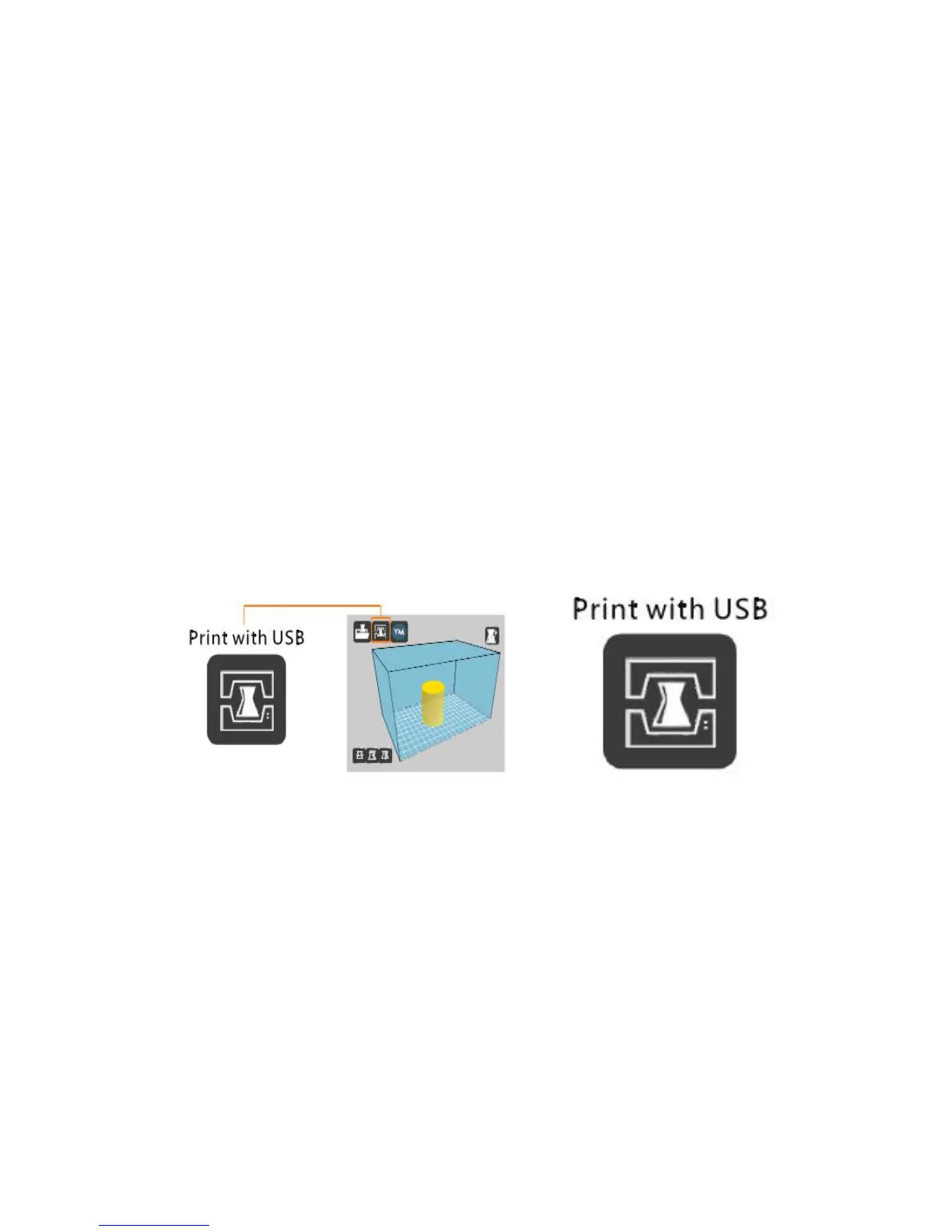
4. When “Print with USB” shows above the icon which in the right figure, it means
5. Following the Operation Guide in last chapter, load the model in this program, adjust the
slice parameters, when slicing finished, click “Print with USB”, printer will start heating,
printing, etc. automatically.
Firmware updates:
The factory has installed the latest firmware program before delivery, please do not easily
update the firmware unless there’s a need for maintenance and debugging.
1. As previously described, after the successful connection between computer and printer,
click the “Machine”(on the menu bar)
—
“Install custom firmware”, then select the file
“INSTONE*.*.*.hex”.
2. Wait for the progress bar of dialog box to complete and display "Done! Installed firmware:
INSTONE *. *. *. hex" to indicate that the update is successful.
3. Turn the printer off and on again. The firmware update is complete.


 To Next Page