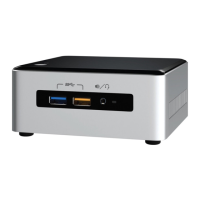
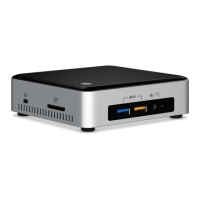
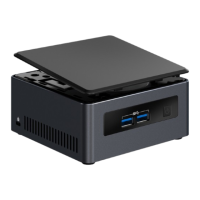
This document describes the MINISFORUM New Gen Mini Computer, a compact and versatile Stick PC designed for various computing needs.
Device Overview
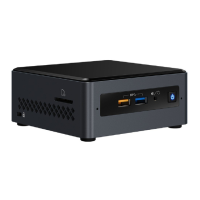
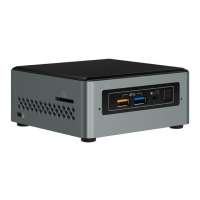
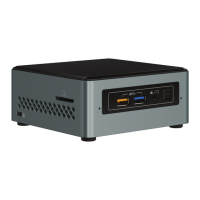
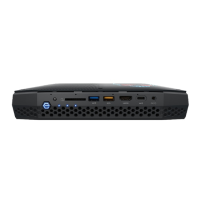
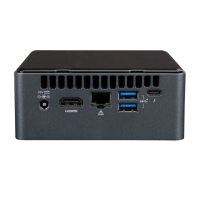
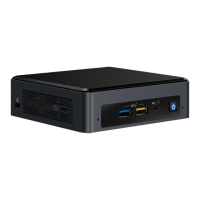
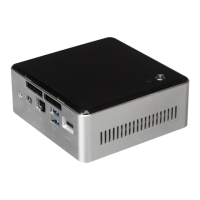
The MINISFORUM Stick PC is a highly portable mini-computer that connects directly to a display via HDMI or Mini DP. It is designed for ease of use, offering essential connectivity and performance in a small form factor. The device features a sleek, dark gray casing with ventilation grilles on the sides to ensure proper heat dissipation.
Key Features and Functions
1. Power Management:
The device is equipped with a power button (01) that allows users to power the Stick PC ON or OFF. It also supports a power-saving mode and a forced shutdown option by pressing the button for ten seconds. The Stick PC defaults to auto power-on when connected to a power source. If a forced shutdown occurs, the device can be restarted by unplugging and re-plugging the power adapter.
2. Ventilation and Cooling:
The Stick PC incorporates both air inlets (03) and heat outlets (04) to manage internal temperatures. These vents are crucial for drawing in cold air and expelling hot air, preventing overheating.
- Important Note: Users are advised not to block these vents with paper, books, clothing, transmission lines, or any other objects, as this can lead to overheating and potential damage to the device.
3. Connectivity Ports:
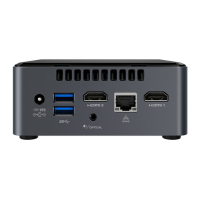
The MINISFORUM Stick PC offers a range of ports for versatile connectivity:
- USB 3.0 Gen 1 Port (05): Provides a high-speed data transfer rate of up to 5.0 Gbps, suitable for connecting peripherals like keyboards, mice, or external storage devices.
- TF Card Slot (06): A built-in card reader that supports Micro TF card data, allowing users to read and write data from memory cards.
- Mini DP Port (07): A Mini DisplayPort that supports display output at 4K@60Hz. It also transmits HD audio signals, making it suitable for connecting to various compatible devices such as set-top boxes, integrated amplifiers, digital audio systems, or televisions.
- HDMI Port (09): A High-Definition Multimedia Interface that provides an uncompressed, fully digitized audio/video signal. It serves as a common data connection channel for compatible devices like set-top boxes, integrated amplifiers, digital audio systems, or televisions.
- USB-C (Power Port) (10): This port is used to supply power to the Stick PC via the included power adapter. The power adapter converts AC power to DC power.
- Warning: The power adapter may become hot during use. Do not cover it or place it close to your body. Always use the supplied power adapter to prevent damage to the Stick PC.
- Kensington Lock (11): A security slot that allows connection to a locker, preventing theft of the Stick PC.
4. Reset Functionality:
The device includes a Reset Hole (08) that, when pressed and held for ten seconds while connected to power, restores the BIOS to its factory default settings. This feature can be useful for troubleshooting issues encountered during use.
Usage and Setup
1. Connecting to a Display:
The Stick PC can be connected to a display in several ways:
- Direct HDMI: Connect the HDMI Port of the Stick PC directly to the display.
- Mini DP: Connect the Mini DP Port of the Stick PC to the display using a DisplayPort cable.
- HDMI with Adapter: Connect the HDMI Port of the Stick PC to an HDMI adapter first, and then connect it to the display via an HDMI cable.
2. Connecting Peripherals:
Connect a keyboard and mouse to the USB 3.0 Gen 1 port to interact with the Stick PC.
3. Powering On:
After connecting the Stick PC to a display and peripherals, connect the power adapter to the USB-C power port. The Stick PC is designed for auto power-on by default.
Maintenance and Precautions
1. General Precautions:
- Read all instructions in the manual carefully before using the product.
- The system is installed as a clean version.
- Avoid using the product near water or heat sources.
- Ensure adequate space around the system for ventilation and never insert objects into the air vents.
- Use the product in environments with ambient temperatures between 5°C and 35°C.
- If using an extension cable, ensure that the total amperage of connected devices does not exceed the extension cable's rating.
- Maintain a minimum distance of 20cm between the product and your body during operation.
2. Care During Use:
- Do not step on the power cord or place anything on the Stick PC.
- Do not spill water or any other liquids on the product.
- Note that a small amount of current may still flow through the product even when it is turned off.
- Always unplug the power adapter before cleaning the product.
- If technical problems arise, unplug the power adapter and contact technical support or customer service.
Technical Specifications (Implied)
- Display Output: Supports 4K@60Hz via Mini DP and HDMI.
- Data Transfer: USB 3.0 Gen 1 with up to 5.0 Gbps.
- Power Input: DC 5V via USB-C.
- Operating Temperature: 5°C to 35°C.
- Address: 19H Maxgrand Plaza, No.3 Tai Yau Street, San Po Kong, Kowloon Hong Kong
- Website: http://www.minisforum.com
- Email for Technical Support: support@minisforum.com
- Forum: http://bbs.minisforum.com
Each Stick PC has a unique SN code located at the bottom of the product. This SN code is essential for after-sales support and can be used to exchange for a coupon code when upgrading equipment or accessories via the official website.

 Need help?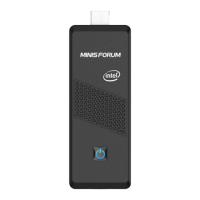

 To Next Page
 General