
 Need help?
Do you have a question about the Intel NUC11PHKi7C and is the answer not in the manual?
Essential precautions and guidelines to follow before starting installation, including safety and terminology.
Details specific warnings about sharp parts, hot components, and wiring during installation to prevent injury.
Emphasizes following instructions to prevent safety risks and ensure regulatory compliance with laws.
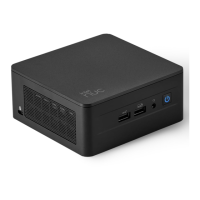
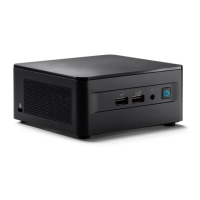
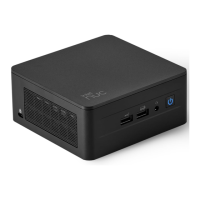
This document serves as a comprehensive user guide for the Intel® NUC 11 Enthusiast Kit (NUC11PHKI7C) and the Intel® NUC 11 Enthusiast Mini PC (NUC11PHKI7CAA). It provides detailed, step-by-step instructions for the installation, configuration, and maintenance of these compact computing devices. The guide emphasizes user safety, proper handling, and adherence to regulatory requirements throughout the installation process.
The Intel NUC 11 Enthusiast Kit and Mini PC are designed as versatile and powerful small-form-factor computers, suitable for a range of applications from everyday computing to more demanding tasks. These devices are built to offer a balance of performance and compact design, making them ideal for users who require robust computing capabilities in a space-saving footprint. The "Enthusiast" designation suggests a focus on users who may engage in activities requiring more processing power and graphical capabilities, such as gaming, content creation, or running multiple applications simultaneously. The Mini PC variant (NUC11PHKI7CAA) comes with a pre-installed SSD, offering an out-of-the-box solution for immediate use. The Kit variant (NUC11PHKI7C) provides a barebones system, allowing users to customize components like memory and storage to their specific needs. Both models support dual DDR4 SO-DIMM sockets, enabling flexible memory configurations up to 64GB, and accommodate dual 80mm and single 110mm M.2 SSDs for ample storage options. The inclusion of various power cord types or the option to purchase one separately highlights the global usability of these devices.
The user guide details several key usage features, starting with the initial setup and component installation. Users are guided through the process of opening the chassis, which involves unscrewing eight screws on the top cover and five screws on a metal plate, to access the internal components. This design facilitates easy access for upgrades or maintenance.
One of the primary usage features is the installation of system memory. The Intel NUC 11 Enthusiast models support 1.2V low voltage DDR4 SO-DIMMs at 3200/2666MHz, with a maximum capacity of 64GB and non-ECC support. The guide provides clear instructions for inserting memory modules at a 45-degree angle and pushing them down until the retaining clips snap into place, ensuring a secure connection. For single memory module installations, the guide advises using the upper memory socket. This flexibility in memory configuration allows users to tailor the system's performance to their specific workload requirements.
Another significant usage feature is the ability to change or install M.2 SSDs. The devices support both NVMe/SATA (M2_A) and NVMe-only (M2_B) M.2 slots, accommodating various SSD lengths (80mm and 110mm). The guide explains how to remove pre-installed SSDs, ensure the metal standoff is in the correct position for the desired SSD length, align the new SSD with the connector key, and secure it with a small silver screw. The NUC11PHKI7CAA model comes with a pre-installed Intel® Optane™ Memory H10 with Solid State Storage (512GB), offering a high-performance storage solution out of the box. The ability to customize or upgrade storage is a crucial feature for users who require specific capacities or performance characteristics.
The guide also covers the optional VESA bracket attachment, which allows the Intel NUC to be mounted to the back of a monitor or TV. This feature is particularly useful for creating a clutter-free workspace or for integrating the NUC into an entertainment system. The instructions detail using four small black screws to attach the VESA bracket to the monitor and two slightly larger black screws to the bottom chassis cover of the NUC, followed by sliding the NUC onto the mounted bracket. This mounting option enhances the versatility and discreet placement of the device.
Connecting power is another essential usage feature. The guide illustrates how to connect the power cord to the adapter, plug the power cord into a wall outlet, and then plug the power adapter into the NUC. The document specifies different power cord types (US, EU, UK, Australia/New Zealand, India, China) or the absence of one, indicating the global market reach and the need for region-specific power solutions.
Finally, the guide touches upon the installation of an operating system and device drivers. It directs users to "Supported Operating Systems" for a list of Intel-validated Windows* operating systems and "Operating System Installation" for system requirements and installation steps. This indicates that the NUC is designed to be highly compatible with standard operating systems, providing a familiar user experience.
Maintenance is addressed through several key instructions, primarily focusing on safe handling and component management. The guide begins with "Before You Begin" precautions, emphasizing the importance of disconnecting the computer from its power source and any network before performing any procedures. This is a critical safety measure to prevent personal injury or equipment damage, as some circuitry can remain active even when the power button is off.
Users are advised to follow all steps in the correct order and to create a log of computer information, including model, serial numbers, installed options, and configuration. This practice aids in troubleshooting and future maintenance.
Electrostatic discharge (ESD) prevention is a significant maintenance consideration. The guide warns that ESD can damage components and recommends performing procedures at an ESD workstation using an antistatic wrist strap and a conductive foam pad. If a dedicated workstation is unavailable, wearing an antistatic wrist strap and attaching it to a metal part of the chassis is suggested. This highlights the delicate nature of internal components and the need for careful handling.
The "Installation Precautions" section further details potential hazards to avoid injury, such as sharp pins on connectors and circuit boards, rough edges and corners on the chassis, hot components (SSDs, processors, voltage regulators, heat sinks), and damaged wires that could cause a short circuit. These warnings underscore the importance of careful physical interaction with the device during maintenance.
For memory module removal, the guide provides clear steps: observing precautions, turning off peripheral devices, disconnecting power, removing the chassis cover and metal plate, gently spreading retaining clips to release the module, lifting it by the edges, and storing it in an anti-static package. Reinstalling removed parts and reconnecting the power cord complete the process. These instructions ensure that memory can be safely removed and replaced for upgrades or troubleshooting.
After all components have been installed or maintained, the guide instructs users to close the chassis. Intel recommends doing this by hand with a screwdriver to avoid over-tightening and potentially damaging the screws. This detail emphasizes careful reassembly to maintain the integrity of the device.
Keeping device drivers current is another crucial aspect of maintenance for optimal performance and stability. The guide offers two options: using the Intel® Driver & Support Assistant (Intel® DSA) to automatically detect and update drivers, or manually downloading drivers, BIOS, and software from the Intel Download Center. A comprehensive list of available drivers is provided, including those for Chipset Device Software, Graphics (Intel® and nVidia® Discrete), Management Engine, Gigabit Ethernet, Wireless, Bluetooth, Realtek High Definition Audio, Intel® Rapid Storage Technology, Thunderbolt® Networking Driver, USB Type C Power Delivery, GNA Scoring Accelerator, ITECIR Infrared Receiver (EC), Realtek PCIE Card Reader, and Intel® Serial IO. This extensive list ensures that all aspects of the system can be kept up-to-date, preventing compatibility issues and enhancing overall system health.
In summary, the Intel NUC 11 Enthusiast User Guide provides essential information for both initial setup and ongoing care, ensuring users can effectively utilize and maintain their compact computing solution.



 To Next Page
 General