EasyManua.ls Logo

Intel STK1AW32SC - User Manual

Intel STK1AW32SC
5 pages
Print Icon
To Next Page IconTo Next Page
Loading...
No Boot or No Power Issues on Intel®
Compute Sticks
If you're unable to use the Online No Boot Wizard, try the manual troubleshooting steps below.
Manual Troubleshooting Steps
If your Intel® Compute Stick doesn't start properly, follow the troubleshooting steps below in
order.
Expand all
Click or the topic for details:
Step one: Check the power LED on the chassis and try the troubleshooting steps in the
table.Step two: If BIOS settings were changed, set them back to factory default values.Step
three: Determine if the boot problem is due to overheating.Step four: Identify errors when
starting the computer.Step five: Try a BIOS Recovery.Step six: Contact Intel Customer
Support for further investigation.
Bluetooth Not Working on Intel® Compute
Stick.
What are you seeing?
Unable to connect a Bluetooth device to the Intel® Compute Stick.
Environment:
Intel® Compute Stick STK1AW32SC
How to fix it:
If you're having issues with Bluetooth such as missing Bluetooth device or intermittent
connectivity, sometimes just powering down and powering back on may fix the issue.
Getting Blue Screen Errors during boot up
on Intel® Compute Sticks
Question and Answer IconNeed help?

Do you have a question about the Intel STK1AW32SC and is the answer not in the manual?

Summary

No Boot or No Power Issues on Intel Compute Sticks

Manual Troubleshooting Steps for Boot;Power Issues

Steps to manually troubleshoot boot or power issues on Intel Compute Sticks when the Online No Boot Wizard is unavailable.

Bluetooth Not Working on Intel Compute Stick

Unable to Connect Bluetooth Device

Troubleshooting intermittent Bluetooth connectivity or missing Bluetooth devices on the Intel Compute Stick.

Getting Blue Screen Errors during Boot Up

BSOD Errors DPC_WATCHDOG_VIOLATION and IRQL_NOT_LESS_OR_EQUAL

Diagnosing and fixing Blue Screen of Death errors, including DPC_WATCHDOG_VIOLATION and IRQL_NOT_LESS_OR_EQUAL during Windows boot.

Cannot Connect to Wireless Network

Wireless Connection Issues

Resolving problems where the Intel Compute Stick cannot connect to the internet via Wi-Fi.

Wi-Fi Connectivity Issue with Intel Compute Stick

Poor Signal and Signal Drop

Addressing wireless network issues like poor signal and random signal drops on Intel Compute Sticks.

Intel Compute Stick Loses Display After Use

Display Turns Off

Troubleshooting the Intel Compute Stick display turning off after several minutes or hours of use.

Troubleshooting Windows Issues

Windows 8.1 Apps Fail to Open

Resolving issues where Windows 8.1 apps on the Start screen fail to open.

Problem Refreshing or Resetting PC

Fixing errors encountered when refreshing or resetting Windows 8.1 on the Intel Compute Stick.

Windows Logon Screen Password Prompt

Addressing the Windows logon screen appearing with a password prompt for 'Other User' on first startup.

Overview

This document provides comprehensive troubleshooting steps and solutions for various issues encountered with Intel® Compute Sticks, covering problems related to booting, power, Bluetooth connectivity, Wi-Fi connectivity, display, and Windows* operating system errors.

Function Description

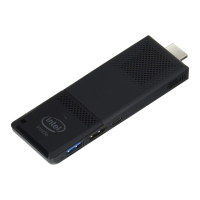
The Intel® Compute Stick is a compact computing device designed to transform any HDMI-enabled display into a fully functional computer. It offers a portable and convenient solution for various computing needs, from basic productivity tasks to streaming media. The document addresses common problems that users might face, ensuring the device operates as intended.

Usage Features

The document outlines several usage features and scenarios where troubleshooting might be necessary:

  • No Boot or No Power Issues: This section guides users through a systematic approach to diagnose and resolve issues where the Intel® Compute Stick fails to power on or boot correctly. It emphasizes checking the power LED, restoring BIOS settings to factory defaults if they were changed, assessing for overheating, identifying startup errors, and performing a BIOS recovery. These steps ensure that the device can be powered on and initialized for use.
  • Bluetooth Connectivity: The Intel® Compute Stick supports Bluetooth for connecting wireless peripherals such as headphones, keyboards, and mice. The document addresses common Bluetooth issues, including missing Bluetooth devices, intermittent connectivity, and problems with previously paired devices. It provides steps to check Bluetooth enablement in BIOS, install the latest drivers, and perform a BIOS recovery if necessary, ensuring seamless wireless peripheral connectivity.
  • Wi-Fi Connectivity: The device relies on Wi-Fi for internet access. The document details troubleshooting for Wi-Fi connectivity issues, such as inability to connect to a wireless network, poor signal, and random signal drops. It suggests updating the wireless networking driver and the BIOS to resolve these problems, ensuring reliable internet access for the device's functions.
  • Display Issues: Users might experience the Intel® Compute Stick losing display after a period of use. The document offers solutions such as trying different power adapters or displays, powering on with and without an HDMI extender, plugging the stick into another TV/monitor, updating graphics drivers, and performing a BIOS recovery. These steps aim to maintain consistent visual output from the device.
  • Windows Operating System Issues:* The Intel® Compute Stick runs Windows*, and users might encounter various OS-related problems, including Blue Screen Errors (BSOD) like DPC_WATCHDOG_VIOLATION and IRQL_NOT_LESS_OR_EQUAL, issues with Windows 8.1* apps, errors when refreshing or resetting Windows 8.1*, and unexpected logon screens. The document provides solutions like undoing recent software/hardware changes, repairing Windows, booting in safe mode to check for faulty drivers, scanning/repairing system files, updating BIOS, and performing a BIOS recovery. It also suggests resetting the system to factory defaults for logon screen issues.

Maintenance Features

The document highlights several maintenance features that users can perform to ensure the optimal performance and longevity of their Intel® Compute Stick:

  • BIOS Updates and Recovery: Regularly updating the BIOS is a crucial maintenance step that can resolve various hardware and software compatibility issues, improve stability, and enhance performance. The document frequently recommends performing BIOS updates and, in cases of severe boot problems, a BIOS recovery. This ensures the device's firmware is up-to-date and functional.
  • Driver Management: Keeping drivers, especially for Bluetooth, Wi-Fi, and graphics, updated is essential for smooth operation. The document advises users to install the latest drivers from the Intel Download Center to address connectivity and display issues. This proactive maintenance helps prevent common problems.
  • System File Checks and Repairs: For Windows* operating system issues, the document suggests scanning and repairing system files. This helps maintain the integrity of the OS and prevents errors caused by corrupted files.
  • Troubleshooting Methodology: The document promotes a systematic troubleshooting approach, starting with basic checks and progressing to more advanced solutions like BIOS recovery. This structured method helps users efficiently identify and resolve problems, minimizing downtime.
  • Overheating Prevention: The document mentions checking for overheating as part of the no-boot troubleshooting. While not explicitly detailing prevention, acknowledging it implies that users should ensure proper ventilation for the device to prevent thermal issues that could lead to performance degradation or hardware damage.
  • Factory Reset: For persistent Windows* issues, especially those related to initial setup or corrupted settings, performing a factory reset is recommended. This restores the system to its original state, often resolving complex software problems.
  • Customer Support: The document directs users to Intel Customer Support for further assistance if issues persist after attempting the provided troubleshooting steps. This ensures that users have access to expert help when needed, acting as a final maintenance resource.

By following these guidelines, users can effectively manage and maintain their Intel® Compute Sticks, ensuring a reliable and consistent computing experience.

Intel STK1AW32SC Specifications

General IconGeneral
ModelSTK1AW32SC
ManufacturerIntel
Frequency Band2.4 GHz, 5 GHz
Operating System SupportWindows 10
AntennaIntegrated