6
Make a Test Recording
Lift the telephone handset and dial a number. You will see the LCD indicate recording has started (handset icon in bottom left of LCD). If
you are connected to the telephone line, the LCD will show the digits you have dialed or the caller ID of the incoming call (dialed digits
and Caller ID is not available in Handset Mode).
At the end of the call, ensure the recorder has detected that the call has ended (this may take a few seconds if you are using Handset
Mode).
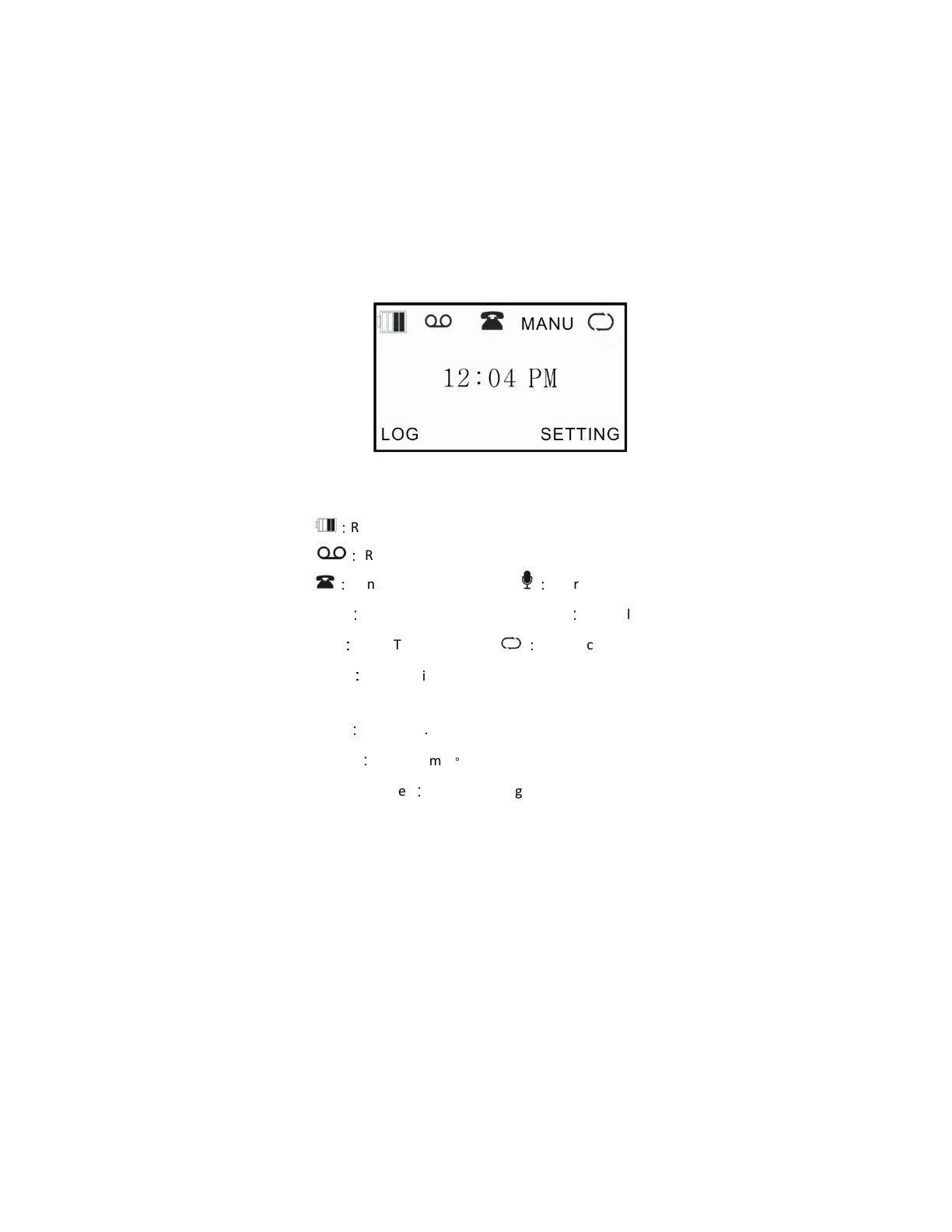
LCD Information
Call Assistant SD – LCD Menu
(A)Standby Mode
:
Remaining Battery capacity
:
Recording display (Flashes when recording
)
:
Handset recording mode
:
Microphone recording mode
Auto
:
Auto recording mode Manual
:
Manual recording mode
Trig
:
Voice Trigger mode
:
Loop recording mode
Time
:
System Time
(B)Talk Mode
Type
:
Incoming .Outgoing
Elapse
:
Talking time
。
Phone number
:
Incoming/Outgoing phone number
Playing Calls on the Call Assistant SD
To play calls on the speaker of the Call Assistant SD:
- Press Soft Key One <LOG>
- Use the Up and Down arrow keys to select the recording to play
- Press the Play button on the Call Assistant SD
A complete listing of menu options can be found in Appendix A
Manual Mode Recording
The Call Assistant SD is designed to automatically record all calls when used in both Line Mode and Handset Mode. To use the in
Manual Recording Mode:
- Press Soft Key Two <SETTING>


 To Next Page