7
- Press Soft Key One <OK>to select Recording
- Use the Down Arrow key to select Auto/Manual Rec and press <OK>
- Use the Arrow Keys to select Manual and press <OK>
The device will now operate in manual mode for line and handset connections. To begin recording press the Record key on the device,
to stop press the Stop key.
Room/Memo Recording
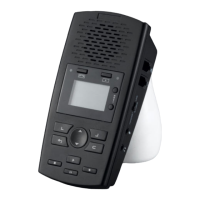
The Call Assistant SD can be used to record memo dictation or room recording using the built in microphone. To use this feature:
- Move the slide selector swith on the side of the Call Assistant SD to the MIC position
- Press the RECORD button
- To stop the recording – press the STOP button
- To record from your telephone – move the selector switch back to the PHONE position
- The recordings can be played on the Call Assistant SD or on the PC software included.
-
Xtr Desktop Software
Call Assistant SD – PC Software (provided on CD included)
The CD provided with your Call Assistant SD contains a software application to allow you to play the calls created with your Call
Assistant SD using your PC.
To load the software, insert the CD into your PC and follow the instructions to “Install PC Software”.
To Use the Software :
Connect your Call Assistant SD to your PC using the USB Cable provided (note: the device will not record when connected to the USB
cable)
OR
• Power off the SD Recorder by unplugging from the AC Adapter
• Remove the SD card from the player and insert the card into your PC.
Then:
• Start the Call Assistant SD player application by double clicking the icon that was created on your desktop.
When you start the application it will either find the Call Assistant SD connected to the USB cable or it will find the SD card on your pc
and will provide a listing of your calls.


 To Next Page