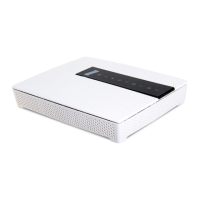
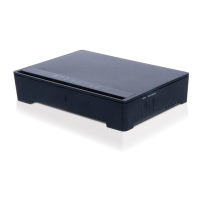
How to place your EX400:
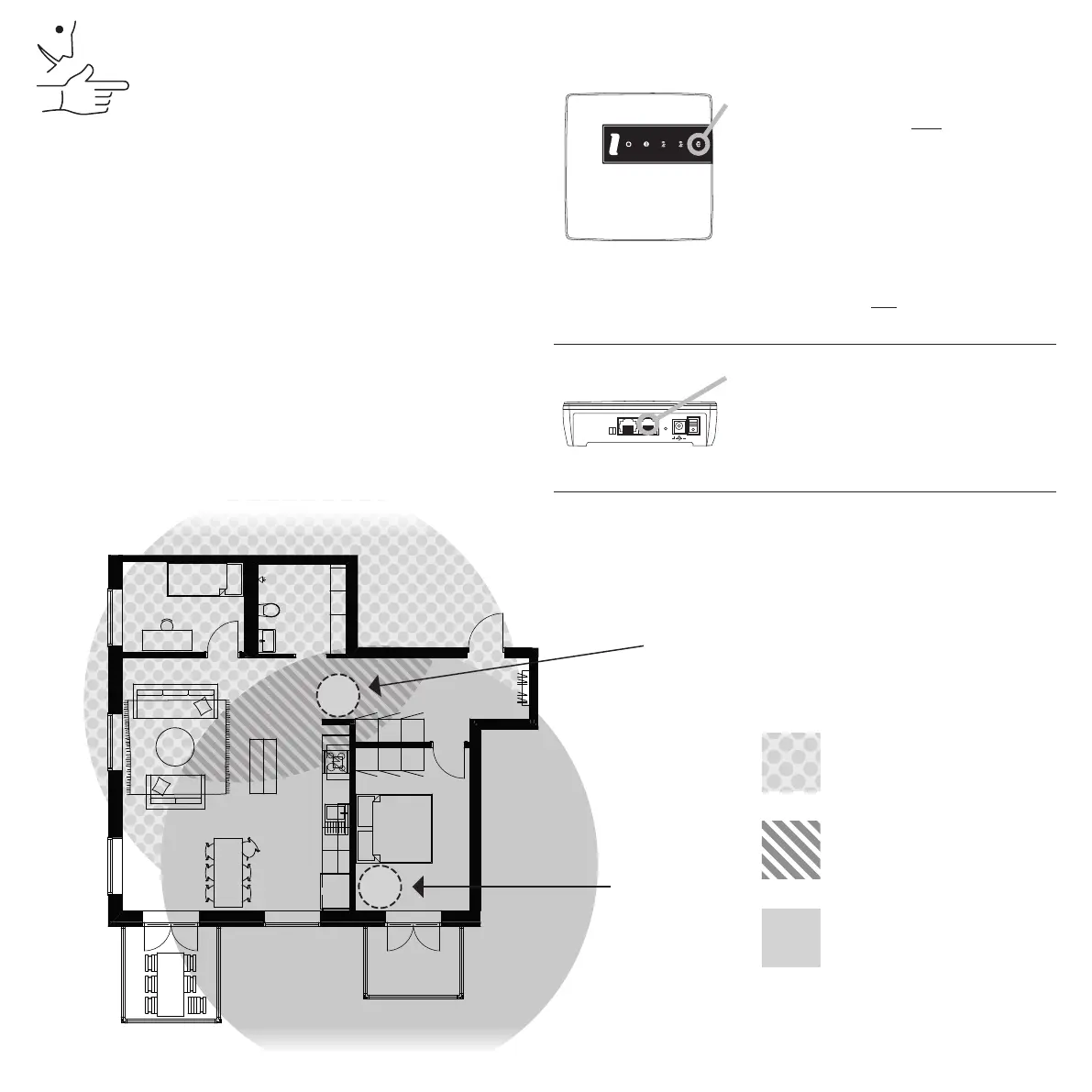
Problem area,
improved by EX400
Area that is good
for placing EX400
Area covered
by your router
Router / Access Point (cable connection)
EX400 can be used as a router if congured as
such. Connect EX400 WAN to your Internet service
provider outlet.
One device,
three possibilities:
EX400
ROUTER
For more information, please visit
www.intenogroup.com/ex400
The wireless way:
EX400: Press and hold the WPS icon
until the LEDS starts blinking. Then
release and wait until only the WPS LED
starts blinking.
Your router: Press WPS. The installation
process is now in progress. It will take
1-2 minutes to complete. When the
”Broadband” LED is yellow it means that
WPS pairing was successful and your
EX400 is connected to your router with
the same name (SSID) and password as
your router has. But if ”Broadband” is
still black, you must try again.
With your PC:
Connect your PC to the LAN of EX400.
Do not connect any cable on WAN of
EX400. Start your web browser and type
the addre s s ht tp://192.168.1.1 ,
- a guide will show conguration options.
WAN
RESET OFF
ON
LAN
Installation
Repeater (wireless connection)
Place the EX400 in a good place (as shown below).
The EX400 now works as a repeater.
Extender (cable connection)
Place the EX400 in a good place (as shown below).
Connect the EX400 with an ethernet cable to your
router. Put the cable in one of the LAN ports in your
router and the other in the WAN port of EX400. This
setup gives you the best performance.
Other installation options may be supported Please
check www.intenogroup/ex400 for latest updates.
WIFI:
WIFI:



 To Previous Page
 Loading...