Titan DPOAE Operating Manual Page 8
5. Switch the Titan on by pressing the or button.
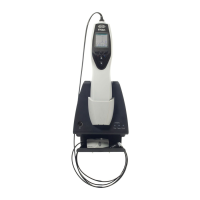
6. Check if the Titan is correctly connected to the PC through correct placement in the cradle
or direct connection using a USB cable.
For further instructions about working with the database, please see the operation manual for
OtoAccess™.
2.3 Starting from Noah3
The functionality of the Titan Suite differs when running from Noah3 in comparison to running from
OtoAccess™. When running from Noah3 you are only able to upload the selected client details to
the Titan (one patient at a time). In addition, when you are downloading sessions to the database
you can only download sessions to the patient which has been selected in Noah3.
To start the Titan Suite from Noah3:
1. Open Noah3
2. Search for and select the patient you want to work with. The screen will change to show
the saved sessions of the selected patient.
3. If the patient is not yet listed:
- press the New client button
- fill in the required fields and click on Work with Client
4. Open the Module selection dialog box, enter the Measurement tab and double click on
the Titan Suite icon.
Now the Titan Suite will open and automatically search for the hardware. If it does not detect the
hardware a dialog box pops up and asks if you want to run the Titan Suite in Simulation mode. To
continue with the use of the hardware:
5. Switch the Titan on by pressing the or button.
6. Check if the Titan is correctly connected to the PC through correct placement in the cradle
or direct connection using a USB cable.
For further instructions about working with the database, please see the operation manual for
Noah3.


 To Next Page
 Loading...