Titan DPOAE Operating Manual Page 9
2.4 PC Controlled Operation via Bluetooth
Instead of using a USB connection with the Titan you are able to make PC operated
measurements while connecting via Bluetooth. In order to do so, first make sure that your PC
allows the use of Bluetooth and that it is switched on.
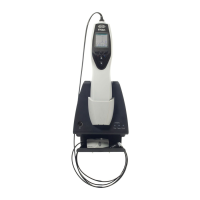
Secondly, check that your Titan is setup to use its Bluetooth for connecting to a PC (and not to a
printer). This is done by switching on the hand held unit and pressing Protocol | My Titan | Titan…
Item Bluetooth connection should be set to “PC”.
Now start up the Titan Suite without having the Titan connected via a USB cable. The message
below will pop up and the software will automatically start searching for Bluetooth devices. As soon
as a Titan is found it will show a button with its serial number (which can be viewed from the
Protocol | My Titan | Setup | License… screen). Press the button to initialize the Bluetooth
connection.
With a proper Bluetooth connection the message disappears and the Titan will show “PC
Controlled” on its screen.
If the button grays out after pressing it, check the following:
- Is your Titan within a reasonable range of your PC?
- Is your Titan still switched on?
- Does your Titan match the serial number?
- Is the Titan setup to use its Bluetooth for a PC connection (instead of a printer)?
For further instructions on setting up a Bluetooth connection, please refer to the User Guide at the
end of the Titan Setup and Installation Manual.


 To Next Page
 Loading...