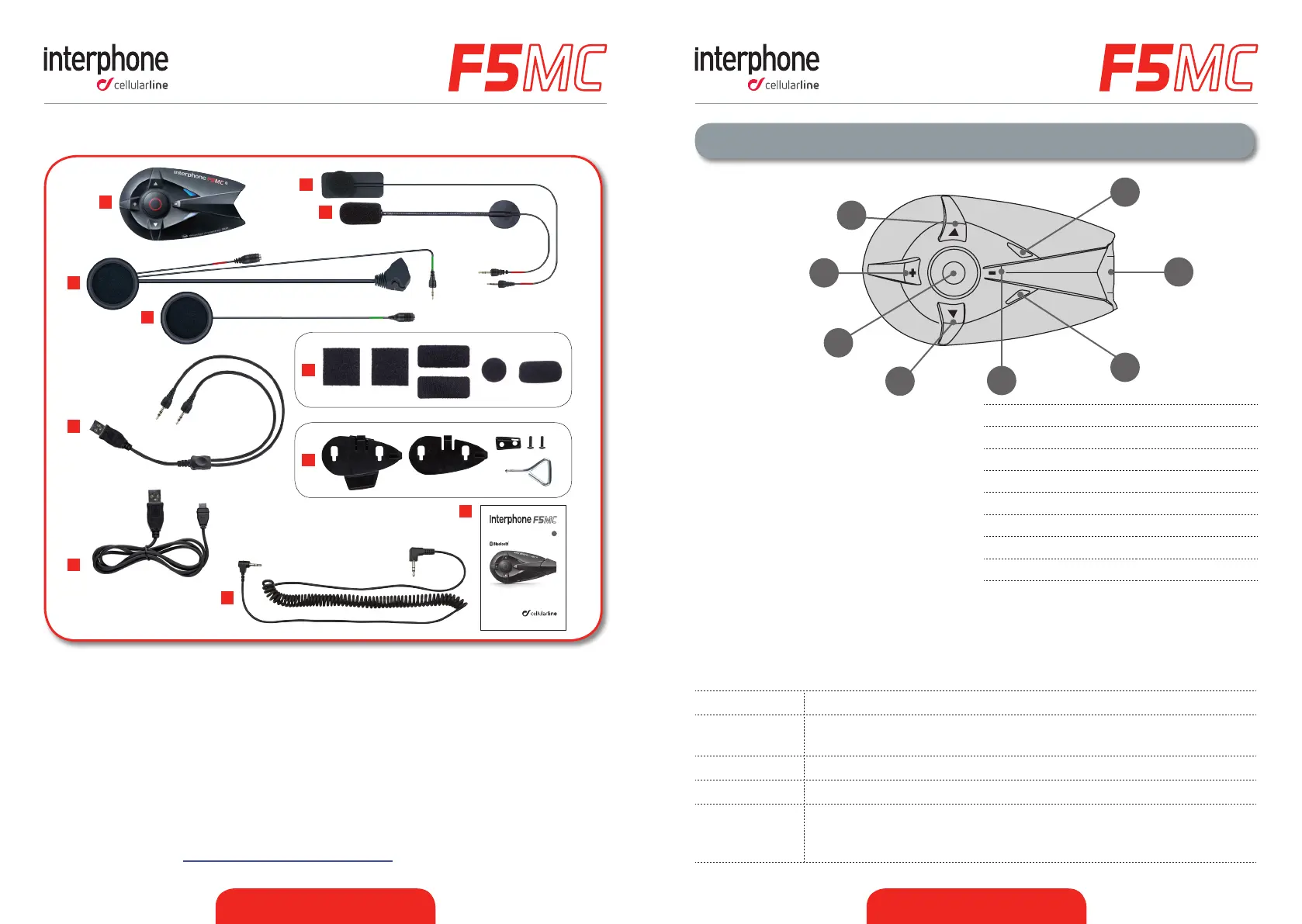
1
3
7
5
6
8
2
4
www.interphone.cellularline.com
GUIDA RAPIDA
IT
GUIDA RAPIDA
IT
SI CONSIGLIA DI VERIFICARE LA PRESENZA
DI AGGIORNAMENTI SOFTWARE SUL SITO
WWW.INTERPHONE.CELLULARLINE.COM
A
B
C
D
E
H
I
K
J
F
G
ENGLISH - 5 ENGLISH - 6
2 – Geng Started
Pic.2
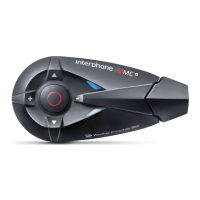
(1) MFB buon
(2) UP buon
(3) DOWN buon
(4) Volume + buon
(5) Volume - buon
(6) Blue led
(7) Red/Green/Orange led
(8) Connector
2.1 Main Commands (Pic.2)
Power on Press MFB buon (1), led (6) ashes.
Power o
Press and hold MFB buon (1) unl you hear “Interphone powering
down” message. Led (7) ashes red for few seconds.
Volume Press buons (4) to increase or (5) to decrease.
Mute Press buon (5) for about 2 seconds.
Menu
Press buons (2) or (3) to scroll the menu items. Press MFB buon
(1) to select an item. Once selected a menu item, you come back to
“INTERCOM” menu (Standby)with a short press of MFB buon.
A. Bluetooth® unit
B. Microphone for full face helmet
C. Microphone for Jet/ip up helmet
D. Le speaker
E. Right speaker
F. Velcro set for speaker/mic + spare POP
wind protecon
G. Fixing plates + screwdriver
H. USB charging cable
I. USB data cable
J. Quick guide
K. Aux stereo jack cable
Please refer to quick guide for installing F5MC on your helmet, provided in the box (can
be also downloaded from Interphone website) , otherwise you can also check video
TUTORIAL on website www.interphone.cellularline.com.
1.3 Box contents
Pic.1


 To Next Page