ENGLISH - 11 ENGLISH - 12
4.1.2 Pairing with an INTERPHONE unit (not MC).
With your unit in Standby mode (led BLUE (6) ashing):
1. press once the UP(2) buon and then press once the MFB (1) buon to acvate
the “SETUP” menu.
2. Press three mes the UP(2) buon to select “INTERCOM DEVICE SEARCH” feature,
press the MFB (1) unl the beep to start the search.
3. On the second Interphone unit (previous series not “MC”), with unit o, push and
keep pressed the MFB buon unl the alternate ashing red/blue of unit led.
4. Aer few seconds the units will be paired, intercom connecon will be
automacally started (led BLUE (6) on). To stop the intercom communicaon press
once MFB (1) buon on one of the two units.
4.1.3 Pairing with units not Interphone (other brands) - ANYCOM
With your unit in Standby mode (led BLUE (6) ashing):
1. press once the UP(2) buon and then press once the MFB (1) buon to acvate
the “SETUP” menu.
2. Press four mes the UP(2) buon to select “ANYCOM SEARCH” feature, press the
MFB (1) unl the beep to start the search.
3. On the second unit NOT Interphone start the “phone search/phone pairing mode”,
see user manual of NOT Interphone unit for more details.
4. Aer few seconds the units will be paired, intercom connecon will be
automacally started (led BLUE (6) on). To stop the intercom communicaon press
once MFB (1) buon on your F5MC unit.
4.2 Intercom communicaon between two units (from “INTERCOM” menu)
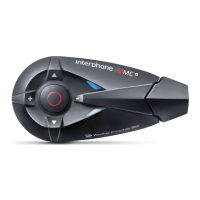
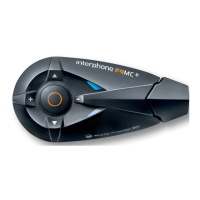
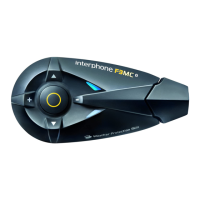
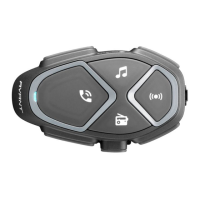
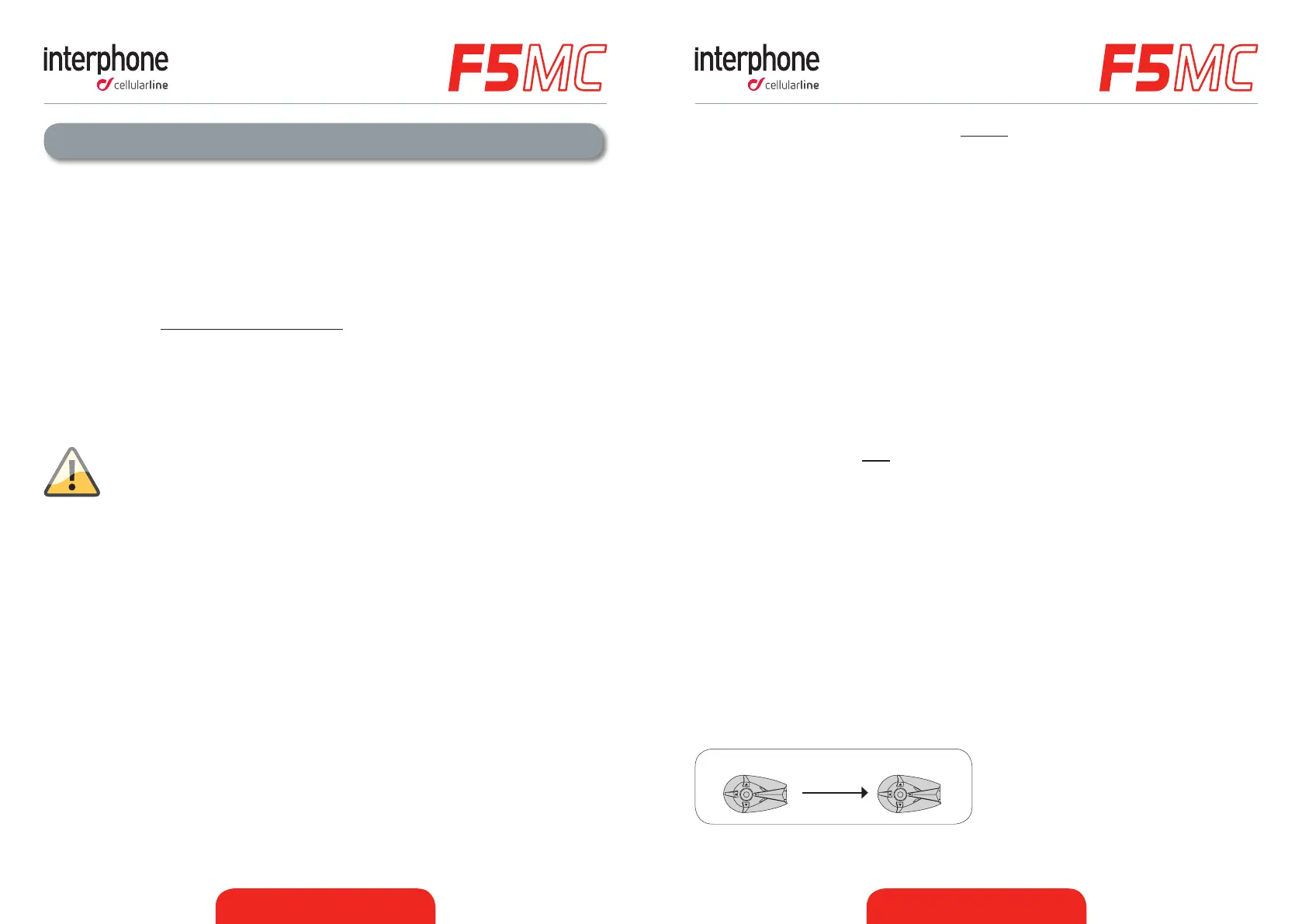
To start an intercom communicaon between your F5MC (unit nr1 Pic. 4) and another
one (unit nr2 Pic. 4) follow these steps:
1. Pair units 1 and 2 (chapters 4.1.1/4.1.2/4.1.3), this is necessary only once.
2. With your F5MC unit in Standby mode (led BLUE (6) ashing), press once the MFB
(1) buon, connecon will be started. The vocal guidance will prompt a message for
intercom acvaon, BLUE (6) led of F5MC units will lights up. To stop the intercom
communicaon press once MFB (1) buon on your F5MC, both units will go in
Standby mode.
1 2
Pic.4
4 – Intercom
F5MC allows intercom communicaon (INTERCOM) between mulple devices in
conference mode (people speak at the same me).
4.1 Pairing
Before starng the communicaon between headsets, is necessary to pair together the
units. This process has to be done only one me. F5MC will automacally recognize devices
previously paired.
F5MC is compable with all range of INTERPHONE device (also previous series) and by
ANYCOM funcon is also compable with other brands of helmet Bluetooth headsets.
Each F5MC can be paired to maximum two other units. To set the conference communicaon
between 3 and 4 users follow instrucon of Chapters 4.3/4.4.
If a F5MC unit has been paired with two dierent units, running a third
pairing, with another unit, will delete the pairing with rst unit.
4.1.1 Pairing with an INTERPHONE MC unit
With both units in Standby mode (led BLUE (6) ashing):
1. On your F5MC unit press once the UP(2) buon and then press once the MFB (1)
buon to acvate the “SETUP” menu.
2. Press three mes the UP(2) buon to select “INTERCOM DEVICE SEARCH” feature,
press the MFB (1) unl the beep to start the search.
3. On the other unit (F5MC or F4MC or F3MC) press UP(2) buon and then press once
MFB (1) buon to acvate the “SETUP” menu.
4. Press UP(2) buon two mes, the second MC unit will go in “PAIRING MODE”.
5. Aer few seconds the units will be paired, intercom connecon will be automacally
started (led BLUE (6) on). To stop the intercom communicaon press once MFB (1)
buon on one of the two units.


 To Next Page
 Loading...