ENGLISH - 13 ENGLISH - 14
4.4 Intercom communicaon between four units (from “INTERCOM” menu)
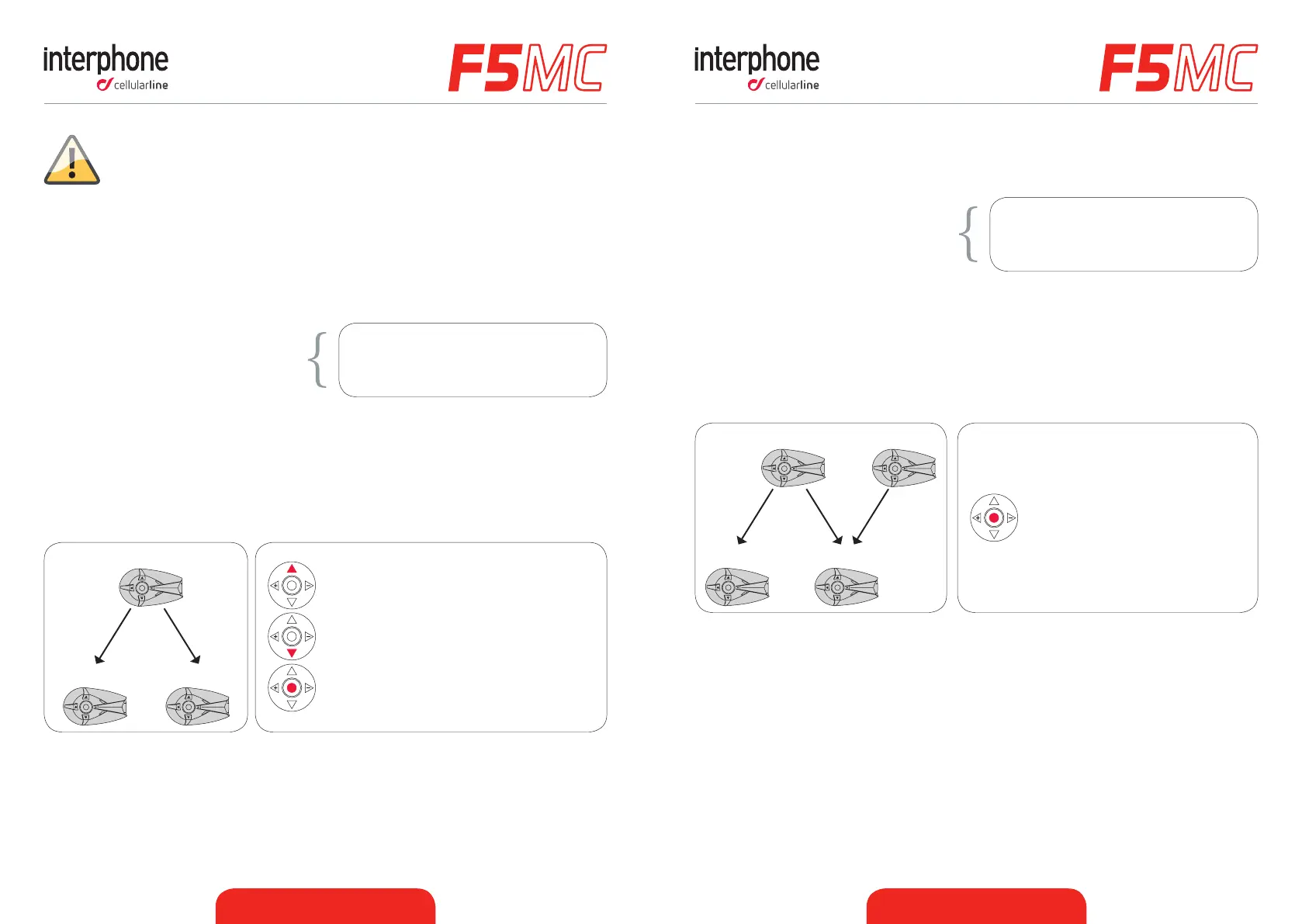
To start an intercom communicaon between your F5MC (unit nr1 Pic. 7) and other three
units (units nr2,3 and 4 Pic. 7) follow these steps:
1. Pair units nr1 with nr2 (Pic.7)
2. Pair units nr1 with nr3 (Pic.7)
3. Pair units nr4 with nr3 (Pic.7)
Chapters 4.1.1/4.1.2/4.1.3 for more details on
pairing Interphone MC / Interphone previous
range / non Interphone devices.
Pairing procedure is necessary only once.
4. Follow the chart shown in Pic.8 to start intercom conference.
5. When connecon has been started the vocal guidance will prompt a message for
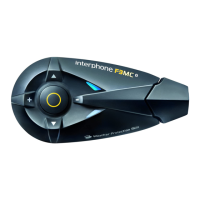
intercom acvaon, BLUE (6) led of F5MC units will light up.
6. To stop the intercom conference press twice MFB (1) buon on unit nr1 (Pic.7): the
rst press will disconnect unit nr1 from unit nr2, the second press will disconnect
nr1 from unit nr3. Press then MFB (1) buon on unit nr4 (Pic.7) to disconnect unit
nr3 from unit nr4. All units will go in Standby mode.
1 4
2 3
1. Push MFB (1) once to
connect units 1+2+3 (Pic.7) in
conference mode.
2. Push MFB (1) once on unit
nr4 (Pic.7) to connect unit
nr4 to other units 1+2+3 in
conference mode.
Pic.7 Pic.8
4.5 Intercom auto-reconnecon
● When your F5MC unit is over the communicaon range, connecon hangs. F5MC
will try to recover the connecon for 30 minutes. Within this me interval, if F5MC
unit will come again into communicaon range, connecon will be automacally
resumed.
● During reconnecon aempts, a double-beep will be generated, as a reminder that
unit is aempng to reconnect.
● Aer 30 minutes, if reconnecon fails, F5MC will go in Standby mode, stopping
reconnecon aempt.
● If you need to stop reconnecon aempt, press MFB (1) buon on your F5MC unit.
Aenon: during intercom acvaon in your F5MC unit, will be prompted
the message “intercom connecon failed” and aer “Intercom acve,
press center buon to disconnect” . This is ok, because only one intercom
channel has been acvated.
4.3 Intercom communicaon between three units (from “INTERCOM” menu)
To start an intercom communicaon between your F5MC (unit nr1 Pic. 5) and other two
units (units nr2 and 3 Pic. 5) follow these steps:
1. Pair units nr1 with nr2 (Pic.5)
2. Pair units nr1 with nr3 (Pic.5)
Chapters 4.1.1/4.1.2/4.1.3 for more details on
pairing Interphone MC / Interphone previous
range / non Interphone devices.
Pairing procedure is necessary only once.
3. Follow the chart shown in Pic.6 to start intercom conference.
4. When connecon has been started the vocal guidance will prompt a message for
intercom acvaon, BLUE (6) led of F5MC units will lights up.
5. To stop the intercom conference press twice MFB (1) buon on unit nr1 (Pic.5): the
rst press will disconnect unit nr1 from units nr2, the second press will disconnect
nr1 from unit nr3. All units will go in Standby mode.
1
2 3
Push UP (2) unl the beep to connect
ONLY units nr1+nr3 (Pic.5).
Push DOWN (3) unl the beep to connect
ONLY units nr1+nr2 (Pic.5).
Push MFB (1) once to connect all units
1+2+3 (Pic.5) in conference mode.
Pic.5 Pic.6


 To Next Page
 Loading...