10 11
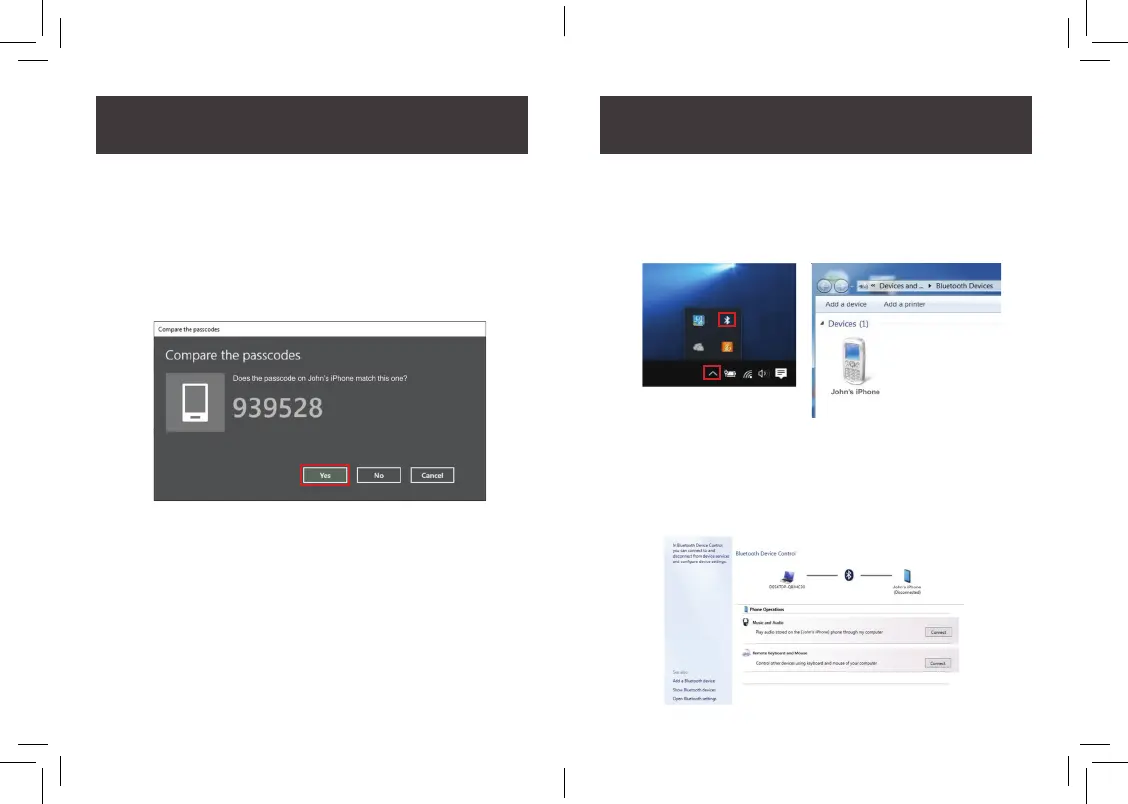
11. Turn on the Bluetooth device that you would like to be
discovered and connected and select the Bluetooth device
you wish to connect and click “next”. Compare the
auto-generated pin code on the screen with the Bluetooth
device that you are trying to connect. If the pin code is
correct, accept/authorize the connection from your
Bluetooth device. Click on “Yes” to complete the Bluetooth
pairing process.
12. At this point, the installation of the new Bluetooth is now
completed. Click on the upper arrow on the lower right
corner of your application trays. Select the Bluetooth icon
and click the Bluetooth device you wish to manage
or congure.
*Please note: Some devices may not require any passcode to connect. In
case your Bluetooth devices does not require a password, please proceed
to the next step.
13. If you are able to see the Bluetooth device (in this case the
iPhone6), double click on the devices that you wish to
congure. Depending on the type of Bluetooth device you
are connecting, different tab option will appear for your
conguration needs.


 To Next Page