20
Step 4
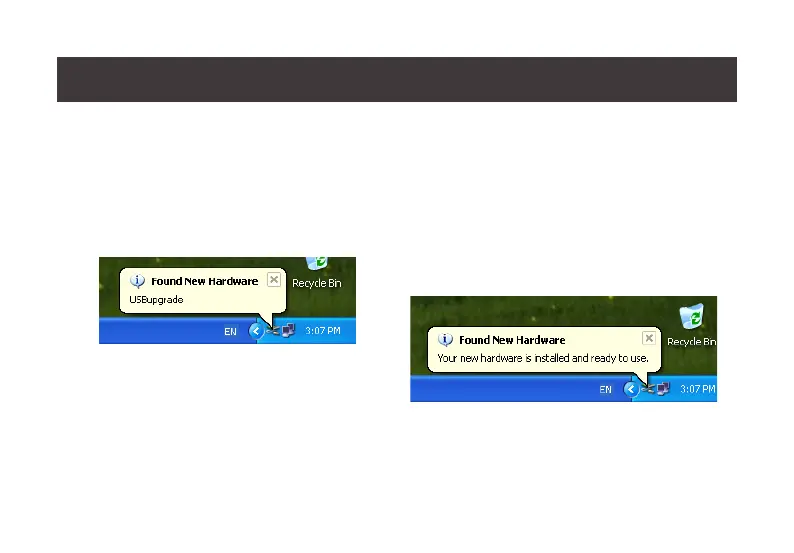
Windows will now install all the required drivers.
You may see the below message popup in tray
icon area.
Step 5
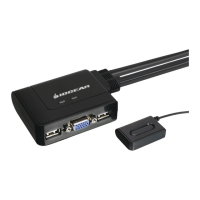
After you see the below message “Your new
hardware is installed and ready to use.”, extract
the downloaded le with WinRAR or compatible
software. Then double click on the execute le to
begin with the Firmware Upgrade Utility.


 To Next Page