19
Firmware Upgrade
Note: In order to perform a rmware upgrade, you
need to use a computer that’s not connected to
the KVM.
Step 1
Go to www.iogear.com to download the latest
available rmware or the specic rmware that you
wish to upgrade to.
Step 2
Please disconnect all computers from the KVM.
Step 3
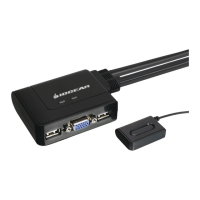
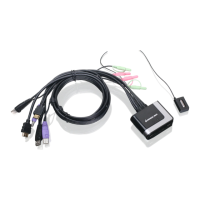
Press and hold the remote switch button of the
KVM while connecting the 2 USB connections of a
set of KVM cable to the computer that you will use
to perform the rmware upgrade. When you see
the 2 LEDs are ashing on the KVM, you can now
release the remote switch button.
Note: The computer that you use to perform the
rmware upgrade must be powered on be before
you connect the 2 USB connections to it.


 To Next Page