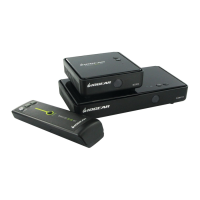
The IOGEAR GWAVRC Wireless Screen Sharing kit is designed to allow users to wirelessly display content from their smart devices or Windows 10 computers onto a larger screen such as an HDTV, HD projector, or HD display. This device enables the enjoyment of personal and online content, including movies, videos, photos, and online shows, in Full HD 1080p resolution with good image clarity and sound.
Function Description:
The primary function of the IOGEAR GWAVRC is to act as a wireless A/V receiver, facilitating screen mirroring from Miracast™ certified devices. It allows users to send their favorite videos, photos, music, and internet content wirelessly from a Smart Phone, Tablet, or Laptop to a connected HDTV, HD Projector, or HD Display. This makes it an ideal solution for sharing PC content wirelessly in various environments like home, office, or classroom settings.
Important Technical Specifications:
- Model Name: GWAVRC
- Part Number: Q1542-c
- Video Resolution Support: Full HD 1080p video resolution playback.
- Compatibility:
- Operating Systems: Windows® 10.
- Smartphones and Tablets: Wi-Fi Miracast™ certified devices, Samsung Phones and tablets with Smart View, Windows® 10 or later PCs and tablets.
- Display: HDTV or Projector with an HDMI port.
- Incompatibility: This product will not work with Android 6 (Marshmallow) and above, or Apple iOS & Mac OS.
- PC (Minimum Requirements):
- Processor: Intel Core i5 4th Gen or AMD Phenom II X4 equivalent or newer.
- Memory (RAM): 8GB or more of system memory.
- Networking: Wireless networking capability.
Usage Features:
The GWAVRC is designed for straightforward setup and use.
Hardware Installation:
- Connect one end of the included HDMI Cable into an available HDMI input on your HDTV or HD Projector.
- Connect the other end of the HDMI cable to the HDMI port on the Wireless A/V Receiver.
- Plug the Micro USB end of the Power Cable into the USB-Micro B power port on the Wireless A/V Receiver.
- Plug the other end of the USB Power Cable into the USB Power Adapter included in the package. Then plug the USB Power Adapter into an available power outlet.
- The Power LED on the receiver will light solid blue, indicating it's powered on.
- Turn on your TV or projector and select the correct video input. The IOGEAR flash screen will appear, displaying the device name (e.g., IOGEAR-xxx) on the top left.
Connecting with Samsung Tablets and Phones (SmartView):
- On your Home screen, swipe down from the top to reveal a menu.
- Select "Smart View" from the menu.
- Your device will search for the Wireless A/V Receiver.
- Once the receiver (e.g., IOGEAR-6F4853) appears, tap on it to connect.
- After initiating the connection, wait a few seconds for the device to establish a "sync" with the wireless receiver. A black screen will display on both the TV and your device, indicating a successful connection.
- Once connected, a mirror image of your mobile device's screen will be displayed on the big screen TV.
- To disconnect, either turn off your device or swipe down on the screen again, click "Smart View" again from the Display options screen, which will disconnect the phone from the display.
Connecting with Windows® 10 Computers:
- On your Windows® 10 computer, press the Windows® key + “p” or go to "Setting" and choose “Display”.
- Look for the option "Connect to a wireless display". If this option is present, your computer is Wi-Fi Direct ready.
- Click on "Connect to a wireless display". Windows® will search for the GWAVRC (named IOGEAR-xxxx).
- Click on the name IOGEAR-xxxx to initiate the connection. After a few seconds, the TV or projector will mirror your Windows® 10 computer's screen.
- Once connected, the screen will indicate that the connection is established. You can click "Disconnect" to stop mirroring.
- Alternate Disconnection Method for Windows 10: Click "Disconnect" from the drop-down menu at the top of your screen. To hide/unhide this menu, click the pin icon or move your mouse pointer to the top of the screen.
- Alternate Connection Method for Windows 10: Click on "Message" at the bottom right of your screen, then "Expand", and then "Project". From the "Project" menu, select how you want to connect (e.g., "Duplicate", "Extend", "Second screen only") and click "Connect to a wireless display". Then select the IOGEAR-XXXX device to connect.
Receiver Overview (Physical Features):
- A. Power LED: Indicates the power status of the device (solid blue when powered on).
- B. HDMI Out (to TV): Port for connecting to the HDTV or HD Projector via an HDMI cable.
- C. Firmware upgrade Switch: Used for potential firmware updates.
- D. USB Micro-B Power Port: Port for connecting the Micro USB Power Cable to power the device.
Maintenance Features:
- Firmware Upgrade Switch: The presence of a firmware upgrade switch suggests that the device's software can be updated, potentially adding new features, improving compatibility, or fixing bugs. This allows for future-proofing and continued optimal performance.
- Warranty: The product comes with a 1 Year Limited Warranty. Users can register online at https://www.iogear.com/register for warranty support.
- Support: IOGEAR provides customer support through their website (www.iogear.com), live help and product support (www.iogear.com/support), and a dedicated support email (support@iogear.com). This ensures users can get assistance with setup or troubleshooting.

 Need help?

 To Next Page
 General