Always
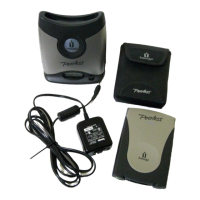
store Peerless disks in their protective cases when they are not inserted in the base station.
Always
remove the disk from the base station before moving the Peerless drive system.
CAUTION!
To prevent damage or data loss, never drop the Peerless disk.
Replacing a Label on a Peerless Disk
Peerless disk labels can easily be removed and replaced. Simply slide the label out from underneath the
bubble window on the top end of the disk. Then slide a new label in the same way.
Backing Up with Peerless Disks
It's important to always keep current backups of your valuable data—whether the primary data is stored on
your hard drive or Peerless disks! You can use Peerless disks to back up both.
The easiest way to back up important data files stored on your hard drive is to use Iomega Backup or
QuikSync
™
(available from Iomega). You can also use your system's standard procedures.
l
On a Mac
®
, you can drag and drop files from any folder on your
Desktop
to the Peerless drive system.
l
In Windows
®
you can use
My Computer
or
Windows Explorer
to select files or folders from your hard
drive and drag-and-drop them to your Peerless drive system.
One advantage of copying files directly to your Peerless drive system is that you can access them easily any
time you need them without having to run a restore procedure.
NOTE:
PC Users Only—
An individual file that is 4 GB or larger cannot be copied to a Peerless disk due to
the FAT 32 file format constraints. If you have a file that is 4 GB or larger, try using a compression utility to
make the file smaller. If you can compress it to less than 4 GB, you will be able to copy it to the Peerless disk.
| top of page |
Read/Write Protecting Peerless Disks
IomegaWare software includes a special read/write protect feature that allows you to:
l
Write Protect
a disk through software instead of with a mechanical write protect switch.
l
Write Protect
a disk and assign a password so that no one can add, edit, or delete files without
entering the password first.




 To Next Page