Mac OS Users
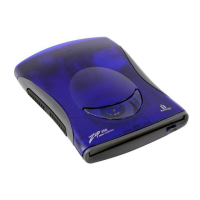
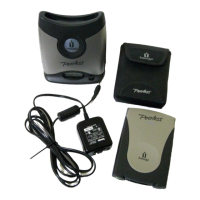
1. Insert the disk you want to format into your Peerless base station.
2. Open the
IomegaWare
folder on your Mac hard disk, then open the
Tools
folder and double click the
Tools
icon.
3. In the main
Tools
window, click on the icon for the disk you want to erase.
4. Select the
Erase Disk
tool.
5. Use
Short Erase
if you want to quickly erase all data on a disk so you can reuse it. Use
Long Erase
you are formatting a disk where you have forgotten the password, or if you need to repair a disk that
has developed read/write errors due to bad sectors. Use either option to change the format type from
PC to Mac.
6. Click
Erase
to start formatting the Peerless disk.
| top of page |
Windows PC Users
1. Insert the disk you want to format into your Peerless base station.
2. Right mouse click on the Peerless icon in
My Computer
or
Windows Explorer
.
3. Select
Format
from the drive shortcut menu.
4. Choose the format type:
5. Use
Short Format
if you want to quickly erase all data on a disk so you can reuse it. Use
Long
Format
if you are formatting a disk where you have forgotten the password, or if you need to repair a
disk that has developed read/write errors due to bad sectors. Use either option to change the format
type from Mac to PC.
6. Click
Start
to start formatting the Peerless disk.
| top of page |
Using Peerless Disks Cross-Platform




 To Next Page